Create, rotate, and revoke an API key
A program needs access, a key should be replaced on a regular schedule, or one has gone missing.
5 minute readDevelopersUpdated: 10/25/2026
On this page
Before you start
- For
- Anyone who issues or replaces access for a program of their own.
- Prerequisite
- To issue and rotate keys, the permission Create API keys. To open the row menu and to revoke, Revoke API keys. To see other people’s keys, List API keys. Revoking depends neither on the package nor on the permission to issue. Existing keys keep working. Issuing or renewing keys is possible from the Premium package.
- Where in the portal
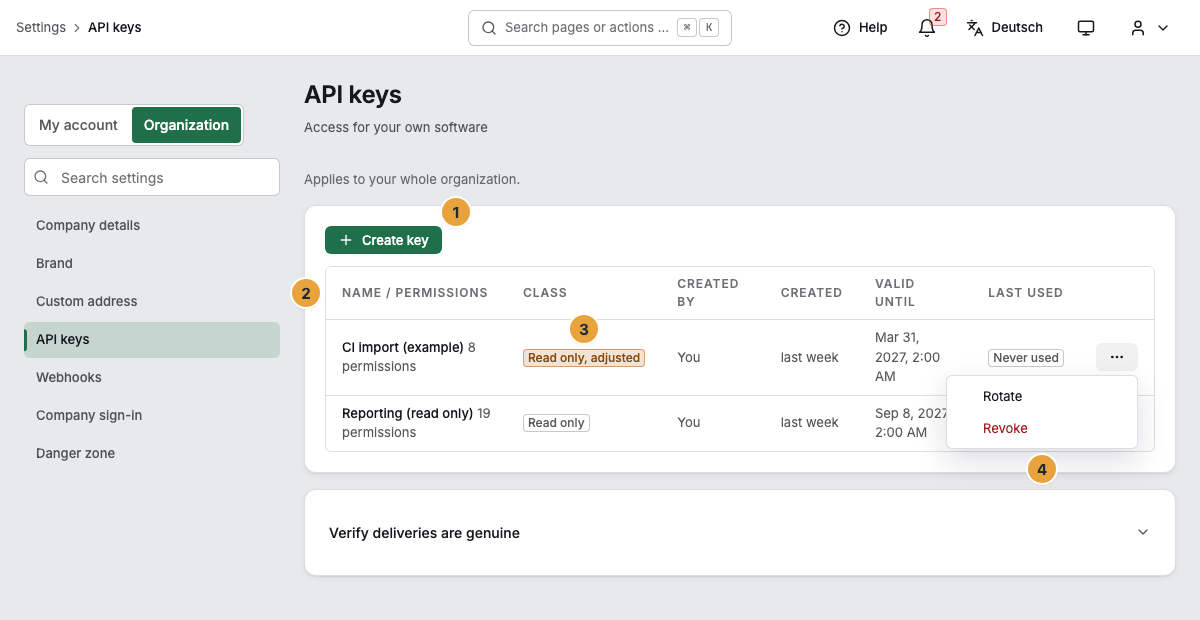
- Settings › Organization › API keys, Create key button
At the end, your own program calls the API with a key, with the permissions its purpose needs and an expiry date of your choice. The key is shown exactly once.
Steps
Create a key
- Open Settings, switch to the Organization tab, and open API keys there.
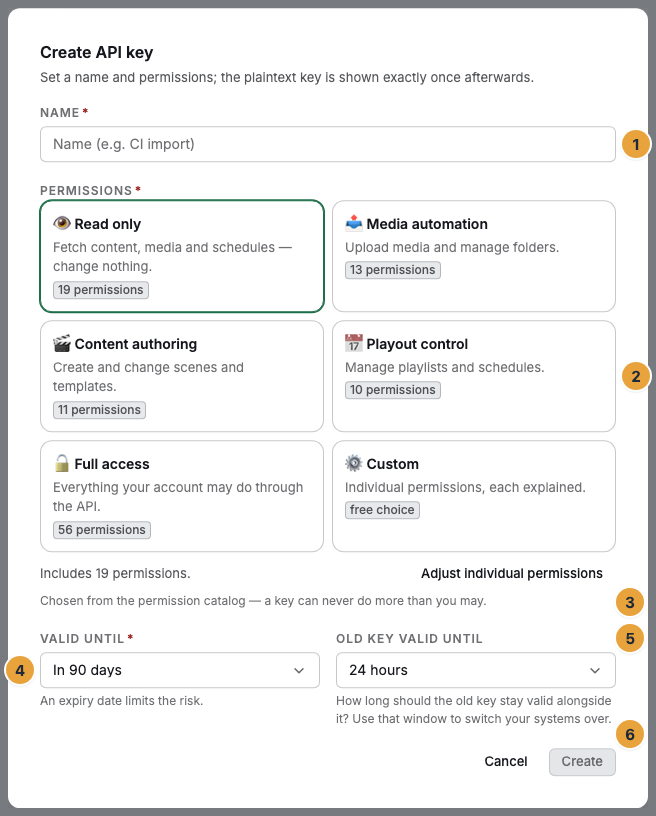
- Click Create key. The Create API key dialog tells you up front: “Set a name and permissions; the plaintext key is shown exactly once afterwards.”
- Under Name, enter what the key is for. The placeholder reads Name (e.g. CI import).
- Under Permissions, choose one of the six classes (see Options) or adjust the permissions individually.
- Choose Valid until: In 30 days, In 90 days, In one year, or No expiry. The hint for it: “An expiry date limits the risk.”
- Under Old key valid until, choose how long the old key stays valid alongside its successor after a later rotation: Invalid immediately, 1 hour, 24 hours, or 3 days. The default is 24 hours.
- Click Create.
- The key now appears under API key — visible only now. Click Copy key, store it safely, and close with Got it. Only its fingerprint is saved.
Rotate a key
Rotating replaces a key without downtime: the successor is created immediately, and the old key stays valid for a set period.
- In the key’s row, open the three-dot menu at the right edge and click Rotate. The Rotate key dialog announces a successor with the same permissions. It is also shown only once.
- The dialog asks: “How long should the old key stay valid alongside it? Use that window to switch your systems over.” Click Invalid immediately, 1 hour, 24 hours, or 3 days. Your choice triggers the rotation.
- Copy the successor as you did when creating. The message Key rotated — the old one stays valid until … shows when the period ends.
Revoke a key
- In the row, open the three-dot menu at the right edge and click Revoke.
- Confirm the Revoke key? prompt. It names the key and the consequence: invalid immediately, running integrations lose access.
No grace period, no way back, and no package standing in the way. Closing a hole is always possible.
Options: the six classes
The class defines which permissions a key gets. It is chosen for each key and never inherited from the account: “Chosen from the permission catalog — a key can never do more than you may.”
| Class | What it allows |
|---|---|
| Read only | Fetch content, media and schedules — change nothing. |
| Media automation | Upload media and manage folders. |
| Content authoring | Create and change scenes and templates. |
| Playout control | Manage playlists and schedules. |
| Full access | Everything your account may do through the API. |
| Custom | Individual permissions, each explained. |
Each class states its scope as a number, such as 12 permissions. Custom shows free choice instead. With Adjust individual permissions you add or remove permissions. Next to it, the dialog shows the current selection as a sentence, such as Includes 12 permissions., with the number of your selection. The list then appends the suffix adjusted to the class, for example Read only, adjusted. The origin stays visible.
Check the result
The list shows Name / permissions, Class, Created by, Created, Valid until, and Last used. Created by shows You or Deleted account, and Last used initially shows Never used. A timestamp there proves the connection. It is updated at most once per minute.
A key acts with the permissions of the account that created it. If that account is suspended, the key stays dormant until the suspension is lifted. If the account is deleted, the key is revoked.
Without the permission List API keys, you see only your own keys: “Other members’ keys are reserved for accounts with administrative rights.”
Every creation, rotation, and revocation appears in the Change log. When your application later calls something, the Triggered by column shows the key’s name. The detail view shows the value API key under Kind.
If something goes wrong
| Symptom | Meaning | Solution |
|---|---|---|
| Create failed | The key was not issued. | Click again. If it persists, deselect a permission that your own account does not have. |
| Rotation failed or Revoke failed | The previous state remains unchanged: no successor, no revocation. | Run the action again. |
| The key is lost. | It is never shown a second time. | Rotate, or create a new key and revoke the old one. |
| A program is suddenly rejected although the key is valid. | The account that created it is suspended. The key is dormant. | Have the suspension lifted, or create a new key from an active account. |
Related
Found what you needed? Then carry on in the portal — or set up an organization first.
Go to the portalTry it free