Set up webhooks and check deliveries
Your system should react to events instead of asking at intervals, and you want to see whether a delivery arrived.
5 minute readDevelopersUpdated: 10/25/2026
On this page
Before you start
- For
- Anyone who wants a system of their own to react to events in Szenera.
- Prerequisite
- The permissions List webhooks and Create webhooks, plus an address that is reachable over HTTPS. Creating new webhooks and renewing secrets is possible from the Premium package. Existing webhook endpoints stay valid.
- Where in the portal
- Settings › Organization › Webhooks, Create endpoint button
At the end, you have a webhook endpoint to which Szenera reports your organization’s events: signed, traceable, and repeatable one by one. Instead of asking at intervals, you let Szenera call you. Not to be confused with Notifications, where you decide how Szenera reaches you. Here you decide how your organization reaches a third-party system.
Steps
Create a webhook endpoint
- Open Settings, switch to the Organization tab, and open Webhooks there.
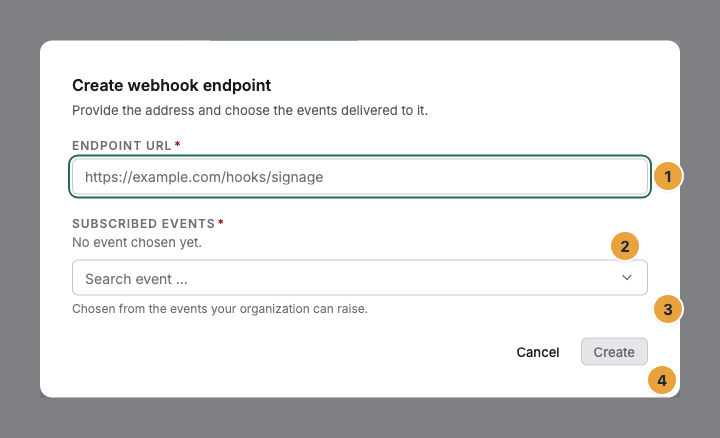
- Click Create endpoint. The Create webhook endpoint dialog explains itself: “Provide the address and choose the events delivered to it.”
- Under Endpoint URL, enter the address of your receiver. The placeholder shows the expected form:
https://example.com/hooks/signage. - Under Subscribed events, use Add event to choose what concerns you. The search field Search event … filters. The list shows only what your organization can trigger at all: “Chosen from the events your organization can raise.”
- Click Create.
- Copy the secret under Signing secret — visible only now with Copy secret and store it safely. Close with Got it.
Verify deliveries are genuine
A webhook without verification accepts any message from anyone who knows the address. That is why each delivery carries three headers. The portal lists them under Verify deliveries are genuine:
| Header | What it carries |
|---|---|
X-Signature |
HMAC-SHA256 over the raw body, keyed with your signing secret, base64url encoded. |
X-Event-Type |
The event type. Your receiver can branch on it without reading the body. |
X-Delivery-Id |
Delivery identifier. Process each identifier exactly once. A retry carries the same one. |
Verify the signature before you process the content. The raw body is signed, not regenerated JSON: any conversion can change the order or the spacing. The comparison runs in constant time:
import { createHmac, timingSafeEqual } from 'node:crypto';

export function isFromSignage(rawBody: string, header: string, secret: string): boolean {
  const expected = createHmac('sha256', secret).update(rawBody).digest('base64url');
  const a = Buffer.from(expected);
  const b = Buffer.from(header);
  return a.length === b.length && timingSafeEqual(a, b);
}
Check and retry deliveries
The log requires the permission List deliveries, and retrying additionally requires Retry deliveries.
- In the webhook endpoint’s row, open the three-dot menu at the right edge and choose Delivery log.
- In each row, read the Event and the Status: Pending, Delivered, Failed, or Retrying. A delivery that Szenera has given up on after all attempts carries dead. If your receiver answered, the response code appears next to it, such as HTTP 500. That tells you whether the delivery arrived at all.
- Rows with the status Failed carry the Retry button. It triggers exactly this one delivery again, without waiting for the next automatic attempt. The portal confirms with Delivery retried. For all other statuses, the cell stays empty.
- Hide log closes the table.
A permanently dead target is not retried forever: after more than 20 failed deliveries in a row, Szenera sets the webhook endpoint to Inactive itself.
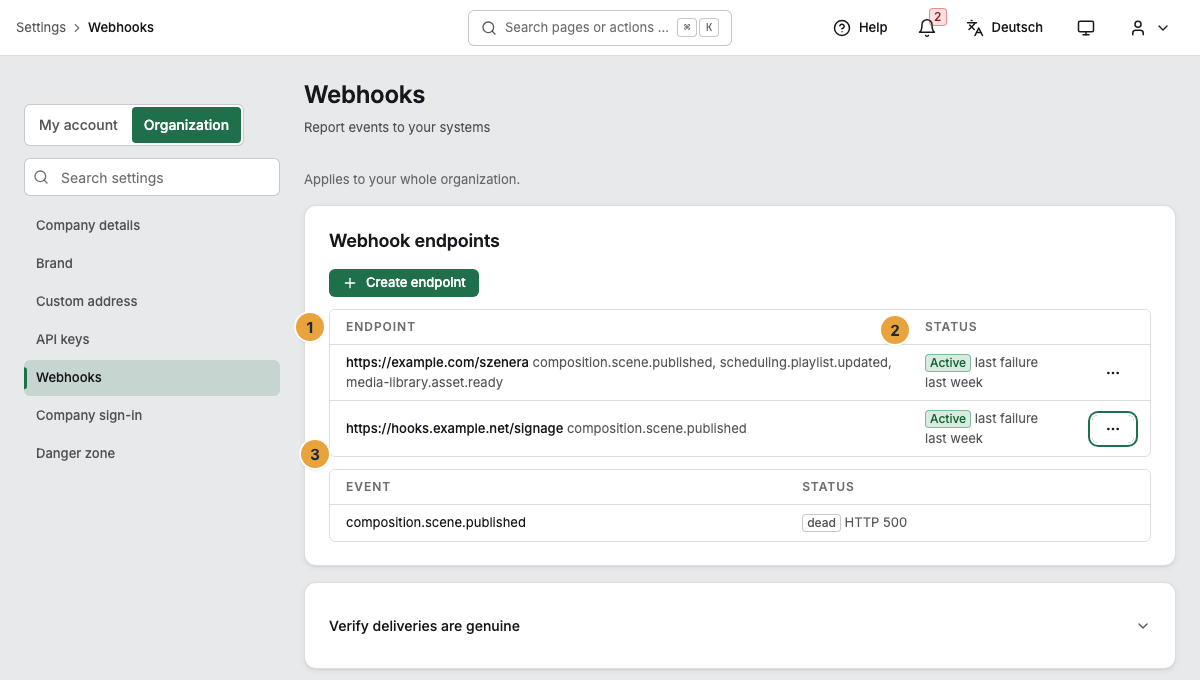
The row menu itself closes when the log expands. The step above describes its entries. Retry appears on no row in the picture because the button appears only for the status Failed.
Renew the secret
Renewing, changing, and switching off and on require the permission Edit webhooks.
- In the row, open the three-dot menu and click Rotate secret. Address, subscribed events, and past deliveries are kept.
- Copy the new secret under Signing secret — visible only now with Copy secret and close with Got it. You see this one exactly once as well. If it is lost, rotate again.
- To change the address and events, use Edit instead: “The signing secret stays the same.”
Check the result
The webhook endpoint appears in the list with Endpoint and Status. Active means that it is delivering. Inactive means that it is not delivering. Either you stopped the endpoint with Deactivate, or Szenera switched it off itself after more than 20 failed deliveries in a row, and then last failure … appears next to it with the time. Activate puts it back into operation in both cases. As long as nothing has happened, the log says No deliveries yet.
Delete removes the webhook endpoint permanently after the Delete webhook endpoint? prompt. You need the permission Delete webhooks for this. Every one of these changes appears in the Change log.
If something goes wrong
| Symptom | Meaning | Solution |
|---|---|---|
| Create failed | The webhook endpoint was not created. | Check that the address is reachable over HTTPS, and click Create again. |
| Update failed, Rotation failed, or Delete failed | The previous state remains unchanged. | Run the action again. As a fallback, Deactivate works instead of Delete. |
| Retry failed | The repeated delivery could not be triggered. | Click Retry again and check that your receiver is reachable. |
| The delivery log could not be loaded. | The table could not be fetched. | Close the log and open it again. |
Related
Found what you needed? Then carry on in the portal — or set up an organization first.
Go to the portalTry it free