Cancel the contract or delete the organization
You want to end the contract at the end of the paid period or dissolve the organization along with all data.
4 minute readBillingUpdated: 10/25/2026
On this page
Before you start
- For
- Owners who end a contract or dissolve an organization.
- Prerequisite
- Owner role. For deleting, you also need the organization’s short name, and everything you want to keep must be saved beforehand.
- Where in the portal
- Billing › Contract tab › Cancel contract · Settings › Organization › Danger zone
After this page, either your contract is canceled at the end of the paid period and the data stays, or your organization is deleted permanently. Two ways in two places, and only the first can be taken back.
A cancellation ends the package at the end of the paid period: with monthly payment at the next period end, with yearly payment after the twelve months. All other contract changes take effect immediately. Only canceling the entire contract and reducing the booked displays take effect at the end of the period.
Steps
Cancel the contract
- Open Billing and stay on the Contract tab. At the very bottom is Cancel contract with the sentence “A cancellation takes effect on …. Until then nothing changes.”
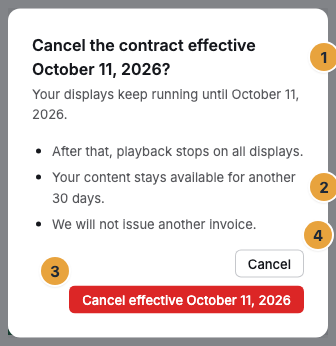
- Click Cancel contract. The dialog Cancel the contract effective …? names three consequences: “After that, playback stops on all displays.”, “Your content stays available for another 30 days.”, and “We will not issue another invoice.”
- Confirm with Cancel effective …. Cancel leaves the contract in place.
Withdraw the cancellation
- Open the Contract tab. As long as the cancellation is scheduled, Withdraw cancellation appears there.
- Click it. The dialog Withdraw the cancellation? says: “Your contract then continues past … on unchanged terms.”
- Confirm. The contract continues.
An order does not withdraw the cancellation: “Your contract ends on …. Withdraw the cancellation to expand.” Only Withdraw cancellation reverses it.
Delete the organization permanently
This is different from a cancellation: Here the data disappears, not only the package. Save media and invoices beforehand, since afterwards they can no longer be retrieved.
- Open Settings › Organization › Danger zone (“Steps that cannot be undone”).
- Read the note: “The organization will be deleted permanently (content, display assignments, user access). Type the slug … exactly to confirm.”
- Click Delete organization permanently. The dialog Delete organization permanently? lists under This is what you lose: all displays and their assignments, all media in the library, all scenes, playlists, and programs, all accounts of this organization, as well as all analytics and logs.
- Under Slug to confirm, type the short name exactly. Only then does Delete permanently become clickable. Any deviation keeps the button disabled.
- Click Delete permanently.
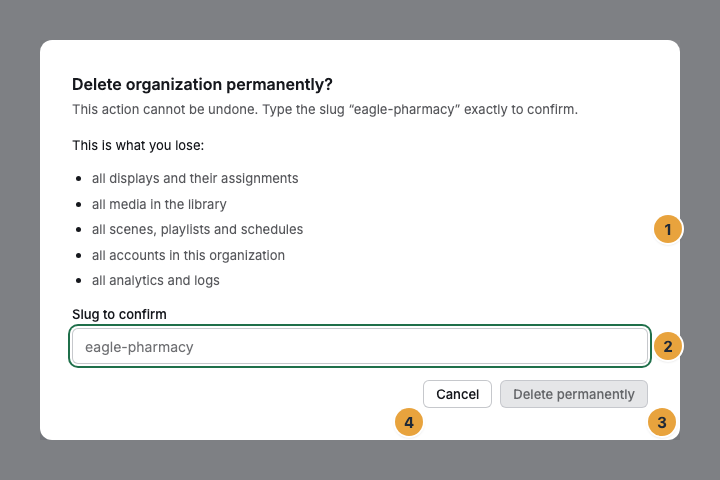
The Delete permanently button stays gray until the short name is typed exactly.
Options
If only the costs should end, deleting is the wrong approach. The danger zone points this out itself: “Only want to end your package? That runs through billing — your data stays.” Go to billing takes you there.
Check the result
- After the cancellation, the portal reports “Cancellation scheduled — the contract ends on ….” The Status tile shows Cancellation scheduled, and at its foot Contract ends …. On the Contract tab, the Cancellation line shows the date.
- The Next invoice preview then says: “We will not issue another invoice. Your contract ends on ….”
- After withdrawing, the Cancellation line again says “none scheduled”.
- After deleting, your session ends and you land on the sign-in page. No access exists afterwards, for you and for every other member.
- Your devices are released along with the organization. They are emptied and then show a pairing code again, which lets them be paired in another organization.
If something goes wrong
| Symptom | Meaning | Solution |
|---|---|---|
| Delete permanently stays disabled. | The typed short name differs. | Type it exactly as the note shows it. Upper and lower case count. |
| “Delete failed” | The deletion job did not get through. | Reload the page and start again. |
| “The cancellation failed.” | The request to schedule it did not go through. | Try again. The contract keeps running unchanged meanwhile. |
| “This change is reserved for owners.” | Your account is not allowed to change the contract. | Ask an Owner of your organization. |
| The Danger zone area is missing. | Your account is not allowed to delete the organization. | Ask an Owner of your organization. |
Related
- Read the billing page — where status, period, and cancellation date appear.
- Invoices, credit notes, and documents — save documents while access exists.
- Master data of the organization — where the short name is.
Found what you needed? Then carry on in the portal — or set up an organization first.
Go to the portalTry it free