Add a payment method
No payment method is on file yet, or a card is expiring and should be replaced.
5 minute readBillingUpdated: 10/25/2026
On this page
Before you start
- For
- Owners who are responsible for the contract of their organization.
- Prerequisite
- Owner role. Managers see billing read-only. On the Payment tab, the list of payment methods stays hidden from them.
- Where in the portal
- Billing › Payment tab › Add payment method
After this page, a card or a SEPA account is on file from which Szenera collects payment for your invoices. You know how to make a payment method the default or remove it and what happens before each direct debit.
Szenera delivers against payment in advance. The standard way is to charge by card or SEPA direct debit. Your card and account details never reach Szenera’s servers: The form comes from the payment provider, and the portal knows only the last digits.
Steps
Add a card or an account
- Open Billing, Payment tab. Without a payment method on file, it says “No payment method on file yet. Add one and everything continues right away.” You can reach the same route through the Payment way tile with Add one now, the step Add a payment method on the Finish setup card, and the notice at the end of the trial.
- Click Add payment method. A sheet opens from below: “Your card and account details stay with the payment provider.”
- Enter your card or your IBAN and click Save.
- If your bank requires a confirmation, the portal takes you to your bank and afterwards back to the same Payment tab.
Set the default or remove a payment method
The Payment methods list shows each entry as Card •••• 4242 or SEPA •••• 1234, with “valid until” for cards. The method used for the charge is marked Default.
- Click Make default on another entry so that the next charge runs through it.
- Click Remove. The dialog Remove payment method? names the entry that will be removed. Cancel leaves it in place.
The last payment method stays on file as long as Szenera collects payments: First add a new one, then replace the old one.
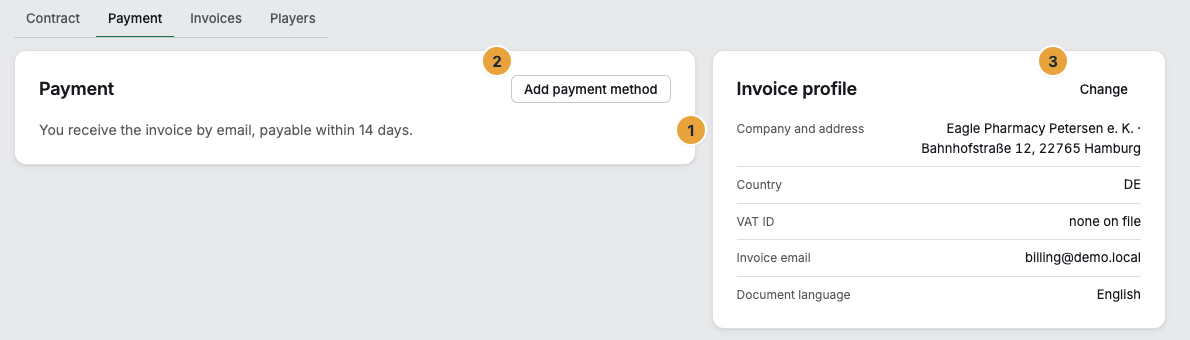
If a payment method is on file, the Payment methods list with Default, Make default, and Remove appears below the sentence.
Request purchase on account
You do not choose purchase on account yourself. Szenera sets it up on request. For this, the Payment tab names abrechnung@szenera.com, and from the order, Request purchase on account takes you there. The answer comes on the next business day. Once it is enabled, the Payment way tile shows Purchase on account with a payment term in days or “Payable on receipt of invoice”. A method that is still on file shows the addition “on file — but not the method we charge”.
Options
Below the list is the Invoice profile with Change. Company, address, and country must be filled in before an invoice is created: Invoice profile, VAT ID, and tax.
With SEPA direct debit, the invoice email names the amount, the charge date, the mandate reference, and the creditor identifier at least one day before the charge. Make sure there are sufficient funds: A failed direct debit causes chargeback fees that Szenera cannot cover.
Check the result
- After you return from the bank, the tab reports “Your payment method is on file.”
- At the top it says “You pay by card •••• 4242. Next charge on ….” or “You pay by direct debit from account •••• 1234. ….”
- The Payment way tile shows Card •••• 4242 or SEPA •••• 1234 instead of Missing.
- The notice “No payment method yet.” disappears. At the end of the trial, the contract continues without interruption.
If something goes wrong
| Symptom | Meaning | Solution |
|---|---|---|
| “You canceled the confirmation. Your details are still here.” | The bank did not receive a confirmation. | Open Add payment method again and complete the confirmation. |
| “Whether the confirmation arrived is not settled yet.” | The answer from the bank is on its way. | Wait a minute and reload the page. |
| “Your bank declined the confirmation — nothing was charged.” | The bank did not allow the method. | Try again and use a different payment method. |
| “The payment service is currently unreachable.” | The payment provider does not answer. | Try again in a few minutes. |
| “Card payment is not available here right now.” | Card payment is not available. | Write to abrechnung@szenera.com. Szenera adds it for you. |
| Notice Organization frozen. | At the end of the trial, a payment method was missing, or a charge failed. | Add a payment method. Changes are possible again right afterwards. Deadlines: Payment reminders, overdue notices, freezing, suspension. |
| The Payment tab shows no list of payment methods. | Your account is not allowed to manage payment methods. | Ask an Owner of your organization. |
More cases: When a payment, order, or package gets stuck.
Related
- Packages, trial, and booked seats — starting inventory and end of the trial.
- Payment reminders, overdue notices, freezing, suspension — the deadlines for a failed charge.
- When a payment, order, or package gets stuck — the bank declines, the amount changed, the order expired.
Found what you needed? Then carry on in the portal — or set up an organization first.
Go to the portalTry it free