Add an ad break to a playlist
You want to put ad slots into the loop of a display and set how many of them the network may take.
5 minute readAdvertisingUpdated: 10/25/2026
Before you start
- For
- Anyone who maintains playlists and puts ad slots into the loop of a display, for example a store that reserves two slots for a manufacturer between the offer of the week and the opening hours.
- Prerequisite
- The permission to edit playlists — by default, Owner and Manager hold it. A playlist with the source Manual and in it at least one scene or image that works as a filler.
- Where in the portal
- Playlists › playlist › Sequence card › Ad break button
At the end, a playlist contains an ad break: a fixed number of slots of the same spot length, which your displays fill with the creatives of booked ad campaigns. A slot without a booking shows the filler you choose.
An ad break is an element of the sequence, like a scene or a media item. It always lasts slots times spot length, whatever fills it. That keeps the loop predictable: Display, portal, and planning count the same loops, and the target of a booking can be calculated in advance.
Steps
- Under Playlists, open the playlist in which advertising should run.
- In the header of the Sequence card, click Ad break. The break attaches itself to the end of the sequence, with two slots of ten seconds, both for your direct business. As its filler, it takes the first scene of the sequence, otherwise its first image.
- Drag the break to the place where it should run, and click Configure on its card. The Configure ad break card opens below the sequence.
- Under Slots, set how many spots run back to back: one to twelve.
- Choose the Spot length: 5, 10, 15, 20, or 30 seconds. A booking fits only breaks of its length.
- Under Slots for the network, set how many of the slots are open to bookings from the ad network. These are always the first slots of the break, and the rest belong to your direct business. Without participation in the ad network, leave zero here.
- Check the Filler. Change opens the Choose filler dialog with the tabs Scenes and Images. Videos are not available, because a slot lasts exactly as long as its spot length.
- If needed, choose the Transition into the break. Between the spots within the break, the display software always cuts hard.
- Click Done and save the playlist.
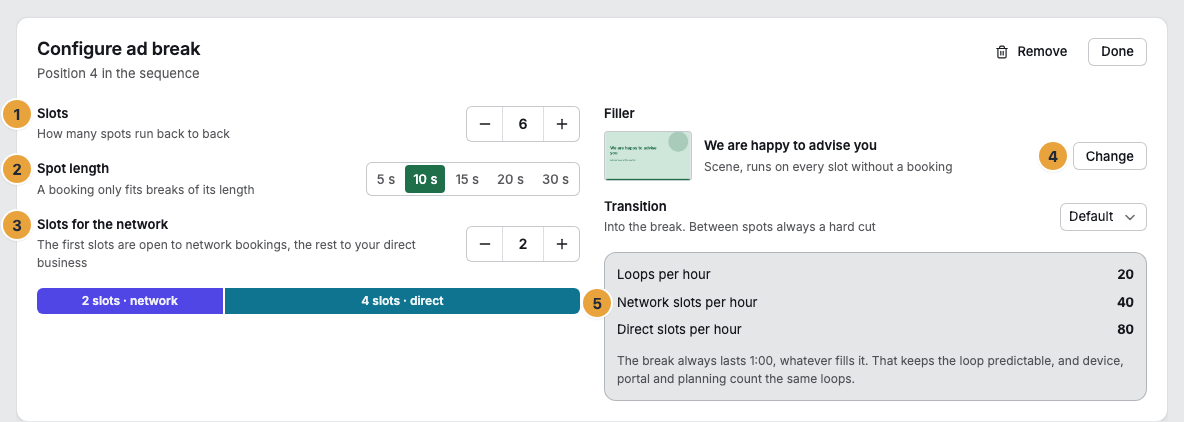
1 Slots · 2 Spot length · 3 Slots for the network · 4 Filler · 5 Figures per hour
Options
Under What the break yields per hour, the card calculates what your setting means:
| Figure | What it says |
|---|---|
| Loops per hour | How often the whole loop runs in one hour. The shorter the loop, the more often the break comes. |
| Network slots per hour | How many slots the ad network can take in one hour. |
| Direct slots per hour | How many slots your own bookings can take in one hour. |
Above the sequence, you also see the number of loops per hour and the Ad share, that is, the share of ad slots in the loop. The One loop, to scale card shows the loop with the break in its place.
How often a single booking appears in the break is decided by the booking, not by the break: It books a frequency such as every loop or every second loop, and the displays distribute the bookings evenly across the loops. For more, see Book an ad campaign.
Check the result
- The card of the break in the sequence is titled Ad break · 4 slots of 10 s and below it names the slot groups, for example 2 slots · network with “Network bookings, otherwise filler” and 2 slots · direct with “Your bookings, otherwise filler,” plus the Filler.
- The total duration of the sequence grows by slots times spot length.
- If no booking is running yet, the displays show the filler on all slots. The overview and the test run of the playlist show the break the same way.
If something goes wrong
| Symptom | Meaning | Solution |
|---|---|---|
| The Ad break button is missing. | The playlist takes its content from a folder, by tags, or from OneDrive. Ad breaks exist only in manual playlists. | Create a manual playlist and put the break in it. |
| “An ad break cannot give the network more slots than it has.” | The slots for the network exceed the slots of the break. | Reduce the slots for the network or increase the slots. |
| A booking does not reach a display. | No ad break in the playlists of this display has its spot length, or the slots of its channel are full. | The preview of the booking states the reason for each display: Book an ad campaign. |
| A display shows only the filler in the break although a booking exists. | Either no booking of this channel is running right now, or the display software on the device does not know ad breaks yet and plays the filler for the full duration of the break. Such a display receives no target, and in the delivery of the booking it does not count as a targeted display. | Check the period and dayparts of the booking and keep the device up to date: Updates. |
Related
Found what you needed? Then carry on in the portal — or set up an organization first.
Go to the portalTry it free