Create and approve creatives
A creative is meant to run, and you check its format, its industry, and the mandatory text under the German Therapeutic Products Advertising Act.
6 minute readAdvertisingUpdated: 10/25/2026
On this page
Before you start
- For
- Anyone who maintains the creatives of an advertiser and checks them before they run, for example the branch manager of a pharmacy who approves the creative for a painkiller.
- Prerequisite
- To create, the permission Manage creatives. To approve, the permission Approve creatives. Owner and Manager hold both by default. Premium package or higher. The image or video is fully processed in your media: Upload media.
- Where in the portal
- Advertising › Creatives tab
At the end, a creative is approved and runs in the bookings of its advertiser. Before approving it, you have checked whether the format fits the displays and, for medicines and medical devices, confirmed the mandatory text under the German Therapeutic Products Advertising Act.
A creative is exactly one file of an advertiser. This file is approved together with its checksum: If a display later shows a different file, the play counts as wrong content and not as valid. If the file is replaced, it is a new creative that again awaits approval.
Steps
Create a creative
- Open Advertising and switch to the Creatives tab.
- Click Create creative.
- Choose the Advertiser and give the creative a Name.
- Click Choose file and select an image or video from your media.
- Enter the Mandatory text if the advertiser belongs to the industry Medicines or Medical devices, for example “For risks and side effects, read the package leaflet …”. For other industries, the field stays empty as long as the Therapeutic Products Advertising Act requires no text.
- Click Create and review. The Review creative page opens.
You can also create a creative directly from a booking: In the booking editor, New creative from your media leads to the same dialog.
Approve a creative
- In the Creatives tab, open the creative. A creative that awaits approval carries to approve, and the tab states how many there are.
- Look at the creative. How it appears at the … shows it in the format of a display from the bookings, and Preview display switches between them. Download original fetches the file.
- Read the card Before the creative may run:
- Format fits states on how many displays the creative runs in its orientation. If it says Format fits no display, the displays of the bookings do not show it: A landscape creative does not run on a display that hangs in portrait.
- Mandatory text under the Therapeutic Products Advertising Act appears for medicines and medical devices. If the text is missing, enter it and click Apply mandatory text. Then select both checkboxes: “I found the text in the creative and it is complete.” and “It is legible on the displays.”
- No excluded industry or Industry excluded applies to network bookings: If your network participation excludes the industry, the network does not show this creative on your displays.
- Runtime of the creative states the period of the bookings it appears in.
- Click Approve. The message reads The creative has been approved. For medicines and medical devices, this works only once both points on the mandatory text are confirmed.
If the creative does not fit, write under Note for the advertiser what is missing and click Reject. A rejection needs this note. You withdraw a granted approval with Withdraw approval.
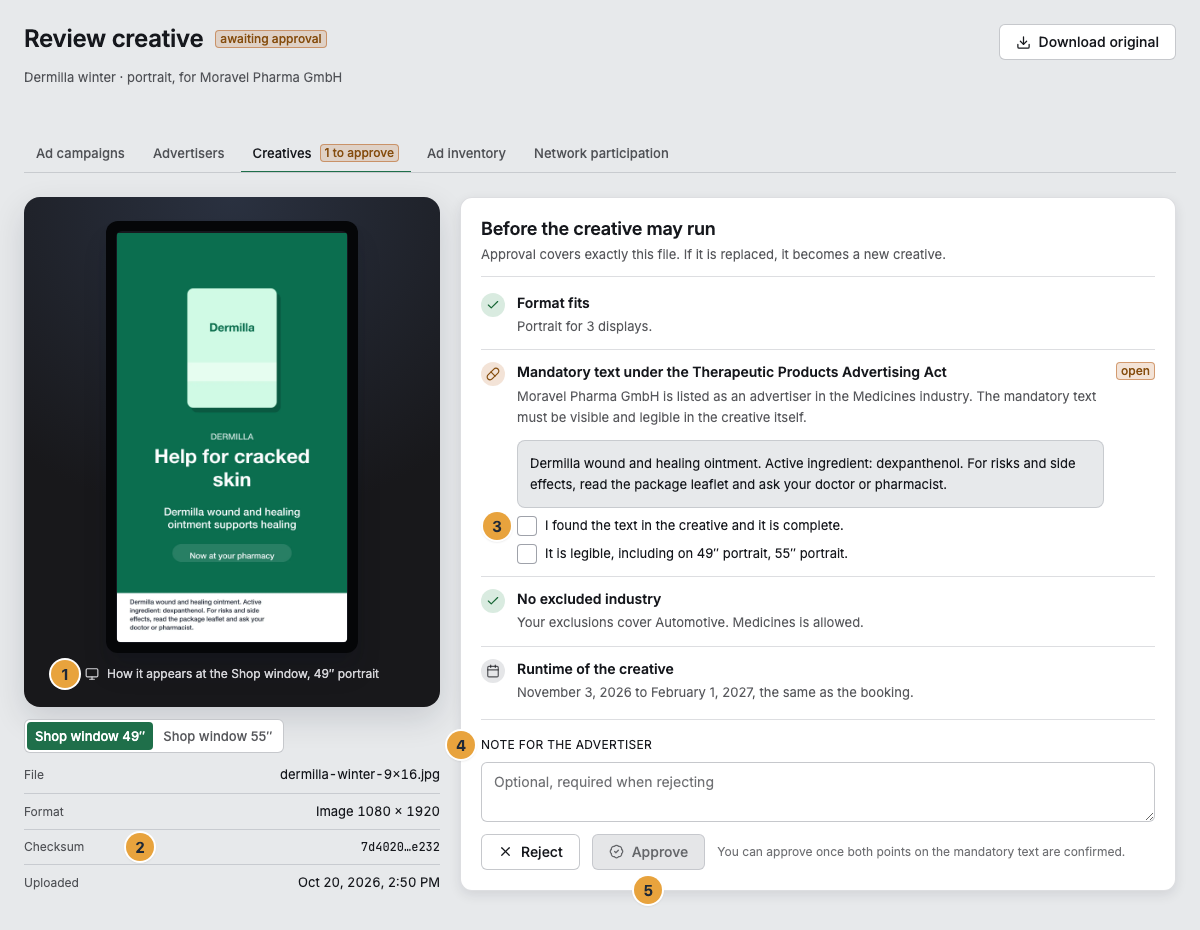
1 Preview in the format of a display · 2 Checksum · 3 Mandatory text with the two confirmations · 4 Note for the advertiser · 5 Approve
Options
| Status | Meaning |
|---|---|
| to approve | Created, not yet decided. Does not run. |
| approved | Runs in the bookings of its advertiser, with the date of approval. |
| rejected | Does not run. The note is attached to the creative. |
If you change the mandatory text of an approved creative, it awaits approval again. If the file in your media has become a different one since the creative was created, the creative cannot be approved: Create a new creative for the new file.
A slot in the ad break lasts exactly the spot length of the booking. Therefore, prepare videos at the spot length: A play counts only if it ran for at least 90 percent of the spot length, and for this, a video must have played to its end or filled the slot.
Szenera approves the creatives of the ad network. They do not appear in your list for approval. Szenera checks neither the content of a creative nor whether a mandatory text meets the legal requirements. The two confirmations are your check before the creative runs: Someone in your organization found the text in the creative and judged it legible. The approval records who granted it and when.
Check the result
- The creative appears in the Creatives tab with approved on …. In the Creatives tab of an ad campaign, it appears under In the bookings as soon as a booking uses it.
- The notice “No creative is approved. The booking delivers nothing until the first approval.” has disappeared from the booking.
- In the daily history of a display, the creative appears in the plays with the verdict valid: Check a display’s day.
If something goes wrong
| Symptom | Meaning | Solution |
|---|---|---|
| Approve stays grayed out. | For medicines and medical devices, the mandatory text or one of the two confirmations is missing. | Enter the text and select both checkboxes. |
| “The industry requires a mandatory text. Enter it first.” | The mandatory text is empty. | Enter it and click Apply mandatory text. |
| “A rejection needs a note for the advertiser.” | The Note for the advertiser field is empty. | Write what is missing in the creative. |
| “The file was replaced. Create a new creative for it.” | The file in your media is a different one from when the creative was created. | Create a new creative. |
| “The file cannot be used as a creative. Use a finished image or video.” | The file has not been processed yet, or it is neither an image nor a video. | Wait until processing is finished, or choose a different file. |
| Format fits no display | The orientation of the creative fits no display in the bookings. | Ask the advertiser for the creative in the other format and create it as a second creative. |
| Plays of the creative appear as wrong content. | The display showed a different file from the approved one. | Check whether the file in the media was replaced, and create a new creative for the new file. |
Related
Found what you needed? Then carry on in the portal — or set up an organization first.
Go to the portalTry it free