Upload media
New images, videos, or PDF files should go into the library, and large files should go through safely.
4 minute readContentUpdated: 10/25/2026
On this page
Before you start
- For
- Anyone who provides content for the displays.
- Prerequisite
- the permission to upload media. If it is missing, Upload stays visible but grayed out.
- Where in the portal
- Media › Upload button › Upload media dialog
At the end, your images, videos, and PDF files sit as tiles in the chosen folder of the library and can be used in scenes. The portal takes care of large files and retries on its own — you only need to wait until everything shows Done.
Steps
- Open Media and choose, on the left, the folder where the files should land. The target is always the folder that is currently open.
- Click Upload at the top right. The Upload media dialog opens.
- Drag the files onto the drop area (Drag files here) or click Choose files and select them in the file dialog.
- The transfer starts immediately. A bar for each file shows the status: Queued, Uploading, and Done, Canceled after a cancellation, and Failed after a failure. You stop an individual transfer through Cancel upload of “…”.
- Wait until every row shows Done.
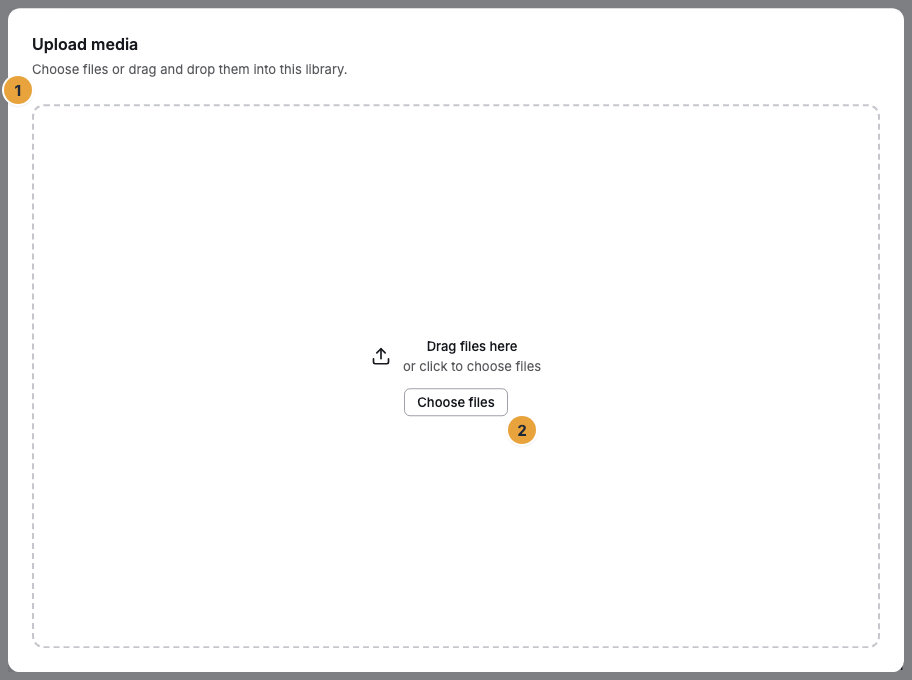
The dialog before the first file: the row with the progress bar, status, and cancel button (×) appears only once a transfer is running.
Options
Large files
Files up to 50 MB travel over the wire in one go. For larger files, the portal splits them into chunks of 8 MB each behind the scenes. If a chunk fails, only that one is retried, up to twice. Chunks that were already confirmed are kept.
The same file a second time
The portal recognizes it by its content and skips the transfer entirely — progress jumps to 100 percent right away.
Keep working during the upload
Feel free to switch to another area. In the header at the top, the Uploads indicator shows the overall status (“uploads · percent”). At most four transfers run at the same time. Others wait until a spot opens up. On the Dashboard, the quick action Upload media leads straight here.
Caution: Do not close the browser tab in the middle of a transfer. It then stops, and chunks that were already started are discarded. Wait for Done.
Check the result
The new tiles appear in the chosen folder. After Done, the file is transferred, but the preview is only created in the background: In the Media details, the Status moves from Uploading through Processing to Ready. Only then does the tile carry its preview image. For videos in a format the browser cannot play (such as HEVC), the preview reports Preparing the browser preview … until the playback version is ready.
If something goes wrong
| Symptom | Meaning | Solution |
|---|---|---|
| The message names a file type that is not allowed | The format is not on the list, such as GIF or a word-processor file | Convert the file to a supported format, see File types, sizes, and storage. |
| The upload is rejected even though the format is allowed | Your organization's storage is full | Delete media you no longer need or book an additional display. |
| The transfer stops abruptly | The browser tab was closed in the middle of the transfer | Upload again and keep the tab open until everything shows Done. |
| The tile shows no preview image | Processing is still running (Uploading or Processing) | Wait a moment until the Status is Ready. |
| A row shows Failed | The transfer or the preview failed | Read the reason in the Media details and choose Process again. |
| Upload is grayed out | You lack the permission for it | Check the role or permission with your team. |
Related
Found what you needed? Then carry on in the portal — or set up an organization first.
Go to the portalTry it free