Place and arrange widgets on the stage
Text, images, app widgets, and shapes need their place, the right size, and the right order.
6 minute readContentUpdated: 10/25/2026
On this page
Before you start
- For
- Anyone who designs a scene.
- Prerequisite
- the permission to edit this scene. For app widgets, the app must be installed. For images and videos, the media item must have the status Ready in the library.
- Where in the portal
- Scenes › open a scene › Insert and settings bar
At the end, text, images, app widgets, and shapes sit in their place, at the right size, and stacked in the right order.
Steps
Insert a widget
- In the bar, open the matching area: Text for text boxes, Media for images, videos, and documents (PDF), Apps for the widgets of installed apps, Elements for Shapes and Graphics.
- Drag the building block you want to the spot on the stage where it should appear. For app widgets, a click on the tile also works, and for text, Add text box.
- Dropping is position-aware: while you drag, the free slot of the layout template under the pointer is highlighted, and the widget lands exactly there. Otherwise it sits freely where you drop it. A click on an app tile fills the first free slot, and without a free slot the widget sits in the center of the stage.
- App widgets come with a template: starting size and content fit together, a weather widget for example as “With hours” at 600 × 300. In a slot, the widget takes the template whose shape fits the slot. The arrow at the right of the tile opens Insert Weather (or the name of the respective app) with all templates as a preview. A click on a template inserts exactly that one.
- The placed widget is selected immediately. The floating toolbar appears on the object. The gear icon Settings in it opens the widget's settings window — the preview on the left, the fields on the right, and Apply writes them into the scene.
You choose an image or video through Choose from library. The Select media dialog filters by Images, Videos, Documents, and folder. A PDF becomes the Document widget and shows its pages, see Place a document (PDF) in a scene. Replace swaps the content of an existing widget: The Replace object dialog has the tabs Media, Apps, and Building blocks, and “Position, size and stacking order are preserved.”
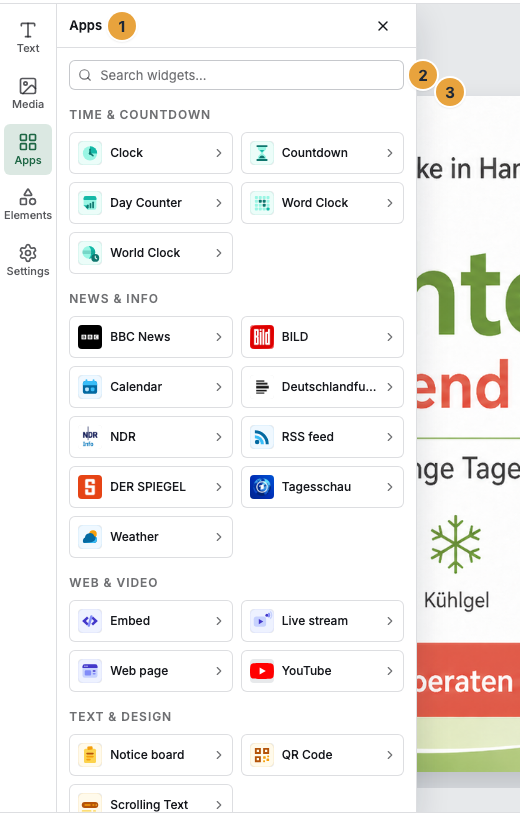
The Recently used section appears only once an app widget has been inserted in your organization.
Move, resize, align
- Click a widget and drag it. It shows a selection frame.
- You resize it at the eight handles of the frame, at the corners and the middle of the sides. While you drag, its shape and size appear below the frame, such as “Tall · 440 × 780”. App widgets rearrange themselves according to this shape.
- If you hold Shift while dragging, the aspect ratio is kept. Position and size snap to an 8-pixel grid, and the edges you drag additionally snap to the stage edge, the stage center, and the edges of other widgets. A widget cannot be dragged beyond the stage edge. It is held at the edge. A widget does not get smaller than the minimum size of its app.
- For more precision, use Placement › Position: Size and position with Width, Height, X, and Y, plus Keep aspect ratio. Align to page puts the widget on the Left, Center, Right, Top, Middle, or Bottom.
If the widget sits in a slot, size and position come from the slot and are locked. Release the binding for that, see Configure a scene.
Select several, copy, stack
- Hold Shift or Ctrl and click further widgets. A click on an already selected widget removes it from the selection.
- Copy and Paste place the copies offset by 16 pixels so they do not sit exactly on top of the original. Duplicate does the same in one step.
- If widgets overlap, the stacking order decides. In the Layers panel, drag an entry up or down by the Move handle, or use the entries Bring forward, Send backward, Bring to front, and Send to back under Arrange.
Format text
- Select a text box and type directly on the stage. Under Text styles you find Heading, Subheading, and Body text.
- The toolbar of the selection carries Font, Font size, Font weight, Text color, Background color, Alignment, Line spacing, and Letter case. The scene editor at a glance lists the values in them in full.
Options
The following keys act on the stage, not while you are typing in an input field.
| Key | Effect |
|---|---|
| Arrow keys | Move the selection by 1 pixel |
| Shift + arrow key | Move the selection by one grid cell, that is, 8 pixels |
| Del / Backspace | Delete the selection |
| Escape | Clear the selection |
| Ctrl/Cmd + Z, Ctrl/Cmd + Shift + Z | Undo, redo |
| Ctrl/Cmd + C, V, D | Copy, paste, duplicate |
| Ctrl/Cmd + ], Ctrl/Cmd + [ | Move forward, move backward in the stack |
| Ctrl/Cmd + S | Save |
Undo works gesture by gesture: an entire movement, resize, or bulk deletion counts as one step, not pixel by pixel. Up to 50 steps are kept.
Check the result
- The widget sits in the Layers panel at the expected place in the stack.
- The status line shows Unsaved changes, shortly afterward All changes saved.
- Under Placement, the check reports ✓ No issues. Otherwise it says Outside the canvas, Slot does not exist in the layout, or Slot bound more than once.
If something goes wrong
| Symptom | Meaning | Solution |
|---|---|---|
| An app's widget is missing in the Apps area | The app is not installed, is waiting for consent to new permissions, or is blocked because of a package change | Install or enable the app and reopen the editor, see When an app does not run. |
| The widget cannot be moved | It sits in a slot and takes its size and position from the slot | Under Placement, use Release binding. |
| An image is missing under Choose from library | It has not finished processing yet | Wait until its status in the library is Ready, see The media library. |
| The widget lies behind another one | The stacking order | Choose Bring forward or drag the entry up in the Layers panel. |
| Nothing can be moved | You lack the permission to edit this scene | Check the role or direct permission, see Permissions by role and by area. |
Related
Found what you needed? Then carry on in the portal — or set up an organization first.
Go to the portalTry it free