Save, publish, versions, and conflicts
The scene is finished and should go to the displays, or the portal refuses to publish it.
5 minute readContentUpdated: 10/25/2026
On this page
Before you start
- For
- Anyone who finishes a scene and gets it onto the displays.
- Prerequisite
- the permission to edit for saving, the permission to publish for publishing and reverting. If a permission is missing, the button stays visible but grayed out.
- Where in the portal
- Scenes › open a scene › Save / Publish
At the end, your work is saved and distributed to the assigned displays as an immutable version. And you know what to do when the portal rejects publishing or someone else has saved the same scene.
Steps
Save
- Click Save or press Ctrl/Cmd + S. As long as nothing has changed, the button is inactive.
- Alternatively, the editor saves on its own about three seconds after your last change, provided you have the permission to edit. The Auto-save switch (“Saves changes on its own after a short pause.”) sits in the editor's Settings area, not in the header.
- The status line follows along: Unsaved changes, Saving…, All changes saved.
If you leave the page with open changes, the editor asks under Unsaved changes: Leave anyway or Stay here. Between two saves, it also backs up the draft in the browser. If you open the scene again later and an unsaved state from an earlier session exists, it offers Local draft found with Restore or Discard. If the scene has changed on the server in the meantime, the state is explicitly marked as possibly outdated.
Publish
- Click Publish. The Publish scene dialog says what is about to happen: “Creates a new immutable version that is distributed to assigned displays.”
- Under Release notes (optional), leave a short note on what changed. Up to 2,000 characters are possible.
- Confirm with Publish. Open changes are saved first. The dialog points this out.
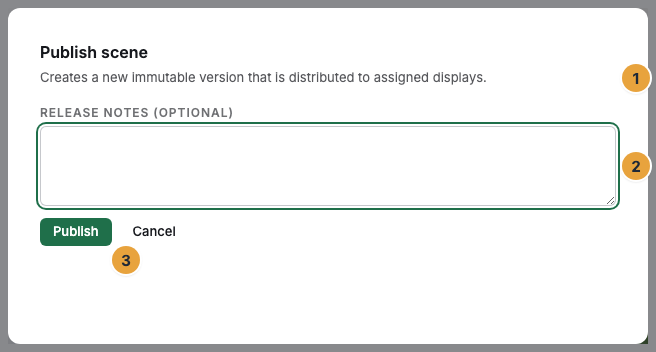
Without open changes and without blocking integrity issues, the dialog does not show its two additional notes.
Resolve integrity issues
- Open the Integrity issues panel below the stage. Each entry carries a severity.
| Severity | Meaning |
|---|---|
| Blocking | Prevents publishing until the problem is fixed. |
| Warning | A note that does not prevent publishing. |
| Info | Purely informational. |
- Fix the cause. The common types are called Widget version retired, App uninstalled, Media item deleted, Layout template deleted, and Configuration incompatible.
- Re-check has the editor search again and reports how many issues are open and how many were fixed automatically. For each entry, you can Mark as fixed or Ignore.
Decide on a save conflict
- If someone else saves the same scene while you work on it, the Save conflict dialog opens the next time you save. Under “Your draft compared to the server state:” it shows what differs, for example 2 widgets added, 1 widget removed, 3 widgets changed, Canvas changed, Layout template changed, or Transitions changed.
- Choose: Adopt server state discards your local changes. Force my changes overwrites the draft on the server with your state. Cancel closes the dialog and leaves your state untouched.
Options
Both happen in the Version history panel. You open it through Versions in the header, as listed in The scene editor at a glance.
Compare two versions
- Open the panel. Until you have chosen two versions, its header says Select two versions to compare.
- Click Compare on the first version, then on the second. Another click removes a version from the selection. If you choose a third, the one chosen first drops out.
- Below the list, the Compare v3 → v5 box appears with the numbers of the two chosen versions.
The box lists what differs between the states: 2 widgets added, 1 widget removed, 3 widgets changed, Canvas changed, Layout template changed, Transitions changed. If there is no structural difference, it says No structural differences. The comparison changes nothing about the scene. To see how an individual state looked, use Open preview on that version, which opens in a tab of its own.
Revert to an earlier version
After the Revert draft prompt, Revert to this version replaces only your draft with the state of this version. The published versions stay untouched. The restored state reaches the displays only with the next publish.
Check the result
- The header shows the status badge Published and the new version number.
- In the Version history panel, the new version appears with the Active badge and your notes.
- The scene can now be scheduled and assigned to a display, see Assign a program to a display.
If something goes wrong
| Symptom | Meaning | Solution |
|---|---|---|
| Publishing blocked: unresolved integrity issues. | At least one blocking issue is open | Work through the Integrity issues panel, Re-check, then publish again. |
| No content change — no new version was created | The draft is identical to the last version | Change something and save first, then publish. |
| The status line shows Conflict — scene was changed externally | Someone else saved the same scene | Decide in the Save conflict dialog. |
| The scene was modified in the meantime. Please reload. | Your state is outdated compared to the server | Reload the page and repeat the change. |
| Save or Publish is grayed out | You lack the corresponding permission for this scene | Check the role or direct permission, see Permissions by role and by area. |
| Local draft found reports an outdated state | The scene has changed on the server since the backup | If in doubt, Discard and continue with the server state. |
| No box appears after Compare | Only one version is chosen so far | Add a second version with Compare. The note Select two versions to compare stays in the panel header until then. |
Related
Found what you needed? Then carry on in the portal — or set up an organization first.
Go to the portalTry it free