Configure a scene: format, layout and slots, transitions
The format, layout, background, or transition of the whole scene is not right yet.
5 minute readContentUpdated: 10/25/2026
On this page
Before you start
- For
- Anyone who sets up a scene as a whole, not individual widgets.
- Prerequisite
- the permission to edit this scene.
- Where in the portal
- Scenes › open a scene › Settings
At the end, the scene has the format of the display it should run on, a matching layout with slots or none at all, a background color, and the transitions it uses to enter and exit.
Steps
Change the format
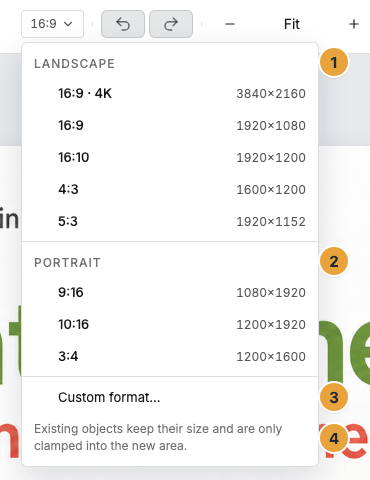
- In the header, open the Stage format menu. It lists the groups Landscape and Portrait with their presets as well as Custom format….
- Choose a preset, or enter Width and Height under Custom format and confirm with Apply.
The note in the menu says what happens to the existing content: “Existing objects keep their size and are only clamped into the new area.” A format change therefore scales nothing. It changes the area. Check every widget afterward.
Layout and slots
- Open Settings › Layout. The current choice is shown there, either a template with its number of Slots or Free scene.
- Change layout… opens the gallery of layout templates. Choose a card.
- Bind a widget to a slot: select the widget, then under Placement › Slot binding choose a slot with Snap into slot. Release binding takes it out again. If all slots are occupied, it says No free slots available.
- As long as the binding exists, Size and position come from the slot. You override the geometry for exactly this scene by dragging the widget on the stage or entering the values under Position. The template itself stays untouched.
The gallery combines two sources. A fixed set of built-in grids is open to every organization and looks the same for everyone — for example Full screen, Split vertically, and Grid 2x2 in landscape, Full screen portrait in portrait, and Video wall, full screen for a video wall. These templates cannot be changed. In addition, your organization can own layout templates of its own. They appear in the same gallery and behave the same way. Custom templates are not created and maintained in the portal but through the API, see What can your own programs do with Szenera?. Who is allowed to do that is described in Permissions by role and by area.
The gallery offers what fits the orientation of the stage: on a portrait scene, the portrait grids appear, not the column layouts of landscape. The currently chosen template always stays in the gallery, even if you changed the format afterward.
When you switch the template, this applies: “Widgets in slots that no longer exist keep their position and are unbound.” So nothing is deleted. If a widget stays invisible, the check reports Slot does not exist in the layout. Then assign it an existing slot or switch the template back.
Background, transitions, and grid
- Set the Background color of the stage under Settings › Scene.
- Under Transitions, set Entry and Exit separately: the Type (None, Fade, Slide), the Duration in ms, and for Slide the Direction (To the left, To the right, Upward, Downward).
- Play transition shows the result immediately on the stage.
- Under View, Show grid switches the guide grid on and off. Toggle grid in the stage's context menu does the same.
Options
- A widget without a slot is not an error. In a Free scene, every widget sits freely. The note for it reads “This scene has no layout template — widgets are placed freely.”
- The slots of a template are visible on the stage: Free slot and Occupied slot.
- The transitions of a scene are something different from the change between two items of a playlist. You set that in the playlist editor, see Sequence, duration, transitions, and test run.
Check the result
- The status line shows the format badge of the stage and then All changes saved.
- No widget carries a check note under Placement anymore. It says ✓ No issues there.
- Preview shows the scene in motion in the chosen format, including the entry and exit transition.
If something goes wrong
| Symptom | Meaning | Solution |
|---|---|---|
| After the format change, a widget sits half outside | Objects keep their size and are only clamped into the new area | Select the widget and set it again under Position. |
| A widget is invisible but present in Layers | Slot does not exist in the layout after a template change | Assign an existing slot or switch the template back. |
| Snap into slot offers nothing | No free slots available | First release the binding of another widget or choose a template with more slots. |
| Size and position cannot be changed | The values come from the slot | Release binding, then set them freely. |
| The transition is not visible on the display | The Type is set to None or the Duration is too short | Set type and duration and check with Play transition. |
Related
Found what you needed? Then carry on in the portal — or set up an organization first.
Go to the portalTry it free