Sequence, duration, transitions, and test run
The order is not right yet, an image is shown too briefly, or you want to watch the run-through before saving.
5 minute readProgramsUpdated: 10/25/2026
On this page
Before you start
- For
- Anyone who puts together or rebuilds a manual playlist.
- Prerequisite
- The permission to edit playlists — by default, the roles Owner and Manager have it. In addition, a manual playlist as well as scenes and fully processed media in the library.
- Where in the portal
- Playlists › open a playlist › Sequence section
At the end, your manual playlist has the order you want, a duration and a transition for each item — and you have watched it once from start to finish in the test run.
Steps
The playlist is built from top to bottom: the header with Test run, Discard, and Save, then Playlist name and Description, the Defaults, Where does the content come from?, the Sequence, and finally the Library.
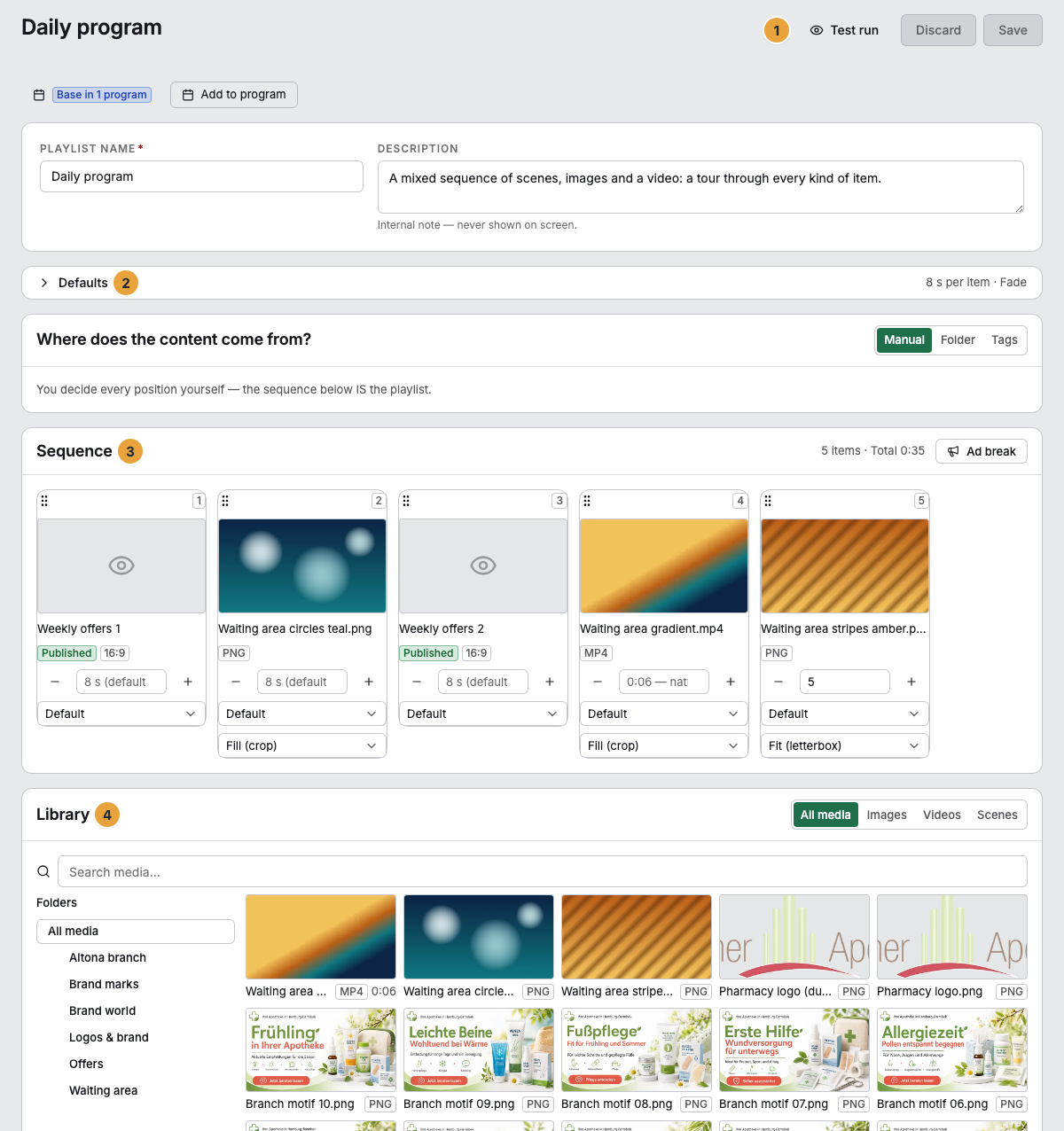
1 Header with Test run, Discard, and Save · 2 Collapsed defaults · 3 Sequence · 4 Library
Add and arrange items
- In the Library, choose the tab All media, Images, Videos, or Scenes. For media, the folder tree narrows the selection, and for scenes the search does. Only what has finished processing is offered.
- A click appends the item to the end of the sequence, and dragging drops it at a specific place. The library stays open, so you add several in a row. A curated sequence takes no more than 100 items.
- Drag a card by its handle to its new position. The header shows the number of items and the Total duration of one run.
- The actions on the card view an item or remove it.
Set the duration for each item
- In the card's duration field, enter seconds or use the − and + buttons. The allowed range is 1 to 86,400 seconds.
- If you leave the field empty, a placeholder appears such as 10 s (default), and for a video 0:06 — natural length.
| Item | Duration field empty | Duration entered |
|---|---|---|
| Scene | The duration from the defaults | The duration entered |
| Image | The duration from the defaults | The duration entered |
| Video | Its natural length | The duration entered. If the video ends earlier, its last frame stays up. |
Choose the transition and how media is shown
- For each card, choose the transition: Default, None, Fade, or Slide. The transition on an item overrides the default transition in the Defaults.
- For media, choose how it is shown: Fill (crop) cuts off the edges, and Fit (letterbox) shows the whole picture.
Defaults, name, and description
- Expand the Defaults: Default duration per item (seconds), Default transition, Transition duration (milliseconds) from 0 to 60,000, and for Slide the Slide direction: left, right, up, or down. Collapsed, the row summarizes both, for example 10 s per item · Fade.
- If needed, change the Playlist name (1 to 200 characters) and the Description (at most 2,000 characters) — an internal note that does not appear on the display.
Test run and save
- Click Test run. The playlist runs in full screen in a new window, with the real durations and transitions, and scenes with sample data. At the bottom it says Item 3 of 12. Previous item and Next item jump item by item, and Close or Esc ends the run.
- Click Save. That saves the sequence, durations, transitions, defaults, name, and description in one go. The portal reports Playlist saved. Discard restores the last saved state.
Check the result
- The sequence shows the cards in the new order. The Total duration in the header matches the sum.
- In the list under Playlists, Extent and Changed are correct.
- If the playlist is scheduled, the new sequence runs on the assigned displays.
If something goes wrong
| Symptom | Meaning | Solution |
|---|---|---|
| A media item is missing in the Library | It has not finished processing yet | Wait until its status in the media library is Ready. |
| Mixed orientations in this sequence | The playlist mixes landscape and portrait, and the other orientation runs with black bars | Separate the formats into two playlists or adjust the scenes, see Configure a scene: format, layout and slots, transitions. |
| Never published — will be skipped on the display | The scene is a draft | Publish the scene. |
| A scene carries blocked, not included in your package | The scene lies outside your package | Choose a different scene or extend the package. |
| Please enter between 1 and 86400 seconds. or Please enter 0 to 60000 milliseconds. | The duration or the transition duration is outside the limits | 1 second to 24 hours per item, at most 60 seconds of transition. |
| Save failed | The change was not accepted | Check the fields marked in red and Save again. |
Related
Found what you needed? Then carry on in the portal — or set up an organization first.
Go to the portalTry it free