Create, edit, pause, or delete a program entry
Something other than usual should run at certain times, or an exception has to be changed or paused.
5 minute readProgramsUpdated: 10/25/2026
On this page
Before you start
- For
- Anyone who plans exceptions to the normal case — lunch menu, club night, holiday notice.
- Prerequisite
- The permission to edit programs — by default, the roles Owner and Manager have it. In addition, a created program and the content that should run.
- Where in the portal
- Programs › program › Program entry button
At the end, you have a program entry: a piece of content in a time window that sits on top of the base program there. The same steps also lead to editing, pausing, and deleting.
Steps
Open the dialog
- Open the program under Programs. Three gestures lead to the same dialog:
| Gesture | What is already filled in |
|---|---|
| Drag across an empty area in the weekly plan | Weekday and time window of the dragged area |
| Program entry (button above the weekly plan) | Nothing — the dialog starts with the weekdays and 08:00 – 20:00 |
| Click on a block in the weekly plan or a row of the program entry list | Everything — the entry opens for editing |
- The dialog is called Create program entry (or Edit program entry when you edit an entry) and asks: “What should run when?”
Provide the four details
- Content: Change opens the same picker as for the base program, with the tabs Scenes · Playlists · Media · Off air.
- Time: From — to in a 15-minute grid. All day (24 h) sets a window across a full 24 hours. If the end lies before the start, The window ends on the following day. appears with a moon icon. A footnote names the time zone, for example All times in Europe/Berlin.
- Repeat: the day switches Mon to Sun and next to them the Quick pick: Daily · Weekdays · Weekend · One-off only. One-off only switches the days off and requires a Date of the appointment. The portal derives the kind of repeat from this: all seven days result in daily, a subset in weekly, and a Date of the appointment in one-off.
- Label (optional): free text for the block in the weekly plan. “Without a label the calendar shows the name of the content.”
- Save closes the dialog. The portal reports Program entry saved.
If a required detail is missing, such as a weekday for a weekly repeat or a Date of the appointment for One-off only, the reason appears as a red note at the end of the dialog, directly above Cancel and Save. Save stays locked until the detail is provided.
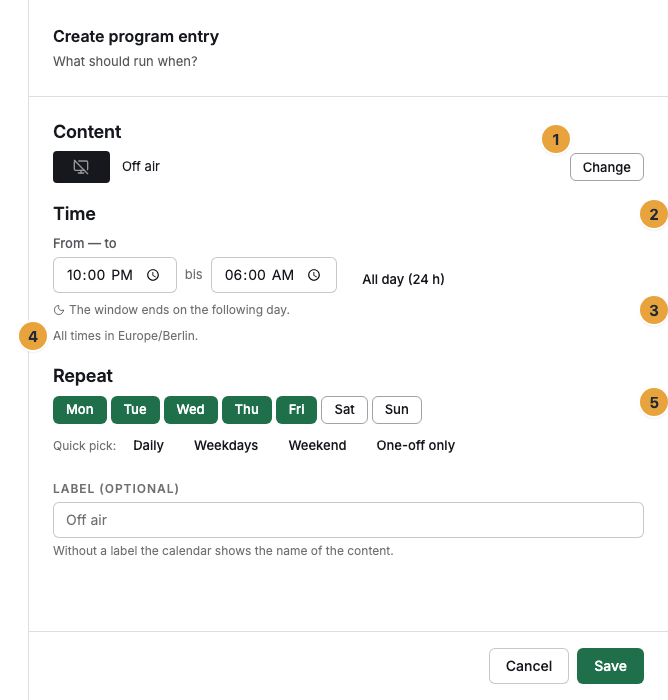
1 Change button in the Content section · 2 Time section · 3 Note about the following day · 4 Footnote with the time zone · 5 Repeat section
Pause a program entry
- An entry that should not run for now does not have to be deleted. Switch on Do not play for now in the dialog or use the switch at the end of the row in the program entry list.
- The entry is kept, skipped during playback, and carries the Paused badge in the list and the weekly plan. It therefore covers nothing either.
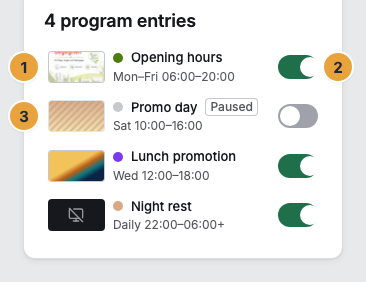
1 Row of a program entry · 2 Switch at the end of the row · 3 Row of a paused entry
Delete a program entry
- Open the entry and click Delete program entry at the bottom left. In the same row, the portal asks Really delete? and requires Delete permanently. The portal confirms with Program entry deleted.
Options
From finished content, you go straight into the program: Schedule in a scene's menu, Add to program in the playlist editor. Choosing a program card opens the editor and, in it, Create program entry with the content you brought along.
If an entry carries a monthly repeat or several time windows, the box This program entry has special times points this out. You can safely change the content, label, and pausing. Only a change to Time or Repeat replaces the special form with what is set here.
Check the result
- In the weekly plan, the entry appears as a colored block over the pale area of the base program. The color follows its kind of content.
- In the program entry list, a row appears with preview, label, a short form of the repeat, and the switch. One-off appointments come first, then the recurring ones by start time.
- If the window is running right now, the On now card names the entry and its window. Open entry jumps into it.
- The entry takes effect on the displays only once the program is assigned to a display.
If something goes wrong
| Symptom | Meaning | Solution |
|---|---|---|
| Please pick at least one weekday. | A weekly repeat without a day would never occur. | Switch on at least one day switch or change to One-off only. |
| Please pick a date. | One-off only without an appointment. | Set a date in the Date of the appointment field. |
| These details could not be saved. Please check the time and the repeat. | The time details do not make a valid repeat. | Check the time and weekdays. For a full 24 hours, set All day (24 h). |
| This program already has the maximum number of program entries. | The cap of 200 entries per program is reached. | Merge entries, delete the ones you do not need, or create a second program. |
| Two entries lie on top of each other | Overlaps are allowed. A fixed order decides. | Which program entry wins when entries overlap? |
Related
Found what you needed? Then carry on in the portal — or set up an organization first.
Go to the portalTry it free