When a display does not play what the plan says
The display plays something other than planned, a program entry does not take effect, or a message blocks saving.
7 minute readProgramsUpdated: 10/25/2026
On this page
Before you start
- For
- Anyone who has planned a program and wants to check why it works out differently than expected.
- Prerequisite
- Access to the Programs area and to the affected display. To make changes, you need the permission to edit programs.
- Where in the portal
- Programs · Displays › open a display › Playback tab
The display shows something other than expected, a program entry does not take effect, or a message prevents saving. The following sections are ordered by frequency: first the wrong content on the display, then the times, the playlists, and finally the messages of the portal.
The display shows the wrong content
The first place to look is always the display's Playback tab: the cards at the top say what is assigned and whether an override is running. The Playback timeline below shows what follows from that for the day. Show composition unfolds the layers Override, Program entries, and Base program.
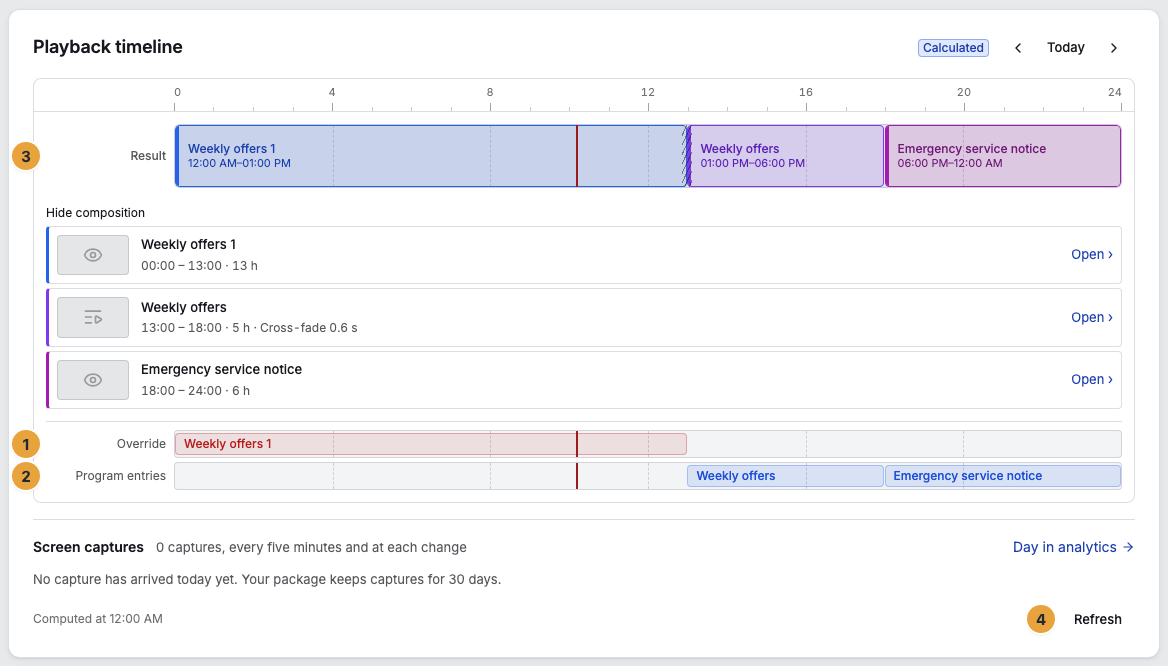
1 Override layer · 2 Program entries layer · 3 Base program layer · 4 Result row · 5 Refresh
| Symptom | Meaning | Solution |
|---|---|---|
| The display does not show the expected content | An override is running, another program entry applies, or an off-air period is planned | Open the Playback tab and read the cards and the timeline: Check what a display is showing now and will show today |
| The display shows the Placeholder screen | Nothing is assigned to the device (No program assigned — “The device shows the placeholder screen until you assign something to it.”) | Assign something in the Playback tab: Assign a program to a display |
| The display shows Off air with a time | An off-air period is planned for this time, and the time is the end of its window | Open the responsible program entry in the weekly plan and change its window or pause it: Schedule time off air |
| The program has no effect at all | It is not assigned to any display, and the Runs on card in the editor stays empty | Assign it at the display — an assignment lives at the device, not in the program: Assign a program to a display |
| The plan does not take effect on a display at all | An override sits on top of it and replaces everything, including the base program | On the Override is running card, click End override: Show something else now (override) |
| A program entry does not run | It carries the Paused badge (switch Do not play for now), its one-off appointment lies in the past, or its weekday is not chosen | Open the entry in the weekly plan and check the switch, Date of the appointment, or weekdays: Create, edit, pause, or delete a program entry |
| Two program entries overlap, and the wrong one wins | The platform decides without asking, and in the weekly plan the winner lies almost fully over the other | Shorten the window or create the entry again: Which program entry wins when entries overlap? |
| A change does not yet appear on the timeline | The calculation is cached briefly | Click Refresh below the timeline. On the device, Refresh content helps: Remote maintenance: send commands to a display |
The times are wrong
| Symptom | Meaning | Solution |
|---|---|---|
| The change comes one or two hours too early or too late | Program entries are calculated in the organization's default time zone, not in your account's time zone. The dialog names it in a footnote, All times in … | Read the footnote in the dialog and check the default time zone under Settings › Company details: Master data of the organization |
| A window across midnight runs on the wrong evening | The day of the start counts: “Friday, 22:00–06:00” runs from Friday 22:00 to Saturday 06:00 | Set the weekday of the start. The moon icon and the sentence The window ends on the following day. confirm the intention: Day windows, midnight, and time zones |
| A gap of one minute remains between two days | The window was set to 23:59 by hand | Use All day (24 h) — that sets a window from 00:00 to 00:00, a full 24 hours without a gap: Day windows, midnight, and time zones |
| A single device changes at a different time than its neighbors | Its clock runs without synchronization, and the portal reports Clock out of sync | Check the device's network access: Troubleshooting on the device |
A playlist does not play what it should
| Symptom | Meaning | Solution |
|---|---|---|
| An automatic playlist plays nothing | Its source currently matches no playable media, for example because of an empty folder or a tag combination that is too strict. The source card reports No playable media currently matches this selection. | Open the playlist, read the match count on the content card, and widen the folder or tags: Automatic playlists from a folder, tags, or OneDrive |
| Not all media of the source run | A source playlist takes the first 200 matches in the chosen order. The card reports Not the whole selection runs and “a source playlist takes no more.” | Narrow the selection or spread it across several playlists: Automatic playlists from a folder, tags, or OneDrive |
| A scene is skipped on the display | It is still a draft, and when scheduling it carries the note Not published yet | Publish the scene — before that, it appears on no display: Save, publish, versions, and conflicts |
| In the test run it says This scene is no longer available. | The scene this item points to no longer exists | Remove the item from the sequence and replace it with another: Create a playlist |
| A media item is missing in the library picker of the playlist editor | It has not finished processing yet — only what is playable is offered | Wait for processing and check the state in the library: Upload media |
The content runs but looks wrong
| Symptom | Meaning | Solution |
|---|---|---|
| The content runs with black bars | Its orientation does not match the display. In the picker, it carries the badge Does not fit the screen format — it would play with bars. | Use a scene in the format of the display or do not mix portrait and landscape scenes in a playlist: Which format does a scene need for which display? |
| A scene is missing from the picker on the device | The Scenes tab at first shows only what fits the format of this display | Switch on Show all formats — what does not fit then runs with bars: Assign a program to a display |
Messages when saving and deleting
| Message | Meaning | Solution |
|---|---|---|
| Please pick at least one weekday. | A weekly repeat without a day would have no occurrence at all | Switch on at least one weekday or change to One-off only: Create, edit, pause, or delete a program entry |
| Please pick a date. | One-off only without an appointment | Fill in the Date of the appointment field: Create, edit, pause, or delete a program entry |
| These details could not be saved. Please check the time and the repeat. | The time details do not make a valid repeat | Check the time and weekdays in the dialog. For a 24-hour window, use All day (24 h): Day windows, midnight, and time zones |
| This program already has the maximum number of program entries. | The cap of 200 program entries per program is reached | Merge entries, delete those no longer needed, or create a second program: Manage programs: rename, delete, check assignments |
| This program still runs on at least one device. | The deletion lock applies as long as the program is assigned or sits on a display as an override | First assign something else to the devices from the Runs on card (Assign a program to a display) or end the override there (Show something else now (override)) |
| A button is grayed out | You lack the necessary permission | Ask an Owner or Manager: Permissions by role and by area |
Related
- Check what a display is showing now and will show today — the cards and the timeline in the Playback tab.
- Show something else now (override) — the layer that replaces everything beneath it.
- Content does not appear — the search across media, scenes, playlists, and programs.
Found what you needed? Then carry on in the portal — or set up an organization first.
Go to the portalTry it free