Show something else now (override)
Something should appear on a display right away, without you rebuilding the weekly plan.
5 minute readProgramsUpdated: 10/25/2026
On this page
Before you start
- For
- Anyone who wants to show something else on a display at short notice.
- Prerequisite
- The permission to edit programs — by default, the roles Owner and Manager have it. In addition, a paired display and the content that should run now: a program, a scene, a playlist, or a media item.
- Where in the portal
- Displays › open a display › Playback tab › Show something else now card
An override lays other content over a display's assigned program for 30 minutes, an hour, a day, or permanently. Afterward, the program continues on its own — an announcement without touching the weekly plan.
Steps
Start an override
- Open Displays and click the display you want.
- Switch to the Playback tab. Below the Program card is the Show something else now card with the sentence “Sits on top of the assigned program until the chosen time has passed or you end it.”
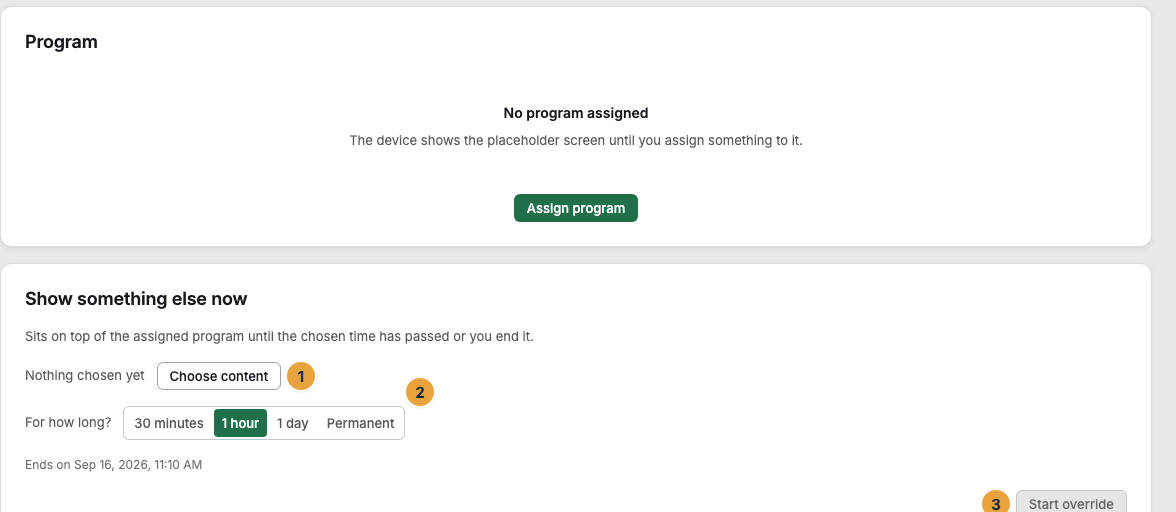
1 Choose content · 2 For how long? setting · 3 Start override
- Click Choose content. The What should run now? picker opens (“This choice sits above the assigned program — while it applies, nothing else does.”), with the four tabs Programs, Scenes, Playlists, and Media. Before that, it says Nothing chosen yet, and afterward the button is called Change content.
- Under For how long?, choose one of the four spans. All of them count from now. Below it, it says when the span ends.
- Click Start override. The portal confirms with Override is running.
End a running override
- Open the display and the Playback tab. The card is now called Override is running and stands out clearly.
- Click End override. The portal confirms with Override ended, and the assigned program takes effect again immediately.
A time-limited override ends on its own, and a permanent one ends only here. It also ends when the display is removed: that releases everything that belongs to it, including the program, the override, and the place on a video wall.
Options
| Span | What it says below | When it fits |
|---|---|---|
| 30 minutes | Ends on … | A short announcement |
| 1 hour | Ends on … | A promotion or a talk |
| 1 day | Ends on … | Inventory day, holiday, a visit |
| Permanent | Runs until you end it. | A renovation with no fixed end |
A scene, a playlist, or a media item runs continuously. If the override itself is a Program, it runs completely with its program entries and its base program.
Caution: An override replaces everything. As long as it runs, neither a program entry nor the base program applies.
Check the result

1 Override badge · 2 Runs until line · 3 Set by you on line · 4 End override
- The Override is running card shows the Override badge, the content, the end time (Runs until … or Permanent — until you end it.), and Set on …, for your own override Set by you on …
- In the Overview tab, the Now playing card names Override as the source instead of From program or Assigned directly.
- In the Playback timeline, the Override layer lies over the Program entries and the Base program. Show composition unfolds this layering.
- The display switches to the chosen content. After it ends, the program picks up where the weekly plan says it should be.
If something goes wrong
| Symptom | Meaning | Solution |
|---|---|---|
| The display does not show the expected content | An override, another program entry, or an off-air period applies | Check the cards in the Playback tab. Further causes: When a display does not play what the plan says |
| The override has been running for days | It was set with Permanent and ends only by hand | End override and choose a time-limited span next time |
| The change does not yet appear on the timeline | The calculation is cached briefly | Refresh below the timeline, on the device Refresh content (remote maintenance) |
| The message Setting the override failed | Saving failed | Reload the page and click Start override again |
| Instead of the cards, it says Part of a video wall | The display belongs to a video wall, and it decides what runs | Follow the Go to the video wall link: Create a video wall, assign content, and dissolve it |
| Start override is grayed out | You lack the permission to edit programs | Ask an Owner or Manager: Permissions by role and by area |
Related
- Assign a program to a display — the Program card directly above the override.
- How does a display decide what is playing? — why the override sits at the very top.
- Check what a display is showing now and will show today — the timeline with the Override layer.
Found what you needed? Then carry on in the portal — or set up an organization first.
Go to the portalTry it free