Manage programs: rename, delete, check assignments
You maintain several programs side by side and want to rename, tidy up, or see where a program runs.
4 minute readProgramsUpdated: 10/25/2026
On this page
Before you start
- For
- Anyone who maintains several programs side by side.
- Prerequisite
- The permission to edit and delete programs — by default, the roles Owner and Manager have it. Viewing the list needs only read permission.
- Where in the portal
- Programs
At the end, the program list is tidy: meaningful names, no stale programs, and for every program you know on which displays it runs.
Steps
Find a program
- Open Programs. Each card carries the preview of its base program, the name as a link into the editor, and the two numbers that describe a program: N program entries and running on N displays — otherwise not assigned to a display.
- With many programs, the search field Search programs … helps. If the search matches nothing, it says No program found with the note “No program matches the search. Try a different term.”
Rename a program
- Open the program through its name or through the menu (⋯) and Open.
- The name sits in the editor's header as an input field. Type the new name into it. It is saved as soon as you leave the field or press Enter. The portal confirms with Saved. If the change does not go through, the portal reports Saving failed.
Check assignments
- In the editor's sidebar, the Runs on card lists every device on which this program runs, either assigned or as an override. Each entry is a link to the display's record.
- If it is not assigned to any device yet, it says Not assigned to any device yet — you assign it on the device. The assignment lives at the display, not in the program. How it is set is described in Assign a program to a display.
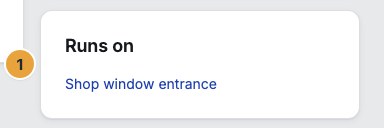
1 Runs on card with its entries
Delete a program
- In the list, open the card's menu (⋯) and choose Delete.
- At the bottom of the same card, the prompt Really delete? appears. Delete permanently carries it out. The portal reports Program deleted.
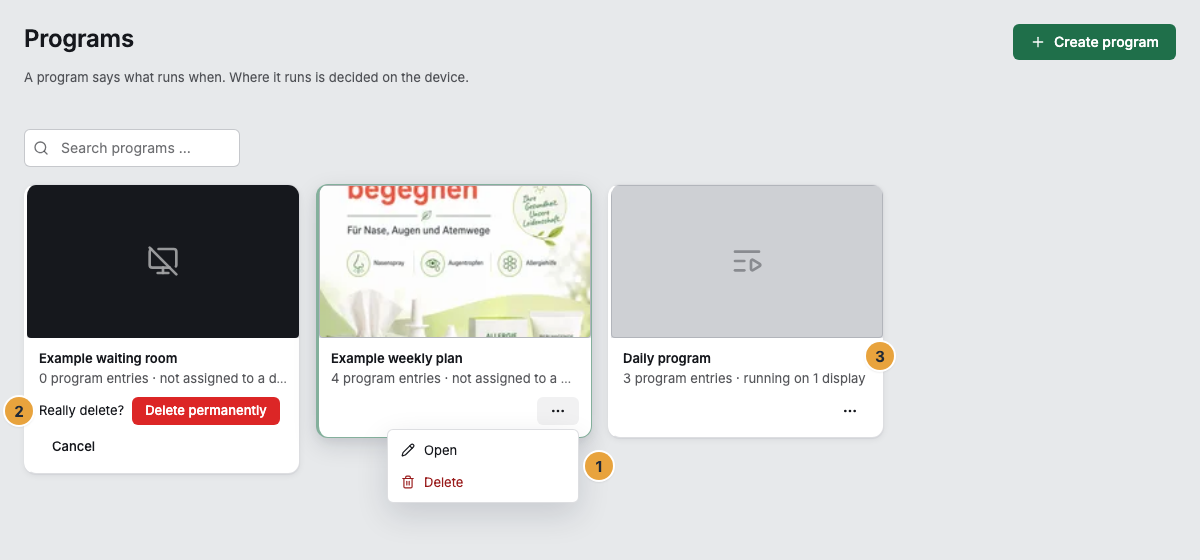
1 Menu (⋯) of a card · 2 Prompt Really delete? · 3 The two numbers on a card
If the program still runs on a device, deleting is rejected: This program still runs on at least one device. Assign something else to those devices first, then it can be deleted. Which devices are meant is shown in the Runs on card in the editor. If the program sits on a display as an override, a new assignment there does not help. End it at the display through End override, see Show something else now (override).
Options
From finished content, a shorter path leads into a program: Schedule in a scene's menu or Add to program in the header of the playlist editor. The program list then opens as a picker, with the banner Which program should “…” go into? above the grid and the sentence “Pick a program — the program entry opens there with this content already selected.” Cancel in the banner returns to the normal list.
Check the result
- The new name appears on the card in the list and in the editor's header.
- A deleted program disappears from the grid. A display that still points to it cannot exist at that point — the deletion lock rules this case out.
- Who created, changed, or deleted which program, and when, is recorded in the change log.
If something goes wrong
| Symptom | Meaning | Solution |
|---|---|---|
| This program still runs on at least one device. | The deletion lock applies as long as the program is assigned anywhere — or sits on a display as an override. | First assign something else to the devices from the Runs on card. If it runs there as an override, end it at the display through End override, see Show something else now (override). |
| Deletion failed | The deletion did not go through. | Reload the page and choose Delete permanently again. |
| Programs could not be loaded. | The list did not arrive. | Reload the page. |
| Delete in the menu is grayed out | You lack the permission to delete programs. | An Owner or Manager deletes it, see Permissions by role and by area. |
| Two programs are called New program | When creating, the portal assigns this name, with a number appended if there are several. | Open both and rename them in the title field. |
Related
Found what you needed? Then carry on in the portal — or set up an organization first.
Go to the portalTry it free