Create a program and choose the base program
A display should run according to a plan, and the first program with its content for the normal case has to be created.
4 minute readProgramsUpdated: 10/25/2026
On this page
Before you start
- For
- Anyone who decides what runs on the displays and when.
- Prerequisite
- The permission to create programs — by default, the roles Owner and Manager have it. The content for the normal case exists: a published scene, a playlist, or a fully processed media item.
- Where in the portal
- Programs › Create program button
At the end, a named program with a chosen base program is open in the editor. It takes effect as soon as you assign it to a display.
Steps
Create the program
- Open Programs. The page says: “A program says what runs when. Where it runs is decided on the device.” Below it is a tile grid, with one card per program showing the preview of its base program, the name as a link, the counts N program entries and running on N displays (otherwise not assigned to a display), and a menu (⋯) with Open and Delete. Above the grid are Create program and the search field Search programs ….
- If nothing exists yet, you see No program yet with the explanation “A program collects what should run on your displays: a base program and the times when something else applies.” If the search matches nothing, it says No program found.
- Click Create program. The portal creates it without an intermediate dialog and jumps into the editor. The new program is called New program, with a number appended if there are several, and starts with the base program Off air.
Set the name
- The editor is a page of its own. At the very top, All programs leads back to the overview, below it is the name as an input field, and next to it the badge Not assigned to any device yet or Runs on N devices.
- Type the name directly into the field, for example “Waiting room”. It is saved as soon as you leave the field or press Enter. The portal reports Saved.
Choose the base program
- In the sidebar on the right, the Base program card carries the sentence Runs whenever nothing else is planned. Click Change there.
- The What should normally run? picker opens four tabs: Scenes · Playlists · Media · Off air, each with a search field and a tile grid. Choose the tile that should run almost all the time. If the display should stay dark in the normal case, use the Choose off air button in the Off air tab.
- The portal reports Base program changed. The base program cannot be removed, only replaced — it is the answer to the question “and what runs otherwise?”.
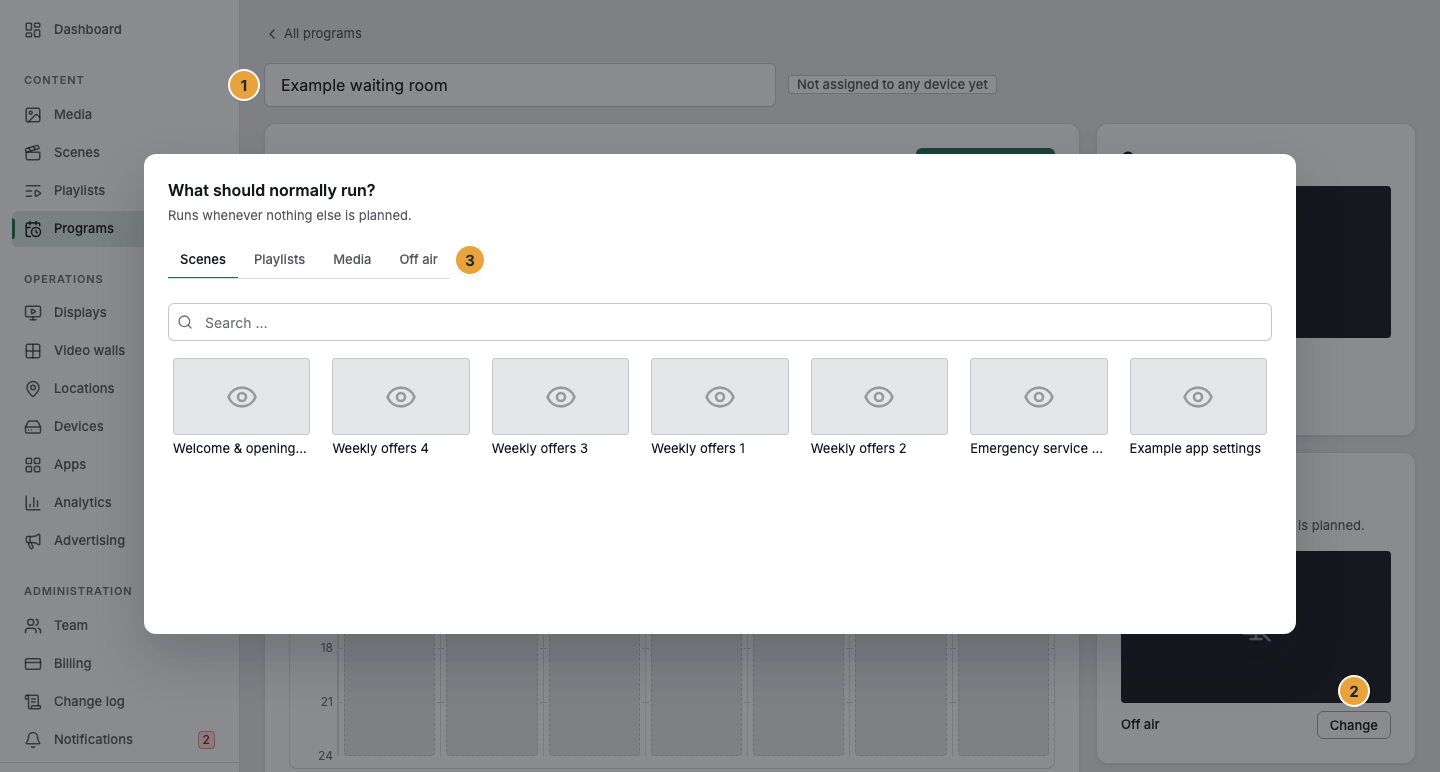
1 Name field · 2 Base program card with Change · 3 Tabs of the content choice
Options
The editor offers a short tour: Shall I show you the schedule editor? — “Four steps: base program, schedule item, weekly plan, device.” Yes, show me starts it, and No thanks closes the offer. During the tour, you work on whatever is currently open.
The editor is laid out in two columns:
| Area | What it contains |
|---|---|
| Weekly plan (left) | The weekly calendar across the full 24 hours with the week navigation and the Program entry button |
| Sidebar (right) | From top to bottom: On now, Base program, Runs on with the linked devices, and finally the program entry list with a switch for each row |
Check the result
- In the weekly plan, the pale area of the base program stretches across every day. The On now card names Base program as the source and adds around the clock.
- The program entry list says Nothing planned yet with the note “Drag across an empty area in the weekly plan to create a program entry.”
- The Runs on card reports Not assigned to any device yet — you assign it on the device. Only this assignment gives the program an effect. Until then, nothing changes on any display.
If something goes wrong
| Symptom | Meaning | Solution |
|---|---|---|
| Create program is grayed out | You lack the permission to create programs | An Owner or Manager creates it, see Permissions by role and by area. |
| The program could not be created. | Creating failed | Reload the page and click Create program again. |
| Saving failed after renaming | The name did not get through | Leave the field again. If it stays that way, reload the page. |
| Nothing changes on the display | The program is not assigned to a display yet | Assign it, see Assign a program to a display. |
Related
Found what you needed? Then carry on in the portal — or set up an organization first.
Go to the portalTry it free