Create a playlist
Several scenes and media should run one after another, and the first playlist has to be created.
5 minute readProgramsUpdated: 10/25/2026
On this page
Before you start
- For
- Anyone who bundles scenes and media into a sequence.
- Prerequisite
- The permission to create playlists — by default, the roles Owner and Manager have it. For a manual playlist, at least one scene or a fully processed media item, and for OneDrive the “Places in the library” feature from the OneDrive app.
- Where in the portal
- Playlists › Create playlist button
At the end, a new playlist exists with a name, a duration, and a source for its content: maintained by hand, from a folder, by tags, or from OneDrive. It then opens for further editing.
Steps
Choose the source
- Open Playlists and click Create playlist.
- The New playlist dialog asks: Where should this playlist take its content from? Choose one of the four cards. Back returns to the choice.
| Card | What the playlist then plays |
|---|---|
| Manual | Scenes and media in the order you determine. |
| Folder | Whatever is in a folder of the media library. |
| Tags | Everything that carries the chosen tags, regardless of folder. |
| OneDrive | Whatever is in a OneDrive folder. The files are imported continuously. |
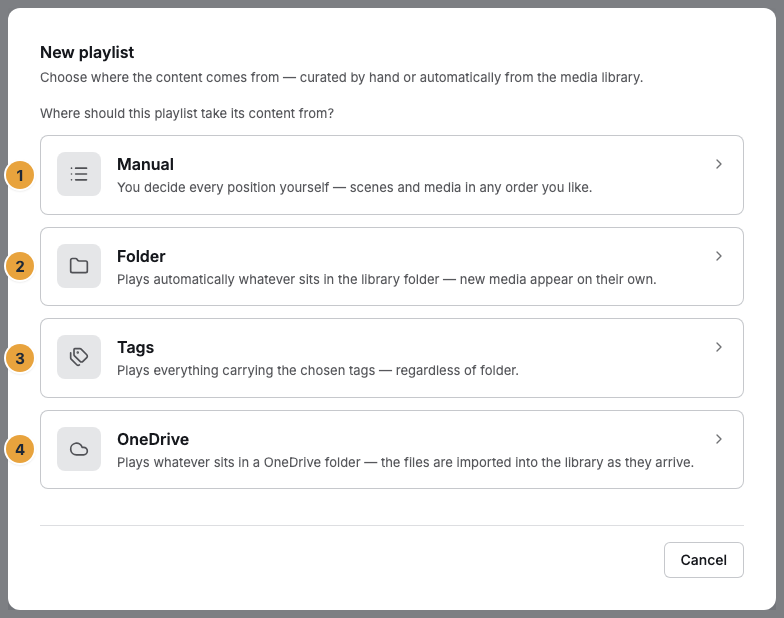
1 Manual · 2 Folder · 3 Tags · 4 OneDrive
If an organization lacks the Places in the library feature, the OneDrive card appears locked, with a note about the matching app underneath. In the organization shown, it is enabled.
Name and duration
- Under Playlist name, enter 1 to 200 characters, such as “Lunch menu” or “Promo week”.
- Set the Default duration per item (seconds). The allowed range is 1 to 86,400. It applies to every image and every scene without a duration of its own. Below it is the note: “Videos run their natural length.”
Manual: first item
- Under First item, choose a scene from the list (Pick a scene …) or click Pick media and select an image or video in the Select media dialog.
- You swap this item later in the Sequence.
If there is neither a scene nor a media item, it says: “Create a scene or upload a media file first so the playlist gets a first item.” A scene outside your package is blocked, not included in your package and cannot be chosen.
Folder or tags: set the selection
- For Folder, choose the Folder in the folder tree and switch on Include subfolders if needed. For Tags, choose 1 to 10 Tags. A media item runs only if it carries all the named tags.
- Set the Media types (Images, Videos) and the Order: Name (A–Z), Name (Z–A), Newest first, or Oldest first.
If the folder, tag, or media type is missing, Create playlist stays locked.
You see how many media the chosen selection matches right after creating: the playlist opens, resolves the source, and lists the matches in the Sequence section. So choose a tag combination broadly at first and narrow it down there. If it matches nothing, the Sequence says: “No playable media currently matches this selection.” Then remove a tag and click Save.
OneDrive: choose a cloud folder
- Choose the account and, below it, the Cloud folder. One level up leads back in the tree. The chosen folder “will be kept in sync with the library from then on”.
- Without an account, the dialog shows No account connected yet and the Connect account button.
Create
- Click Create playlist. The portal reports Playlist created and opens the playlist.
Check the result
- The playlist appears in the list under Playlists, with the badge of the Source (Manual, Folder, or Tags) and its Extent. A OneDrive playlist carries the Folder badge.
- In the Sequence section, a manual playlist shows the first item. A playlist with a source carries the badge From the source and lists the resolved media, with their number and the Total duration at the top. From that you can tell whether the folder or tags match the amount you want.
- For OneDrive, Kept in sync from … appears above the selection, followed at first by “First sync is starting — the first media will appear within the next few minutes.”
If something goes wrong
| Symptom | Meaning | Solution |
|---|---|---|
| Create playlist is locked | You lack the permission to create playlists | An Owner or Manager creates them, see Permissions by role and by area. |
| The OneDrive card is locked | The “Places in the library” feature is missing | Install the OneDrive app, see Places: OneDrive folders in the media library. |
| Please enter a name between 1 and 200 characters. | The name is empty or too long | Shorten or complete the name. |
| Please enter between 1 and 86400 seconds. | The duration is outside the limits | Enter a value between 1 second and 24 hours. |
| This folder is already synced elsewhere | A sync into the top level of the media library already exists for this cloud folder | End the sync in the media library and set it up again here, or choose a different folder. |
| A media item is missing under Pick media | It has not finished processing yet | Wait until its status in the media library is Ready. |
Related
Found what you needed? Then carry on in the portal — or set up an organization first.
Go to the portalTry it free