Places: OneDrive folders in the media library
Your images already live in OneDrive and should reach the media library without a detour through your computer.
4 minute readContentUpdated: 10/25/2026
On this page
Before you start
- For
- Organizations that already maintain their images and videos in OneDrive.
- Prerequisite
- the installed OneDrive app and an account that may manage apps. Without the app, the Places section is missing.
- Where in the portal
- Media › Places · Apps › Cloud folders for Microsoft OneDrive › Connected accounts
At the end, the folders of your Microsoft account appear as their own place in the sidebar of the media library. You browse them, import individual files as media, or have a whole folder kept in sync permanently.
Steps
Connect the account
- Open Apps, then the page of the OneDrive app.
- Under Connected accounts, click Connect Microsoft OneDrive.
- Sign in with the provider and confirm the authorization. The connection then shows Connected.
The entry then carries one of three states: Connected, Interrupted (the authorization no longer works — Reconnect), or Disconnected (the connection was ended with Disconnect).
A connected account belongs to your organization, not to the person who set it up. It stays in place when someone leaves the team.
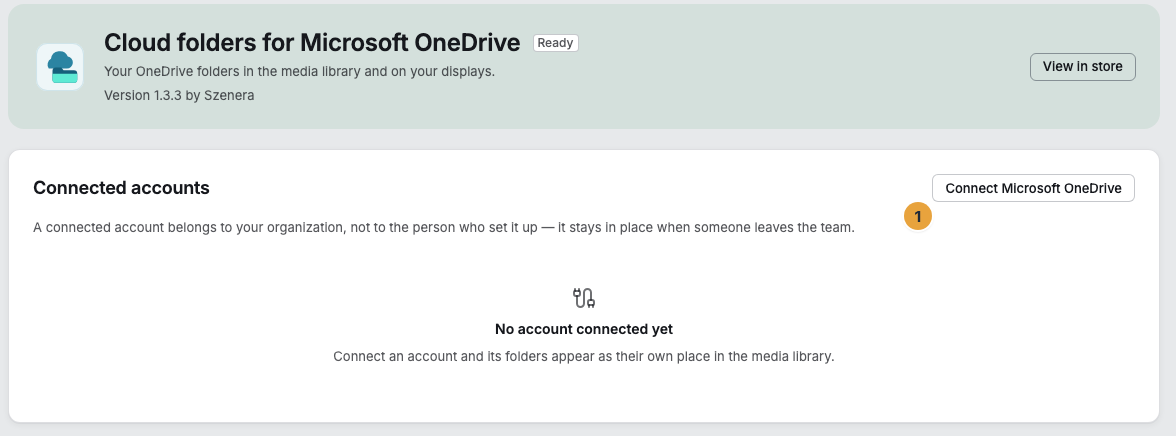
The section before the first connection. With a connected account, the status appears here, along with Reconnect and Disconnect.
Import files
- Open Media. The Places section sits in the sidebar above the trash.
- Expand the place and open a folder. The files stay with the provider.
- For a file, choose Import into library and pick the Target folder.
If the same file is already there, the portal reports “… is already in the library — the existing item was used.” and does not create a second one.
Keep a folder in sync
- Open the folder you want in the place and choose Keep folder in sync.
- The folder then carries the badge Kept in sync and appears under Folders kept in sync with the status Running or Paused.
- Sync now starts a run immediately. Stop ends the sync again. Confirm the prompt with Stop syncing.
Media that you already imported keep their origin after you stop. A paused sync retries several times a day and starts again on its own as soon as the connection works again.
Check the result
The imported media item sits as a tile in the chosen target folder. In the Media details, the Origin field shows the line “Imported from … on …”. A folder kept in sync shows the time of its last sync under Folders kept in sync, or Has not run yet.
If the file has disappeared at the provider, the Origin reports Link to the source is broken instead and gives the date since which it has been missing there. The imported media item stays usable unchanged.
If something goes wrong
| Symptom | Meaning | Solution |
|---|---|---|
| The Places section is missing | The OneDrive app is not installed | Install the app. The section appears with it. |
| The connection no longer works | The authorization was withdrawn at the provider | Choose Reconnect. Imported media stay, new ones only arrive afterward. |
| That was a different account | A different account was signed in during the repair | Sign in with the same account — or connect the new account as its own entry. |
| The process expired | Too much time passed between the start and the response | Start connecting again. |
| The provider could not be reached | A fault on the provider's side | Try again later. |
| Provider not configured | The operator has not stored the provider's credentials | Ask the operator. |
| You canceled the connection | The authorization was not confirmed at the provider | Connect again. Nothing was changed. |
| This place cannot be browsed | There is no read access for this provider | The connection stays in place and still names the origin of imported media. |
Caution: Disconnect deletes the stored authorization and revokes it with the provider. This account's folders disappear from the media library. Files already imported stay — they belong to your organization and keep playing on your displays.
Related
Found what you needed? Then carry on in the portal — or set up an organization first.
Go to the portalTry it free