Create a scene: blank or from a template
You want to create new content, either on a blank stage or as a copy of a built-in template.
5 minute readContentUpdated: 10/25/2026
On this page
Before you start
- For
- Anyone who designs new display content.
- Prerequisite
- the permission to create scenes. If it is missing, Create scene stays grayed out. To design, you also need a tablet or a desk: on a phone, Editing from tablet width appears instead of the editor.
- Where in the portal
- Scenes › Create scene button · Scenes › Templates
At the end, a new scene with a name, format, and layout is open in the editor. It starts either on a blank stage or as a copy of a built-in template.
Steps
Start on a blank stage
- Open Scenes. You can narrow the list with the Status filter (Draft, Published, Archived, or All). The quick action New scene on the dashboard takes the same path.
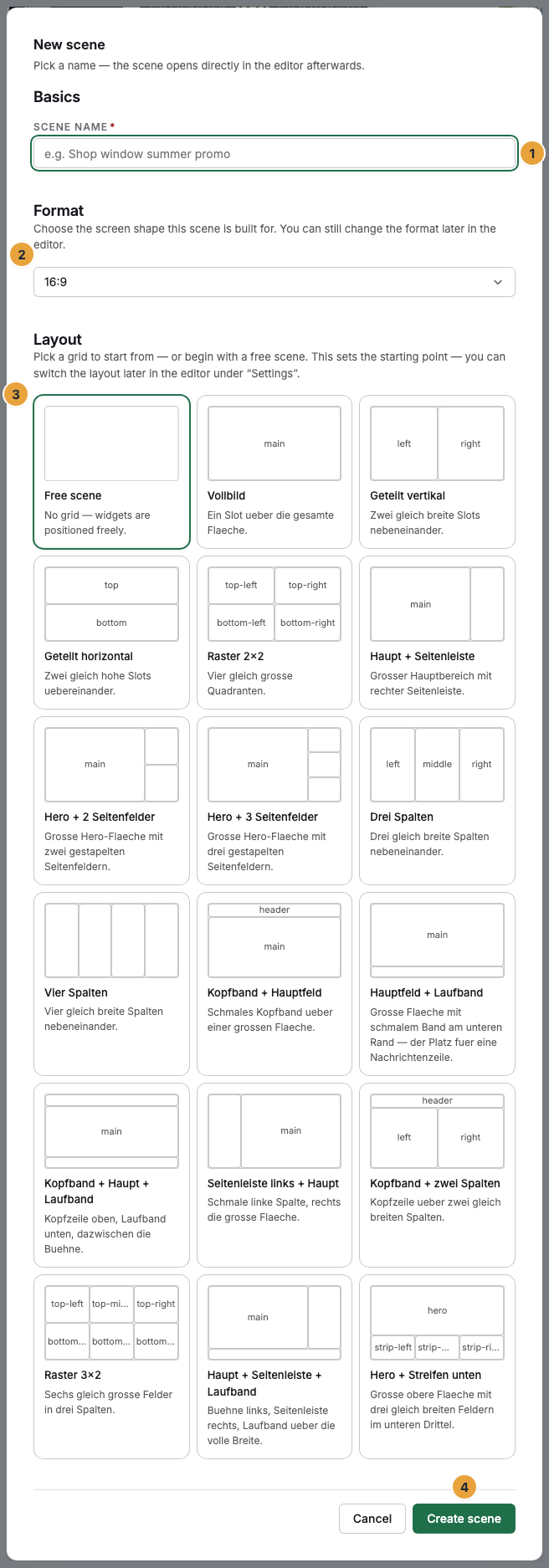
- Click Create scene. The New scene dialog opens with three sections.
- Under Basics, enter the Scene name, for example “Shop window summer promo”.
- Under Format, choose the Aspect ratio: Landscape or Portrait with the presets offered. Custom format … opens the fields Width (pixels) and Height (pixels). The note below states the allowed range for each edge.
- Under Layout, choose a grid as a starting point or Free scene without a grid. If there is no grid for the chosen format, it says: “No grid matches this format yet — the scene starts free.”
- Confirm with Create scene.
Start from a template
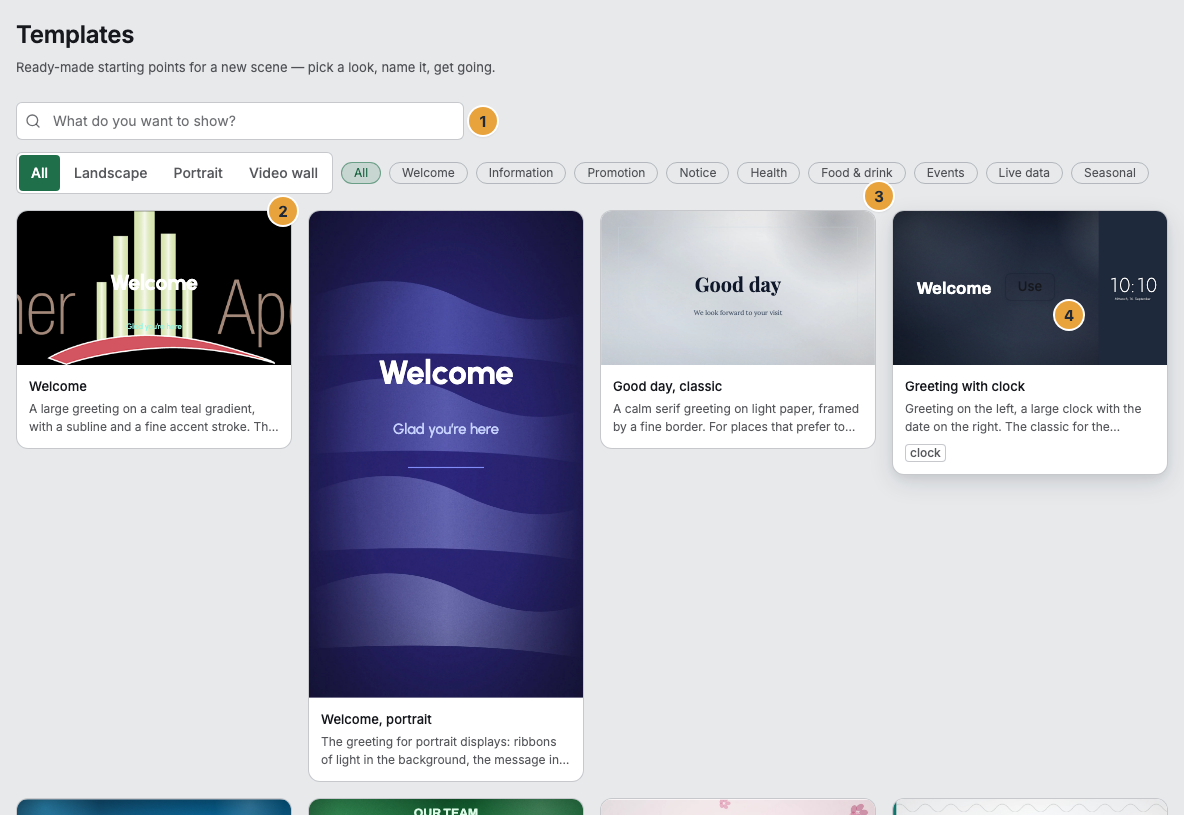
- Open Scenes › Templates. The templates are built in. You do not need to install or create anything. From the editor, the Browse templates button leads there as well.
- Narrow the gallery. You can combine three ways: the search field What do you want to show? across name and description, the Format (Landscape, Portrait, Video wall), and the Category (Welcome, Information, Promotion, Notice, Health, Food & drink, Events, Live data, Seasonal).
- Hover over a tile and click Use.
- In the Scene from template dialog, adjust the Scene name and confirm with Create scene.
Options
- Video wall templates are deliberately not listed under Landscape. Their layout is designed for very wide areas from about 21:9 and makes no sense on an ordinary 16:9 display.
- The required apps appear as a small badge under a template's description. You can also use the template without that app and look at it in the editor. It can be played on the device only after the app is installed.
- Built-in images become your own copies in the System media folder of your media library when you use the template. From then on, they belong to you. If you use two templates with the same background, you still get only one media item.
- Each tile in the gallery shows the template itself, not a drawing, as a frozen preview of its document.
- Creating scenes from templates requires the Pro package. There, Templates, roles and permissions appears in the list of features. In a smaller package, the portal rejects Use.
Check the result
- The scene opens directly in the editor, and the header shows the name and the status badge Draft.
- Under Scenes, it appears in the list with the status Draft and the time of the last change.
- A scene created from a template is independent from then on: changes to the built-in templates do not affect it, and your changes do not affect the template.
- Format and layout are only the starting state. You switch both later in the editor, see Configure a scene.
If something goes wrong
| Symptom | Meaning | Solution |
|---|---|---|
| Create scene is grayed out | You lack the permission to create scenes | An Owner or Manager creates them, see Permissions by role and by area. |
| Scene could not be created. | Creating failed along the way | Check the name and confirm again. |
| No template matches this selection. | Search, category, or format rule everything out | Reset the filters, especially the format. |
| Use is rejected | The booked package does not include the template library | Create a blank scene through Create scene or change the package. |
| Editing from tablet width appears instead of the editor | The window is too narrow for palette, stage, and properties | Open it on a tablet or at a desk. On a phone, the preview and the state of the scene remain. |
| A template carries the badge of an app you do not have | The app is not installed | You can still use the template. To play it, install the app, see Install or book an app. |
Related
Found what you needed? Then carry on in the portal — or set up an organization first.
Go to the portalTry it free