The media library
You are looking at a filter, a column, or a badge in Media and want to look up what it means.
3 minute readContentUpdated: 10/25/2026
On this page
Before you start
- For
- Anyone who provides images, videos, and documents for the displays.
- Prerequisite
- the permission to view the library and its folders.
- Where in the portal
- Media in the left navigation
This page lists what the Media area shows and what each control is for. Look here when you want to make sense of a field, a badge, or a column. The steps themselves are in the linked guides.
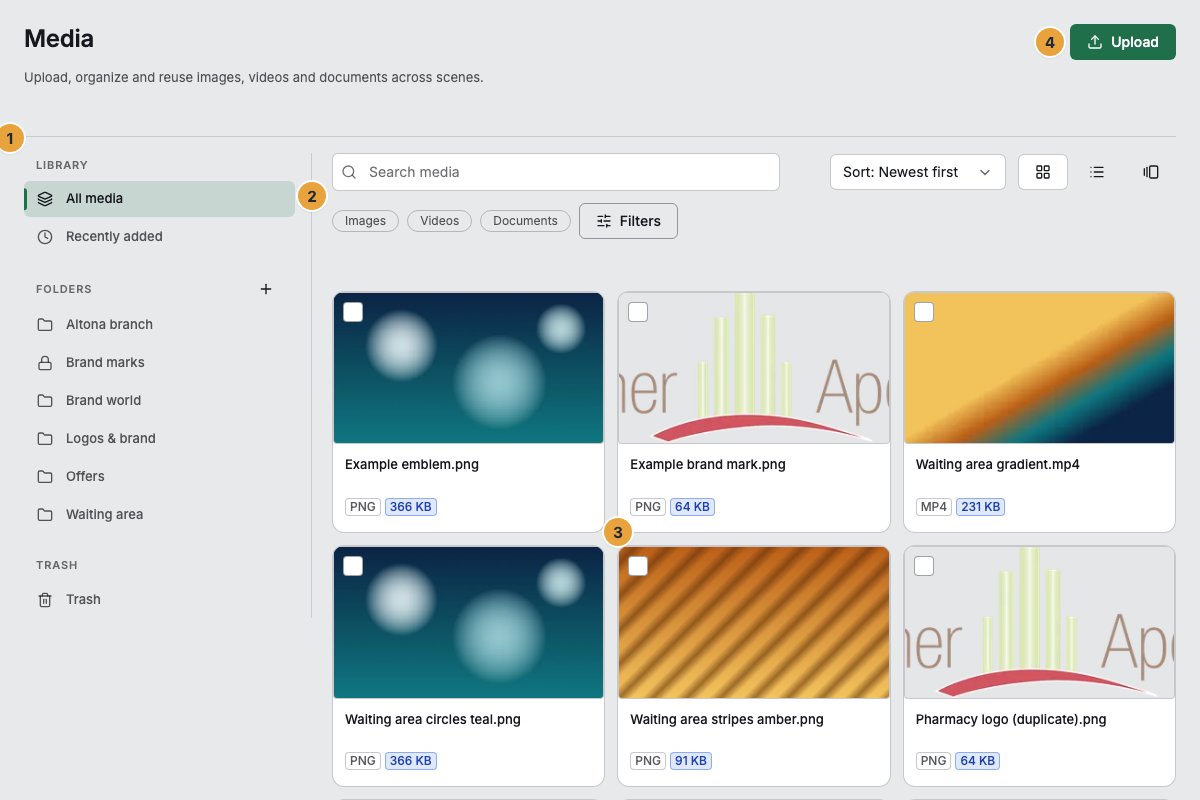
The sidebar
The sidebar on the left divides the library into sections, from top to bottom.
| Section | What it contains |
|---|---|
| Library | All media and Recently added |
| Folders | Your folder tree, whose top level is called Top level |
| Saved filters | Named, reusable searches. The section appears only once you have a first filter. |
| Places | Connected storage from other providers, visible only with the matching app |
| Trash | Deleted media. The entry is always there, but Restore requires the permission to edit and Delete permanently the permission to delete. |
The filter bar above the grid
| Control | What it is for |
|---|---|
| Search media | Searches by media name and original file name |
| Reach of the search | Current folder or Everywhere |
| Filters | Opens the filter panel with all conditions |
| Sort | Order in the grid and in the list |
| View | Tiles, List, or Gallery |
| Filter chips | One chip for each condition you set. Clear all filters resets everything. |
| Save as filter | Saves the conditions you have set as a saved filter and appears as soon as at least one condition is set |
The filter panel
| Group | Choices |
|---|---|
| Type | Images, Videos, Documents |
| Formats | The individual formats within the chosen types |
| Tags | Several tags as an AND condition. From ten tags on, At most 10 tags at a time appears. |
| Period | Period in which the media were added |
| Size | from and to in MB |
| Usage | All, In use, or Unused |
Sorting
| Entry | Order |
|---|---|
| Newest first / Oldest first | By the time the media were added |
| Name (A–Z) / Name (Z–A) | By media name |
| Largest first / Smallest first | By file size |
| Type (A–Z) / Type (Z–A) | By format family |
The tile in the grid
Each tile shows the preview image, the name, a badge with the format abbreviation, and a badge with the file size. A selection checkbox for bulk actions sits at the top left. While processing is running or has failed, a status badge joins them: Uploading, Processing, or Error. A finished media item carries no status badge. If a media item has the status Error, its tile carries an action menu at the top right (the ⋮ icon) with Process again. Tiles without an error carry no menu. Clicking the tile opens the Media details. If the chosen folder is empty, it shows No media yet. along with the hint to upload images, videos, or documents.
The list view
| Column | Content |
|---|---|
| Name | Media name, which you can change through Rename in the row |
| Type | Format family |
| Size | File size |
| Added | Time of the upload |
| Usage | In use or Unused |
The Gallery view shows one large preview image with a strip of all media beneath it, and Open details leads into the Media details.
Related
Found what you needed? Then carry on in the portal — or set up an organization first.
Go to the portalTry it free