Which format does a scene need for which display?
Your scene is missing from the picker at the display, or bars remain on the display.
3 minute readContentUpdated: 10/25/2026
Before you start
- For
- Anyone who builds scenes and runs displays in different positions.
- Where in the portal
- Scenes › Templates · Displays › display › Screen tab › Picture settings
A scene is built for a specific aspect ratio. If it does not match the display it runs on, bars remain or something is missing at the edge. There are three formats, and they meet the display in two places: at the assignment on the display and at the orientation of the device.
Three formats
The template gallery offers three formats. Landscape is wider than tall, the normal case. Portrait is taller than wide, intended for displays mounted upright. Video wall means very wide areas from about 21:9.
A video wall template deliberately does not appear under Landscape. Its layout is designed for a wide band and makes no sense on an ordinary 16:9 display. When you create a scene, you choose the format freely, either as a preset or as Custom format … with Width (pixels) and Height (pixels).
Where scene and display meet
The first place is the assignment at the display. The Scenes tab in the picker What should run on this device? shows by default only what fits the format of this display. The rest sits behind the Show all formats switch and then carries the badge Does not fit the screen format — it would play with bars. If the device has never reported its format, nothing is filtered out. If nothing fits at all, the picker says so as well and lists everything.
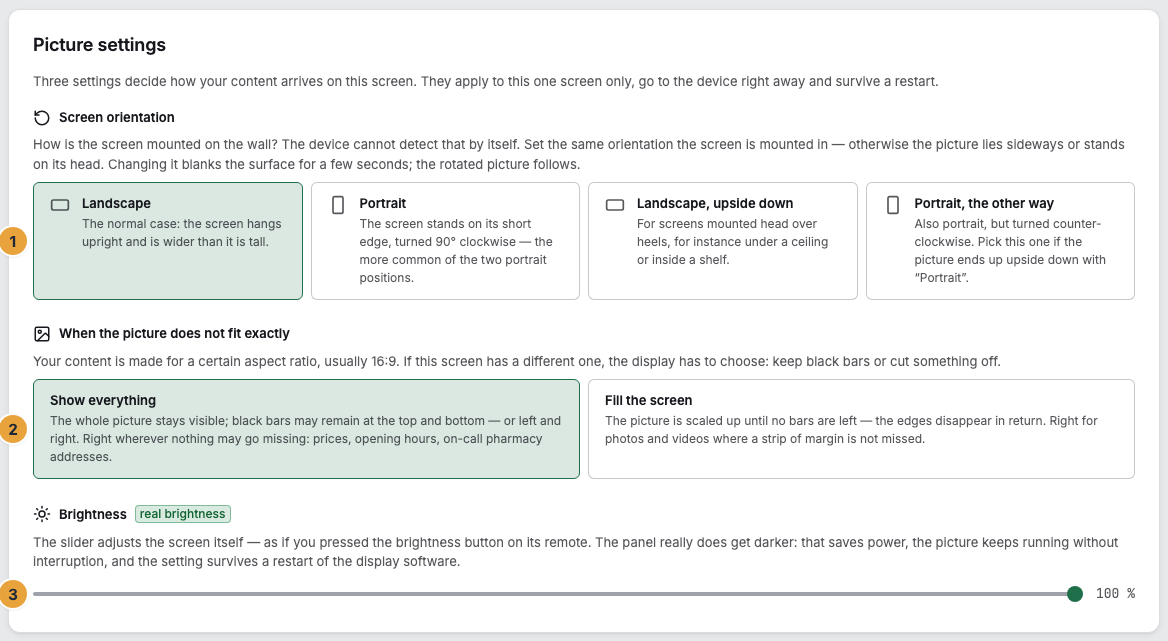
The second place is the display itself. When pairing, the Set up step asks under Placement for Orientation and Content fit. The same two settings appear later in the Screen tab in the Picture settings card, there as Screen orientation and When the picture does not fit exactly. The orientation tells the device how the panel hangs on the wall: Landscape, Portrait, Landscape, upside down, or Portrait, the other way. The device cannot detect that itself. The fit decides between Show everything, where black bars may remain, and Fill the screen, where the edges are cut off.
What follows
- Build the scene in the format of the display it should run on. That is the only way without bars and without cropping.
- A display mounted upright needs both: a scene in Portrait and the matching Screen orientation on the display. If the orientation is missing, the picture appears sideways.
- Show everything is the safe choice wherever nothing may be missing: prices, opening hours, emergency service addresses. Fill the screen suits photos and videos where a bit of margin does not matter.
- If the picker at the display does not find your scene, the format is usually to blame, not a missing permission. Show all formats makes it visible, along with the badge showing what you get.
Related
Found what you needed? Then carry on in the portal — or set up an organization first.
Go to the portalTry it free