The scene editor at a glance
You are looking for an area, a button, or a keyboard shortcut in the editor.
5 minute readContentUpdated: 10/25/2026
On this page
Before you start
- For
- Anyone who works in the editor and is looking for an area or a button.
- Prerequisite
- an open scene. To make changes, you need the permission to edit. Without it, the actions stay visible but grayed out.
- Where in the portal
- Scenes › open a scene
This page is the map of the editor: it says where things are and what they are called. The tasks themselves are in the linked guides.
The main areas
| Area | What it contains |
|---|---|
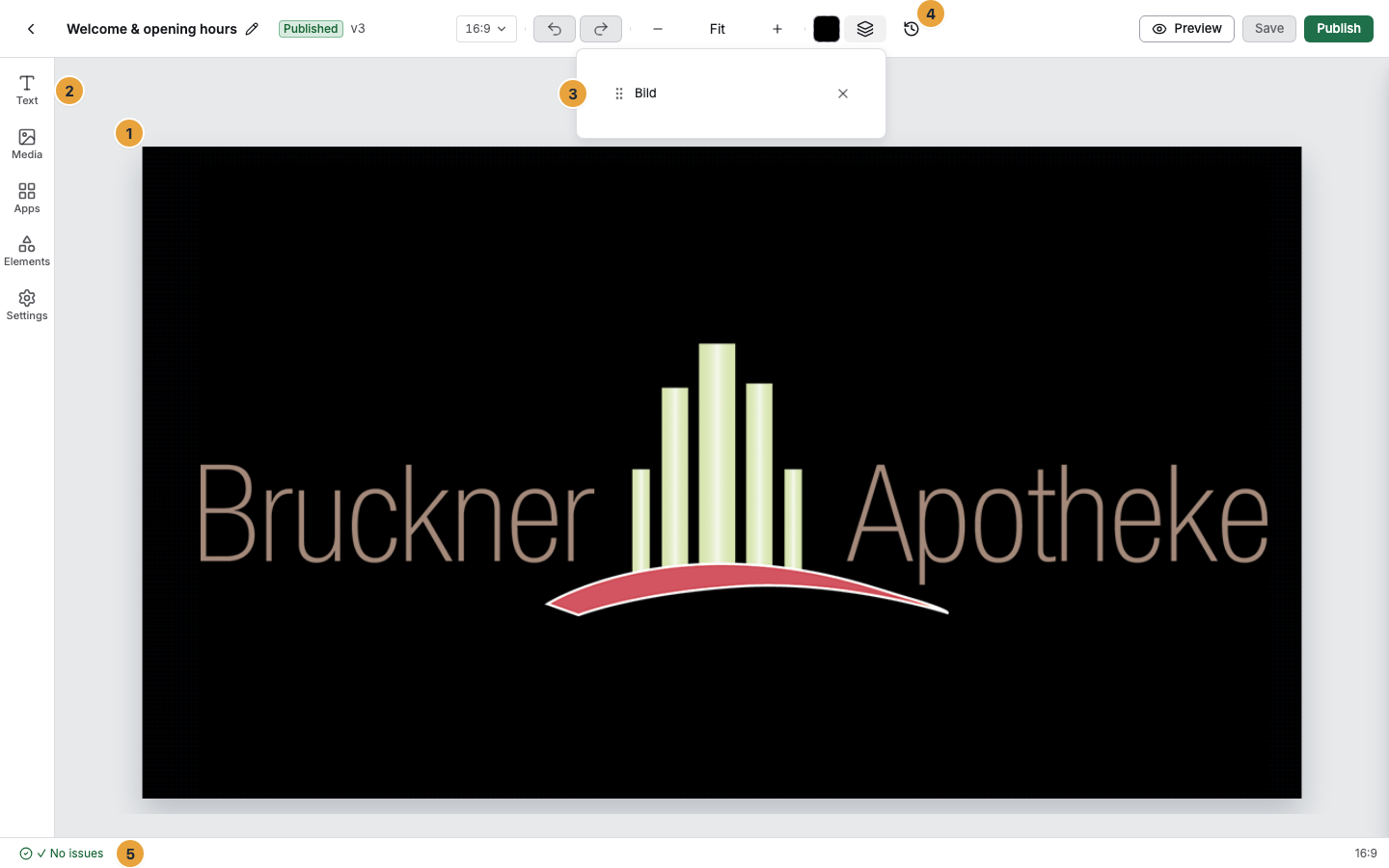
| Stage (center) | The live preview of the scene at original size. This is where you place, move, and enlarge widgets directly. |
| Insert and settings bar (left) | The five entry points Text, Media, Apps, Elements, and Settings. Each opens an area of its own. |
| Layers | All widgets of the scene in their stacking order, with Move, Visibility, and Remove for each entry. Without content: No layers. |
| Settings of a widget (window) | There is no permanent properties column at the right edge. The floating bar on the selected object opens a window through the gear icon Settings: on the left the Preview, on the right the widget's fields with Reset, and below them Placement. Apply writes the changes in one go. Cancel discards them. |
The available widgets under Apps
| Element | Meaning |
|---|---|
| Recently used | The most recently inserted widgets, at the very top. |
| Categories | Time & countdown, News & info, Web & video, Text & design, Business & industry, More apps. The first five carry the same headings as the store. More apps collects what fits no category. |
| Search field Search widgets… | Filters across all categories. Without matches: No widgets. |
| Badges on a tile | Trial, Temporarily unavailable, Not included in your package. |
| Hovering over a tile | A live preview of the widget appears next to it. |
| No apps installed | No app with widgets is installed. Discover apps leads to the store. |
Header and status line
| Element | Meaning |
|---|---|
| Back to scenes | The arrow on the left leads to the list. |
| Scene name | With the permission to edit, you can change it right in place. |
| Status and version | The badge Draft, Published, or Archived, next to it the version number (such as “v3”). |
| Preview, Save, Publish | The three actions on the right. On narrow bars, Preview and Save shrink to their icon. Publish always keeps its label. |
| Versions | Opens the Version history panel. |
| Stage format | The format menu with the groups Landscape and Portrait as well as Custom format…. |
| Zoom level | Zoom out, the current level (Fit or a percentage), and Zoom in — in the header with the other stage tools. |
| Status line | The slim line below the stage. On the left, the check status as one button: ✓ No issues or the number of issues. A click shows the full list. On the right, the Stage format as a quiet indicator (such as “16:9”). Nothing else is there. |
Tools, zoom, and context menu
| Control | What it is for |
|---|---|
| Undo, Redo | Take back or repeat the last step. |
| Duplicate, Delete | Apply to the current selection. |
| Background color, Layers | Color of the stage, Layers panel. |
| Fit, Zoom in, Zoom out | The zoom level of the stage. |
| Show grid | Under Settings › View. |
| Auto-save | The switch “Saves changes on its own after a short pause.” It sits under Settings, not in the header. Its tooltip names the save state: All changes saved, Unsaved changes, Saving…, or Conflict — scene was changed externally. |
| Stage context menu | Copy, Paste, Show in layers, App settings, Toggle grid. |
| Shortcut badges | Tooltips write the keys as Ctrl, Shift, and Del. The full table is under Place and arrange widgets on the stage. |
The toolbar of a text box
| Control | Values |
|---|---|
| Text styles | Heading, Subheading, Body text |
| Font | The groups Sans-serif, Serif, Display & condensed, Monospace, Handwriting |
| Font size | Point size of the selection |
| Font weight | Normal, Medium, Bold |
| Text color, Background color | Color of the text and of the surface behind it, which also offers No fill |
| Alignment | left, center, right |
| Line spacing | Tight, Normal, Relaxed |
| Letter case | Aa, AA |
The panels below the stage
| Panel | Contents |
|---|---|
| Integrity issues | Open issues with their severity, plus Re-check, Mark as fixed, and Ignore. Without findings: No open issues. |
| Version history | The published versions with number, time, and release notes, plus Active, Open preview, Compare, and Revert to this version. Without versions: This scene has never been published. |
The two levels of preview
| Level | What it shows |
|---|---|
| Stage | The stage is itself a live preview. It shows the scene continuously at original size while you build it. |
| Preview | Lays the scene, in motion, over the editor in full screen, the way it runs on the display. It shows the local draft without saving it first. Open in new tab saves first, because the new tab shows the state from the server. Close preview takes you back. |
In full screen, you see the badges Draft or v3, plus Live preview and, when data is missing, the note 2 widgets have no data yet. On a phone, the preview asks: “Turn your device sideways — the scene then fills the display.”
Related
Found what you needed? Then carry on in the portal — or set up an organization first.
Go to the portalTry it free