Details, preview, and usage of a media item
You want to rename a media item, view it at full size, or find out which scenes use it.
4 minute readContentUpdated: 10/25/2026
On this page
Before you start
- For
- Anyone who maintains media or wants to know what is still running before tidying up.
- Prerequisite
- the permission to view media. To change the name and tags, you need the permission to edit media.
- Where in the portal
- Media › click a tile › Media details
At the end, you know what a media item is, what it looks like, and where it is used. You have changed its name and tags, downloaded the original if needed — and you know the reason when a media item cannot be deleted.
Steps
Open and change details
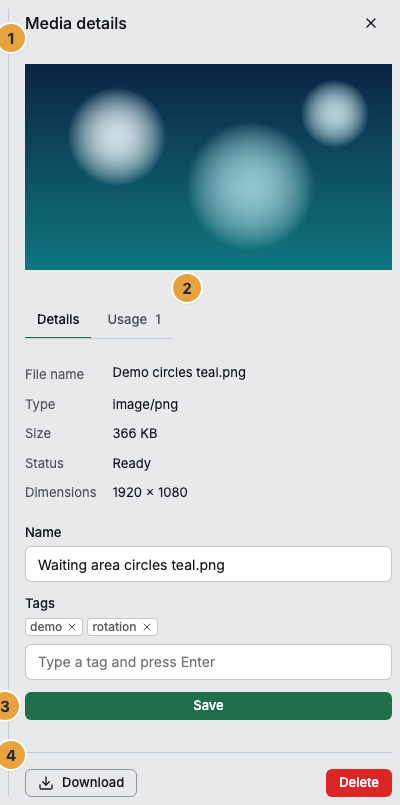
- Click the tile in the grid. Media details opens on the right. In the Gallery view, Open details leads there.
- The Details tab lists File name, Type, Size, Status, Dimensions, and, for imported files, the Origin.
- Change Name and Tags and confirm with Save. You create a tag with Type a tag and press Enter.
View large and download
- Show media preview large opens the preview at full size. For a video, a player appears there. The generated preview image serves as the start frame, and the original is what plays.
- Download downloads the original file.
For this, the portal requests a fresh, short-lived address each time, valid for about 15 minutes. An old link from your browser history therefore stops working after a short time.
Check where a media item runs
- Switch to the Usage tab.
- Read the entries. They come from two sources: Scene, when the media item is part of a widget in a published scene version, and Branding, when it is stored as a logo or favicon.
- If it says Not used anywhere., the media item is free.
Caution: As long as a media item is used anywhere, it cannot be deleted. The attempt is rejected and names the number of references. That way, no image disappears that is currently running on a display. Remove it from all scenes and from the brand first — then the lock releases it.
Options
Process a media item again
If a media item has the status Error, the details give the reason under Processing failed and offer Process again. The same action sits in the tile's action menu (the ⋮ icon at the top right). The file itself stays untouched. Only the creation of the preview runs once more.
Check the result
After saving, the message Changes saved appears, and the tile carries the new name. The Status is Ready as soon as the preview is finished. The Usage tab lists each scene and the brand individually.
If something goes wrong
| Symptom | Meaning | Solution |
|---|---|---|
| The tile shows no preview image | Processing is still running (Uploading or Processing) | Wait a moment until the Status is Ready. |
| The media item carries the Error badge | The preview failed | Read the reason in the details and choose Process again. |
| Instead of the player, a note about preparation appears | The original was recorded in a format the browser cannot play, such as HEVC | Wait until the playback version has been created. |
| An old download link leads nowhere | The address is valid for only about 15 minutes | Download again through Download. |
| Delete is grayed out or rejected | The media item is used in a scene or in the brand | Check the usage, remove it there, then delete again. |
| Save is missing, Name and Tags cannot be changed | You lack the permission to edit media | Check the role or permission with your team. |
Related
Found what you needed? Then carry on in the portal — or set up an organization first.
Go to the portalTry it free