Brand: logo, favicon, and colors
The portal should show your logo, your icon in the browser tab, and your colors instead of the Szenera default.
5 minute readOrganizationUpdated: 10/25/2026
On this page
Before you start
- For
- Owners who set up the appearance of their organization. Managers and Members see the page read-only.
- Prerequisite
- Owner role (permission Edit branding) and your own brand in the booked package. Have ready: a logo as an image file and a small icon for the browser tab.
- Where in the portal
- Settings › Organization › Brand (“Your portal’s logo and colors”)
After this page, your portal shows your own logo, your icon in the browser tab, and your two brand colors. You put images in a gallery, assign one as the logo and one as the favicon, and save.
Steps
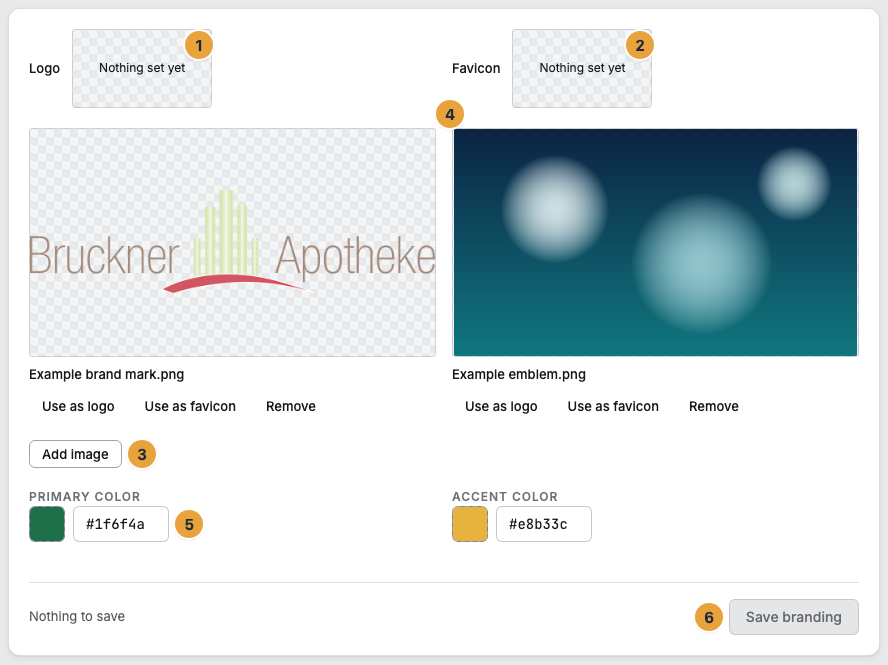
The state after step 2: Two images are in the gallery, and none is assigned yet.
- Open Settings › Organization › Brand. At the top are the preview fields Logo and Favicon. Without an assignment, they say Nothing set yet.
- Click Add image and choose an image file. The message File uploaded. appears, and the image appears in the Brand marks gallery. Uploading runs without the media library’s queue. A file with identical content is not transferred twice. Repeat this for every image you want to be able to choose.
- On the tile you want, click Use as logo. It then shows Logo ✓, and the preview field shows the image.
- On a tile, click Use as favicon. It then shows Favicon ✓. Pick a clearly recognizable mark, since it appears tiny in the tab.
- Enter Primary color and Accent color in the format
#RRGGBB(such as#2563eb), either typed or through the color picker next to the field. - Click Save branding. The message Branding saved. appears, and the values take effect immediately throughout the portal.
As long as nothing is changed, Save branding stays disabled (Nothing to save).
Options
Assigning and removing are two different things
Use as logo and Use as favicon only change the form. They take effect only with Save branding. A second click on Logo ✓ or Favicon ✓ takes the assignment back.
Remove, by contrast, takes effect immediately and takes the image out of the gallery (Image removed.). An assigned image stays in place, and the message The image could not be removed — it is assigned as logo or favicon. appears.
Where the images are stored
What you add here is stored in the protected folder Brand marks of your media library: visible and usable in scenes, but maintained only from this page. An assigned image counts as in use. In the media details, it appears under Usage as Branding, and the delete lock keeps it in place.
If the package does not include your own brand
Then the area shows a lock (“From” and the name of the package). What is already stored stays and keeps working. Only the way to something new is locked. View packages takes you to billing.
Check the result
- At the top of the sidebar is your Logo. Without a logo, the display name appears there as text, and with the sidebar collapsed, its first characters.
- In the browser tab, your Favicon appears instead of the default icon.
- The Primary color tints buttons, the focus ring, and the active sidebar entry.
- In the scene editor, the Accent color draws the guide lines and the frame around a text field being edited. The primary color already marks the selection there.
- A display without an assignment shows your organization’s placeholder.
- On the Dashboard, the setup step Upload brand assets counts as done.
None of these settings takes effect on the sign-in page: Looking up the brand beforehand would reveal to every visitor which organization is behind an address.
If something goes wrong
| Symptom | Meaning | Solution |
|---|---|---|
| Colors must be in #RRGGBB format. | The value is not a hash sign followed by six hex digits. | Write the value as #RRGGBB, such as #2563eb. |
| Branding could not be saved. despite a valid format | One of the colors does not reach 4.5:1 on a light background. Each color is checked on its own, not in relation to the other. | Choose a darker shade for the pale color. The strong second color does not make up for it. |
| The logo does not appear although the preview field shows set | Assigned but not saved. | Click Save branding. |
| The sidebar shows text instead of the logo | No logo is assigned, or the file cannot be loaded. | Add the image again, assign it as the logo, and save. |
| The image could not be removed — it is assigned as logo or favicon. | The image is in use. | Release the assignment, save, then remove. |
| Read-only. appears above the cards | “You can view the brand. Changing it is reserved for owner and administrator accounts.” | Ask an Owner, see Permissions by role and by area. |
Related
Found what you needed? Then carry on in the portal — or set up an organization first.
Go to the portalTry it free