Change or reset your password
You want to change your password, or you can no longer get into your account and need the way through the sign-in page.
4 minute readOrganizationUpdated: 10/25/2026
On this page
Before you start
- For
- every person with an account in the portal
- Prerequisite
- your current password to change it in the portal, and access to your mailbox to reset it
- Where in the portal
- Settings › My account › Security, Password card, and Forgot your password? on the sign-in page
After this page, you have set a new password, either from within the portal or through a link by email if you can no longer sign in at all.
The Password card shows a badge: Set (“You sign in with your email address and a password.”) or Not set (“Your account currently signs in through another provider only.”).
Steps
Change your password in the portal
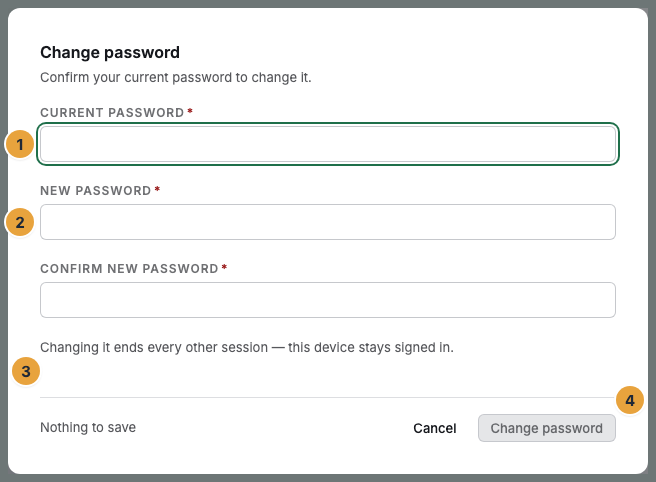
- Open Settings › My account › Security and click Change in the Password card. The dialog says: “Confirm your current password to change it.”
- Fill in Current password.
- Under New password, enter at least 12 characters and repeat them under Confirm new password.
- Click Change password.
Below the form, it says what happens afterwards: “Changing it ends every other session — this device stays signed in.”
Create a password for the first time
If your account has signed in only through Google, Apple, or the company account so far, Create password appears instead of Change. The dialog explains the purpose: “Adding a password lets you sign in directly as well.” You do not need a current password. Here the note reads: “All active sessions end once the password is created — you will sign in again afterwards.”
Reset your password if you cannot get in
- On the sign-in page, click Forgot your password?.
- Enter your Email and click Request link.
- Check your inbox appears. The message repeats the address you typed and says that if there is an account for it, an email for resetting is on its way. Also check your spam folder. This answer always appears, since the portal never reveals whether an account exists for an address.
- Open the link from the email. Fill in New password (min. 12 characters) and Confirm password and click Set password.
- Sign in with the new password.
If the link gets you nowhere because your email client rewrites it or you opened the email on another device, the same email also contains the access as a code. Paste it under Paste the code from the email and click Sign in with code.
Options
If your organization enforces sign-in through the company account, there is nothing to reset for addresses in the verified domains: No email is sent, and the answer in the portal is still the neutral confirmation. Sign in through Sign in with company account instead. What then applies to the stored emergency accounts and to the one-time emergency access of platform operations is described on What does enforcing company sign-in mean?.
Check the result
- After changing the password in the portal, “Password changed” appears, and after creating one for the first time, “Password created”.
- After resetting, the sign-in page says “Your password has been changed. You can sign in now.”
- The link from the email is then used up and does not work a second time.
- If your address belongs to several organizations, the new password applies to all of them.
If something goes wrong
| Symptom | Meaning | Solution |
|---|---|---|
| “Change failed” | The current password is wrong. | Enter it again carefully. When in doubt, cancel and reset it via Forgot your password?. |
| The new password is rejected | It is shorter than 12 characters, or the two fields do not match. | Fill in both fields identically and with at least 12 characters. |
| “The link is invalid or has expired.” | Reset links can be used once and are valid only briefly. | Request a new one via Forgot your password?. |
| No email although the address is correct | Either there is no account for the address, or your organization enforces sign-in through the company account. | Check the spam folder and the spelling. If that does not help, sign in via Sign in with company account. |
| “Too many attempts — please wait a moment.” | Too many failed sign-ins in a short time. | Wait briefly and sign in again. |
| “This organization only allows sign-in through the company account.” | The sign-in method is fixed for your email domain. | Sign in via Sign in with company account. |
Related
Found what you needed? Then carry on in the portal — or set up an organization first.
Go to the portalTry it free