My account: profile, time zone, theme, and language
Your name, your sign-in address, or your time zone is no longer correct, or you want to change theme and language.
4 minute readOrganizationUpdated: 10/25/2026
On this page
Before you start
- For
- every person with an account in the portal
- Prerequisite
- no particular role, since the details belong to your own account
- Where in the portal
- Settings › My account › Profile and Settings › My account › Appearance
After this page, your display name, sign-in address, and time zone are up to date, and the portal uses the theme and language you prefer to work with.
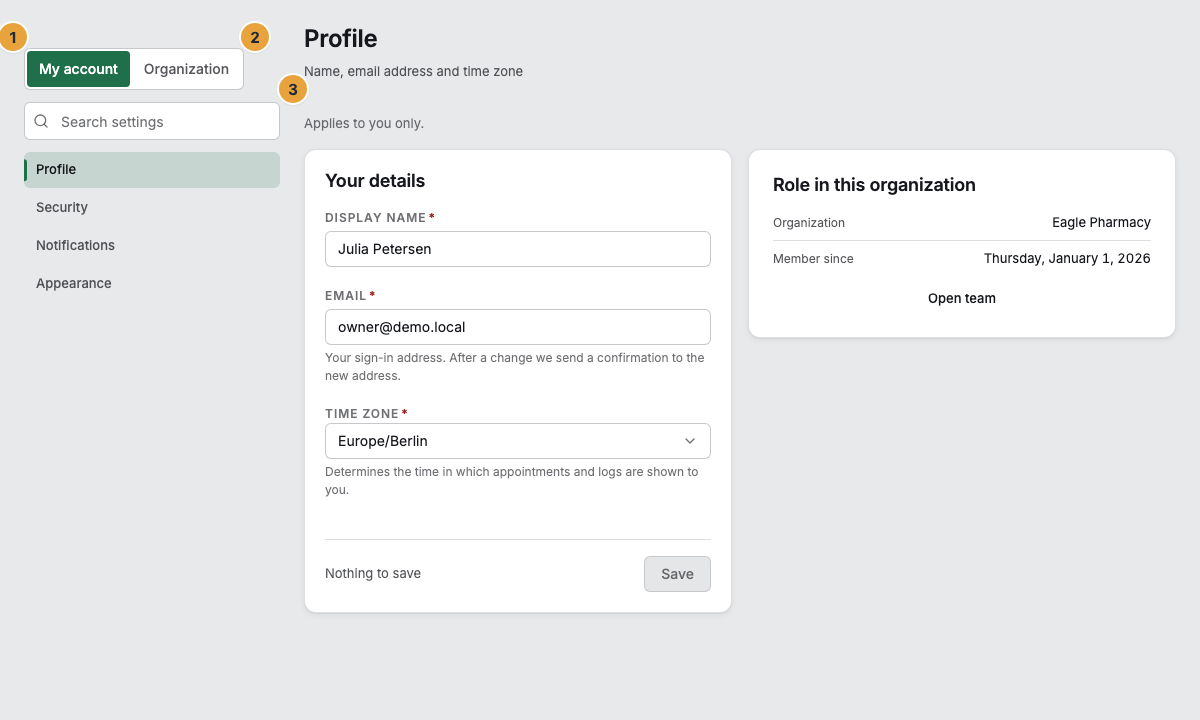
The settings are split into two tabs: My account for everything that concerns only you, and Organization for the shared details.
Steps
Update your profile
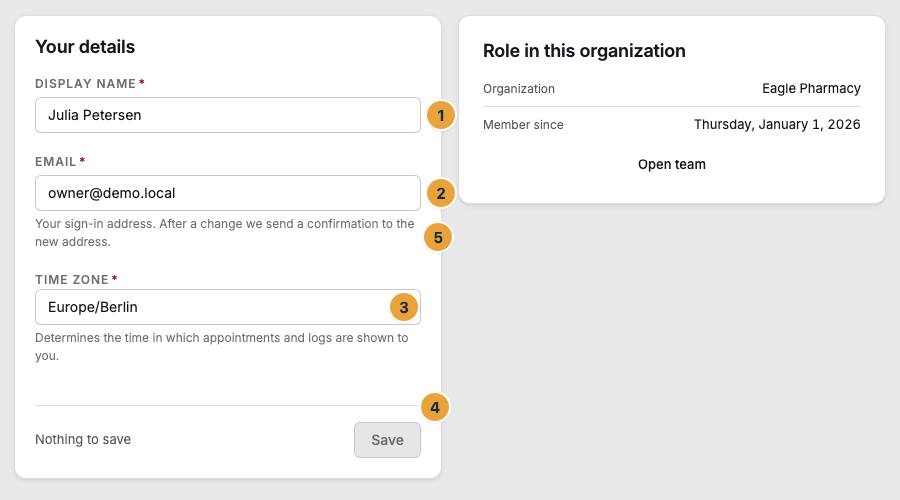
- Open Settings › My account › Profile. The Your details card shows three fields.
- Display name: This is how you appear in the team and in the change log.
- Email: Your sign-in address. The hint under the field says so: “After a change we send a confirmation to the new address.”
- Time zone: It “determines the time in which appointments and logs are shown to you.” Type “Berlin” into Search time zone … and choose the match.
- Click Save. As long as you have not changed anything, the button stays disabled (“Nothing to save”).
If you changed the address, the box Confirm your new address appears above the form. Until you open the link, the previous address applies.
Below it is the Role in this organization card with your role and Member since. Open team opens the member list. You do not change the role here.
Choose theme and language
- Open Settings › My account › Appearance.
- Under Theme, choose one of the four options. The table further down says what each one is suited for.
- Under Display language, choose German or English. The hint reads: “Applies to this portal and to the emails we send you.”
Your browser remembers the theme. The language moves into your account and therefore also applies on another device. As a shortcut, the header has a switch Choose appearance and a language switch (Deutsch). They set the same choice.
Options
The four themes
| Theme | What for |
|---|---|
| System | Follows the setting of your operating system: light during the day, dark in the evening, if your device does that. |
| Light | The calm default: light surfaces, fine dividing lines. |
| Crisp | The same light look, but more distinct: visible edges, richer color, a clearly separated background. For bright environments, large monitors, and anyone for whom fine gray gradations are not enough. |
| Dark | Dark surfaces, pleasant in dimmed rooms and in the evening. |
Tabs, search, and the badges on a row
Each tab has its own note: “Applies to you only.” and “Applies to your whole organization.” The Organization tab shows only the areas you may read. The field Search settings also finds individual settings across both tabs, such as Time zone or Second factor.
A badge can appear on the right of a row. From Pro, From Premium, and Not included mean: The area belongs to a larger package. Switched off means that we have switched the function off, and Not in your agreement means that it is not part of your agreement. In both cases, support helps, not billing. You recognize an area you may only view by the note Read-only.
Check the result
- After saving, “Profile saved.” appears. The new display name immediately appears in the user menu and in the member list under Team.
- After an address change, an email arrives at the new address. It applies to signing in only after you click the link.
- In the appearance settings, “Appearance saved.” appears. Theme and language take effect immediately.
If something goes wrong
| Symptom | Meaning | Solution |
|---|---|---|
| The dialog Unsaved changes appears when you leave | You changed details but did not save them. | Choose Stay and click Save, or abandon the change with Discard. |
| Signing in with the new address fails | The confirmation link has not been opened yet. | Sign in with the previous address and open the link from the email. Check the spam folder as well. |
| “The profile could not be saved.” | The change did not arrive, for example because of a connection problem. | Reload the page and save again. |
| Your display name cannot be changed | Your account lacks the permission Edit members. | Ask an Owner to adjust the name under Team. |
| You want to change the name of the organization | That is not an account setting. | Change it under Settings › Organization › Company details, see Master data of the organization. |
Related
Found what you needed? Then carry on in the portal — or set up an organization first.
Go to the portalTry it free