Invite members and decide on join requests
A new person should join the portal, or a join request above the members table is waiting for your decision.
4 minute readOrganizationUpdated: 10/25/2026
On this page
Before you start
- For
- Owners who grant access
- Prerequisite
- the permissions Invite members and Decide join requests, usually the Owner role
- Where in the portal
- Team › the Invite member button. Join requests appear in the notice bar above the members table.
By the end, the invited person appears in your member list with the status Invited, and when they first sign in they have the role you gave them. You decide on join requests from outside in the same way.
Steps
Invite a person
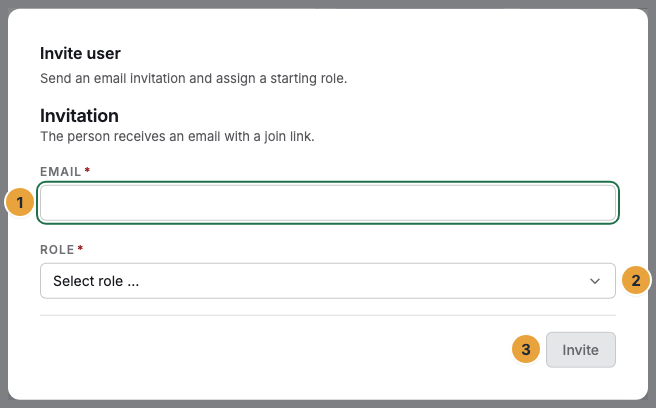
- Open Team and click Invite member at the top right. The command palette and the setup step Invite your first member on the dashboard open the same dialog.
- The dialog Invite user (“Send an email invitation and assign a starting role.”) first asks for the Email.
- Under Role, choose the starting role. The field is required, so you must replace the preselection Select role …. Otherwise the form answers “Please pick a role.”
- Click Invite.
Above the form is your seat count (“2 of 5 seats in use”). If all of them are taken: “Every seat in your package is taken. A larger package adds seats — or deactivate an account.” In the Starter package, there is no role choice: “Your package has no role tiers: every member gets full access. Roles start with Pro.”
Track open invitations
Invited people appear in the members table with Invited · expires … (“No account yet — the invitation is on its way.”), and, once the deadline has passed, with Invitation expired. The Invitations section lists every invitation you sent as Pending, Accepted, Revoked, or Expired. Resend sends the link again and extends the deadline, and Revoke invalidates it.
Decide on a join request
If someone registers on their own with an address from your domain, this does not create a second organization but a join request to yours. The address is already confirmed. You learn about it in three ways: as a notice bar above the table (“3 join requests are waiting for a decision”), as a notification in the bell, and by email to all active Owners and Managers. This email cannot be turned off. If you lack the permission to decide, the bar stays a notice, with the addition “Owners decide on these.”
- Click Review. The Join requests section expands and shows, for each request, the address, an optional message, Received …, Expires …, and the status (Open, Accepted, Declined, Expired).
- Accept opens the dialog Accept join request. It asks for exactly one piece of information, the Role. Confirm with Accept and invite. This turns into an ordinary invitation. Only you determine the role. The request cannot suggest one, because otherwise the requesting person would set their own permissions. As with every invitation, the only choices are roles that you may assign yourself.
- Decline opens Decline join request? with the note: “Declining is silent — the person is not notified.”
Open requests expire after 14 days and remain in the list as an entry. After that, the person can try again. As long as a request from the same address is open, no second one is created.
Check the result
- Invitation sent appears, and the row shows up in the table with the status Invited.
- Through the link, the person sets a Display name and a Password (min. 12 characters) and is signed in afterwards. The link is valid for 7 days.
- After joining, the status changes to Active.
- After a decline, Request declined appears, and the request remains as Declined.
If something goes wrong
| Symptom | Meaning | Solution |
|---|---|---|
| “Invitation failed” | There is already an account for this address, or it is invalid | Check the spelling. You manage an existing account under Team › Members. |
| “You can only assign roles whose permissions you hold yourself.” | The role is above your own scope of permissions | Choose a smaller role or ask a person with the Owner role. |
| “This role does not belong to your organization.” | The role does not come from your own set of roles | Reload the page and choose a role from your organization. |
| The invitation does not arrive or has expired | The email missed its target, or the 7 days have passed | In the Invitations section, click Resend. |
| An email reports a request, but nobody is in the table | A request is not yet an account | Click Review above the table. |
Related
Found what you needed? Then carry on in the portal — or set up an organization first.
Go to the portalTry it free