Set up company sign-in (SSO)
Everyone should sign in with their company account instead of a portal password of their own.
5 minute readOrganizationUpdated: 10/25/2026
On this page
Before you start
- For
- Owners who tie their organization’s sign-in to a company account.
- Prerequisite
- Owner role, a provider that supports OpenID Connect, and access to its administration and to your DNS records.
- Where in the portal
- Settings › Organization › Company sign-in (“Sign-in through your own provider”)
After this page, your employees sign in with your company’s account. Setup runs in three steps: provider, domain, enforcement.
The three steps build on each other: Without a provider, there is nothing to claim, and without a confirmed domain, there is nobody to enforce the rule for.
Steps
1. Create the provider
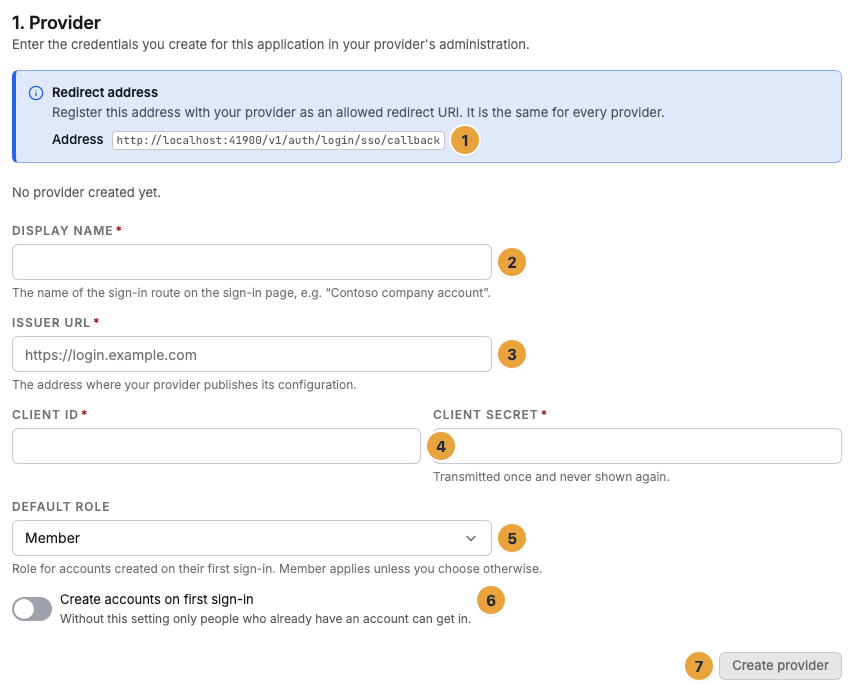
- In the 1. Provider section, copy the Redirect address into your provider’s administration. Without it, the provider rejects the redirect.
- Enter the Display name. That is what the sign-in method is called on the sign-in page, for example “Contoso company account”.
- Enter the Issuer URL (“The address where your provider publishes its configuration.”).
- Enter Client ID and Client secret from there. The secret is transmitted only once and never shown again. To change it, enter it again.
- Choose the Default role for accounts that are newly created at their first sign-in. Without a choice, Member applies. Only roles whose permissions you hold yourself are offered.
- If needed, turn on Create accounts on first sign-in. Without this switch, only people who already have an account get in.
- Click Create provider. The message Provider created — it starts as a draft. appears.
Switch between the statuses Draft, Active, and Disabled in the list. Switch to Active only when the domain and the test sign-in are in place.
| Status | What it means |
|---|---|
| Draft | Created, but no sign-in goes through it yet. |
| Active | Signing in through this route is possible. |
| Disabled | No sign-in goes through this route anymore. |
Disabled is the way to put a running sign-in method out of service temporarily: The provider and the claimed domains stay in place, and one click sets it back to Active. Remove, by contrast, is final and possible from any of the three statuses.
2. Prove the domain
- In the 2. Domain section, enter your company’s email domain, “without the @”, and click Claim domain. The status is then Confirmation pending.
- Create the record from the Create the DNS record section: Name (it starts with
_signage-sso.), Type, and Value. - Click Check now. The platform answers immediately: Domain confirmed. or The record was not found yet. DNS changes often take a few minutes.
Only confirmed domains lead to this sign-in method. Use Withdraw to release one again.
3. Test sign-in and enforcement
- In the 3. Enforcement section, click Start test sign-in. The note Test sign-in required names the deadline of 15 minutes.
- Flip the switch Enforce company sign-in. The dialog Enforce company sign-in? names the scope under What applies from then on and offers the Break-glass accounts (at most 2) for selection.
- Select up to two emergency accounts and confirm with Enable enforcement (Company sign-in is now enforced.).
What enforcement covers and what the emergency accounts are for is explained in What does enforcing company sign-in mean?. You can turn it off at any time (Enforcement disabled.).
Options
Below the three steps is a fourth section, 4. Provisioning (SCIM). It is not a stage of the sign-in but the connection of your employee directory: It creates the accounts, suspends them when someone leaves, and assigns the roles. It requires an active provider and is described in Accounts from your employee directory (SCIM).
With several providers, Select determines which one is edited in steps 2 and 3. Remove asks for confirmation (Remove provider?): The sign-in method and all domains claimed for it disappear, and existing accounts remain and sign in with a password again afterwards. If you want to keep the domains, set the provider to Disabled instead.
If your package does not include company sign-in, the area shows a lock: Existing setups keep running, and a new sign-in method requires the package named there. View packages takes you to billing.
Check the result
- The provider is Active in the list, and the domain is Confirmed.
- On the sign-in page, the button Sign in with company account appears for addresses of this domain.
- With enforcement turned on, the page permanently shows the note Break-glass accounts are configured.
If something goes wrong
| Symptom | Meaning | Solution |
|---|---|---|
| The provider details are incomplete or the issuer cannot be reached. | The issuer does not answer or does not return a valid configuration. | Check the issuer URL and create the provider again. |
| The record was not found yet … | The record is missing, wrong, or not yet visible everywhere. | Check name and value against what the portal shows, wait, and check again. |
| This domain already belongs to another organization. | A domain belongs to exactly one sign-in method across the platform. | Contact us. |
| The switch Enforce company sign-in is disabled | A fresh test sign-in through this provider is missing, or it was more than 15 minutes ago. | Start test sign-in and turn enforcement on right afterwards. |
| An account is not selectable (note “— no second factor set up”) | Every emergency account needs a second factor. | Set up two-factor sign-in for this account. |
Related
Found what you needed? Then carry on in the portal — or set up an organization first.
Go to the portalTry it free