Create custom roles and grant direct permissions
The built-in roles do not fit, or someone needs access to exactly one scene, playlist, or a single display.
5 minute readOrganizationUpdated: 10/25/2026
On this page
Before you start
- For
- Owners who tailor permissions
- Prerequisite
- the permissions Create roles and Edit roles as well as Create direct permissions, so usually the Owner role. Managing roles is available with the Pro package and above.
- Where in the portal
- Team › Roles › Create role. You grant direct permissions under Team › Members: open an entry, then the Sessions tab.
By the end, your organization has a role tailored to your operation — and you give a person a permission on a single object or take it away.
Steps
Read the comparison matrix
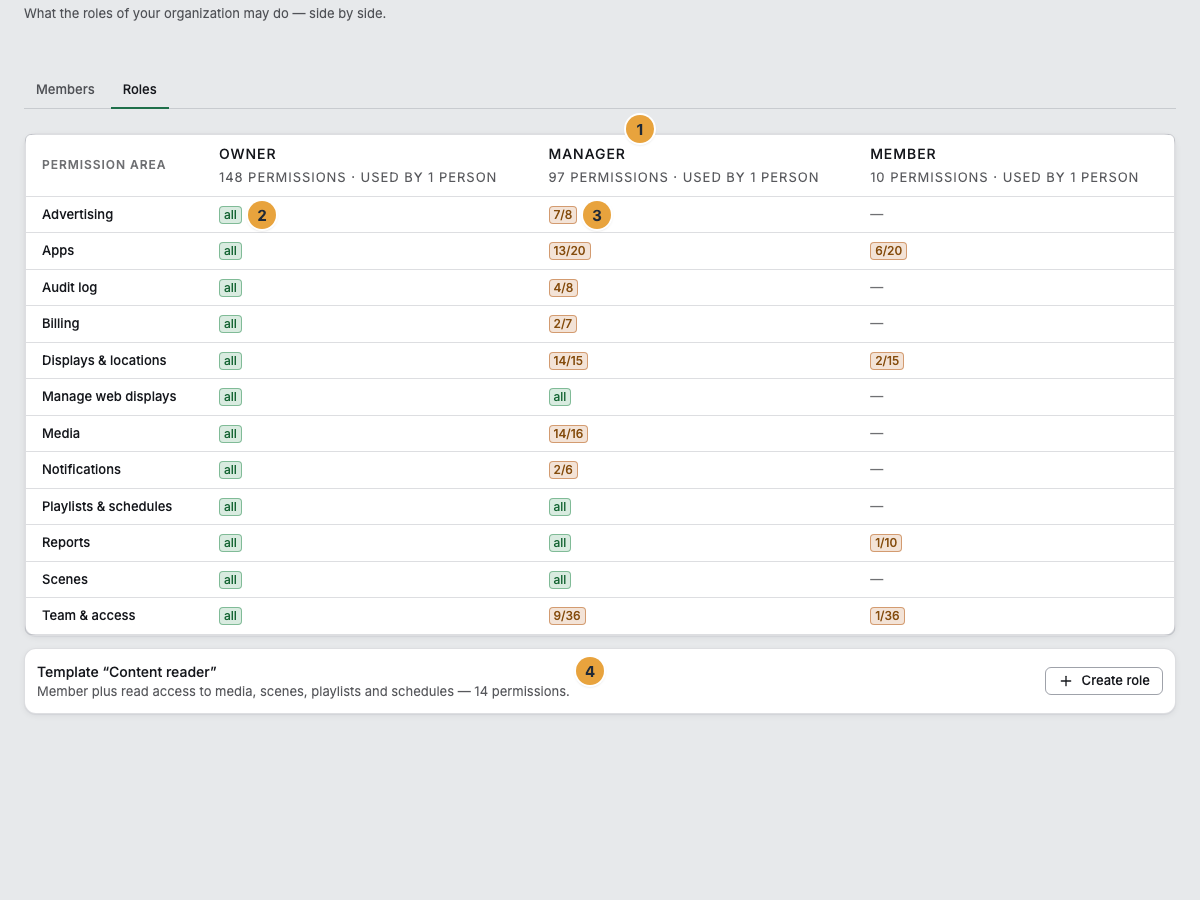
The Roles tab shows a comparison matrix: the roles as columns and the permission areas (column Permission area) as rows. Each cell says all, gives a fraction (“4 of 9 permissions”), or shows a dash. The column header shows the number of permissions and the phrase used by 3 people. A role you are not allowed to assign shows Not grantable there, along with the reason: “contains 2 permissions you do not hold” or “only an owner can assign this role.”
In the Starter package, the tab shows Read-only.: “Managing roles starts with Pro.”
Create a custom role
- Click Create role. The dialog New role (“Create a custom role; assign permissions afterwards in the editor.”) asks for Name and Description.
- Open the new role from its column header. The editor has two sections: Details for name and description, and Permissions for the permission set: “Expand a resource group and select the permissions.”
- Select the permissions. The picker shows the permission catalog of your organization with a plain-language description for each permission. What you do not hold yourself stays visible but is disabled: “You can only grant permissions you hold yourself.”
- Click Save. Role saved appears.
For the most common case, one click is enough: Below the matrix is the Template “Content reader” — Member plus read access to media, scenes, playlists and schedules. The template disappears as soon as the role exists.
Delete a role
To delete a custom role, use the menu in the column header or Delete role in the editor. Confirm the Delete role? prompt with Delete permanently. This works only as long as nobody holds the role anymore. If someone still holds it, the entry is disabled: “Still held by 3 people — assign a different role first.” If the role is set as the default role of a company sign-in, the note asks you to set a different one there first. Built-in roles have no menu. They are read-only.
If someone saved the role at the same time, the portal asks The role changed in the meantime and lets you choose between Keep draft and Load the other version. Nothing is silently overwritten.
Grant or revoke a direct permission
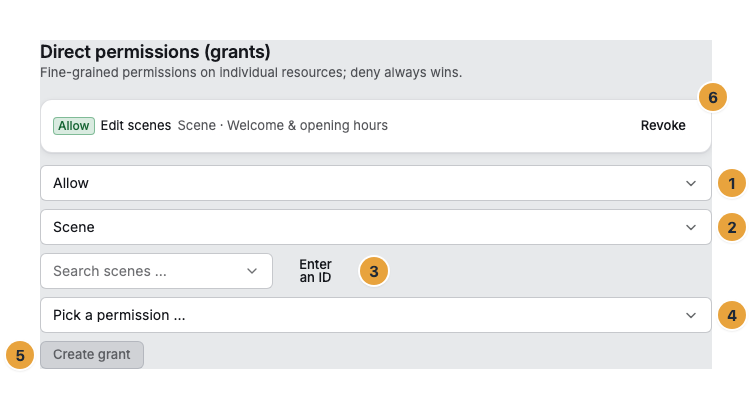
Open the person’s entry and go to the section Direct permissions (grants): “Fine-grained permissions on individual resources; deny always wins.”
- Choose the kind: Allow or Deny.
- Choose the resource type (Scene, Playlist, Schedule, Display, or Media item) and the object within it. With Enter an ID, you enter it directly (such as
scn_…). With Pick from list, you search for it. - Under Pick a permission …, choose the relevant permission and click Create grant.
To remove an existing direct permission, click Revoke. A Deny always wins: no role and no second allow can override it.
Check the result
- The new role appears as its own column in the matrix, with its permission count and, at first, no one holding it.
- After you create a direct permission, Grant created appears, and after you remove one, Grant revoked.
- Both appear in the Change log with your name.
If something goes wrong
| Symptom | Meaning | Solution |
|---|---|---|
| A permission stays disabled in the picker | You do not hold it yourself | “You can only grant permissions you hold yourself.” Ask a person with a wider scope. |
| A member cannot edit scenes or media | The normal case: Member is read-only | Give a direct permission or assign a custom role. |
| Someone keeps a permission despite a changed role | An Allow works in addition to the role | Revoke the direct permission. |
| Someone is not allowed to do something although the role allows it | A Deny beats the role | Revoke the denying direct permission. |
| The picker list of a resource type stays empty | “You lack the list permission for this type — the picker would stay empty.” | Enter the ID directly or have the list permission granted to you. |
Related
Found what you needed? Then carry on in the portal — or set up an organization first.
Go to the portalTry it free