The portal at your own address
Your team should open the portal at an address of its own, and you have access to the records of your domain.
5 minute readOrganizationUpdated: 10/25/2026
On this page
Before you start
- For
- Owners who want to offer the portal at their organization’s own address.
- Prerequisite
- Owner role (permission Manage custom domain), a custom address included in your booked package, and access to the record administration at your DNS provider.
- Where in the portal
- Settings › Organization › Custom address (“Your portal on your own domain”)
After this page, your portal is also reachable at your own address, such as signage.example.com. You request it, create two records at your DNS provider, and wait for the automatic check.
Steps
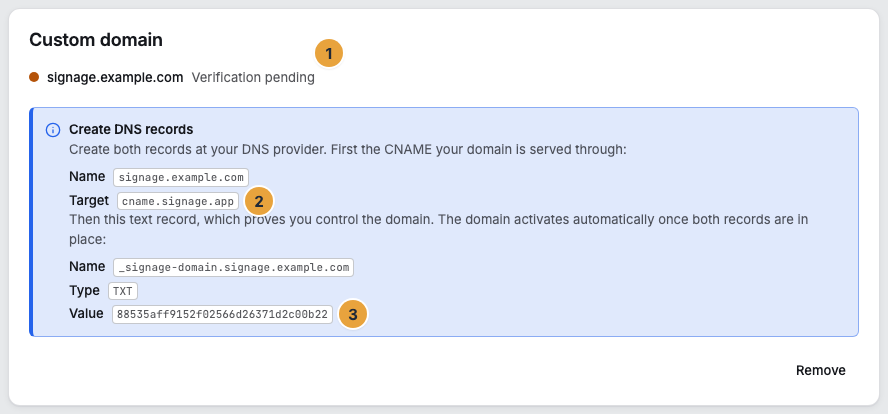
The state after step 3: The address is requested, and the two records are waiting for DNS.
- Open Settings › Organization › Custom address. If nothing is set up, it says No custom address set up yet.
- Enter the full domain name in the Domain field (placeholder “e.g. signage.example.com”). The hint line says: “Fully qualified domain name; after requesting, add a CNAME at your DNS provider.”
- Click Request domain. The message Domain requested — please create the CNAME record. appears, and the status is Verification pending.
- Create the CNAME at your DNS provider. The section Create DNS records lists it first, “the CNAME your domain is served through”. Copy Name and Target exactly as the portal shows them.
- Create the text record “which proves you control the domain”. Copy Name, Type, and Value. The name begins with
_signage-domain., and the portal shows it ready-made. The value may coexist with other text records of the same name. - Wait for the check. There is no check button: The platform looks for the CNAME and the proof value every five minutes and activates the address only when both are correct. The status changes to Verified.
Depending on the provider, such changes take minutes to hours to become visible everywhere. Until then, the status stays Verification pending, which is normal, and you do not need to do anything. After that, you wait at most five minutes for the check itself: If the status is still pending an hour after you created the records, the records are the cause, not the pace of the check.
Options
Why two records
The CNAME makes requests to your address reach us. But it does not prove that the address belongs to you, since its target is publicly known. Only the value in the text record proves your control.
The three status values
| Status | Meaning |
|---|---|
| Verification pending | The address is requested, and the check of both records is still running. |
| Verified | Both records are correct, and the address is active. |
| Verification failed | The check failed, for example because a record is missing or wrong. |
With Verification failed, the note asks you to check the CNAME record. The button is then labeled Request again and starts the same process once more.
Once verified, an address stays verified. If you delete the records later, it is no longer reachable but still shows Verified in the portal. For a new proof, remove the address and request it again.
Releasing the address again
Remove releases your custom address. The prompt Remove custom address? says: “The domain and its verification status will be removed. The portal will then only be reachable at the default address again.” Confirm with Remove (Custom address removed.).
If the package does not include a custom address
Then the area shows a lock: “An address that is already set up stays in place and can be removed. Requesting a new one needs the … package.” Without an existing one, the area shows no input field at all. View packages takes you to billing.
Check the result
- The status dot is Verified.
- The portal opens at your address. The default address keeps working.
- In your inbox, the button Go to your own address takes you straight here.
- Signing in does not change: It still starts with your email address.
If something goes wrong
| Symptom | Meaning | Solution |
|---|---|---|
| The status stays Verification pending for a long time | The CNAME is not yet visible everywhere, or it is wrong. | Check name and target against what the portal shows, otherwise wait. |
| Verification failed | A record is missing, wrong, or the deadline has expired. | Correct the records, then click Request again. |
| Please provide a valid domain name. | The input is not a complete domain name. | Enter it without https:// and without a path, such as signage.example.com. |
| Domain could not be requested. | The request did not arrive. | Reload the page and request again. |
| There is no input field, only a lock | Your package does not include a custom address, and none was set up earlier. | Open View packages, see Packages, trial, and booked seats. |
| The controls are missing | “Setting up a custom address is reserved for accounts with administrative rights.” | Ask an Owner, see Permissions by role and by area. |
Related
Found what you needed? Then carry on in the portal — or set up an organization first.
Go to the portalTry it free