Find your way around the portal
The seventeen areas of the sidebar, header, command palette, Help menu and tour, the phone bar, and how the settings are organized.
7 minute readGetting startedUpdated: 10/25/2026
On this page
Before you start
- For
- everyone who wants to find their way around the portal, the first time and when searching later
- Prerequisite
- an account with a role in your organization
- Where in the portal
- sidebar and header, on every page
This is the map of the interface: what is in the sidebar, what the header carries, how the settings are organized, and where the same things are on the phone. If you are looking for an area, read the tables from top to bottom. If you are looking for a control, jump to the matching section.
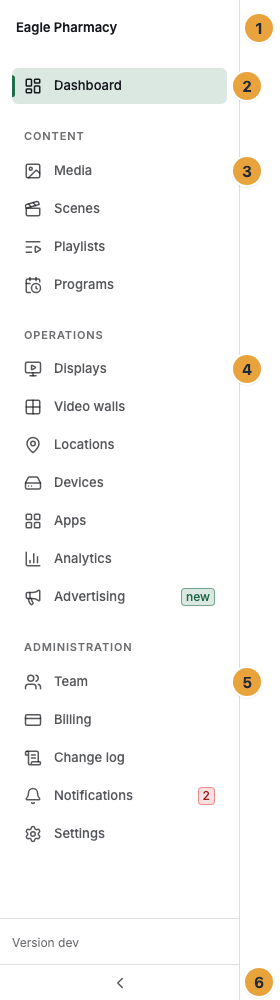
The seventeen areas of the sidebar
Dashboard stands alone above three groups: Content, Operations, and Administration. The order follows the workflow: first the content, then its operation, and administration last.
| Group | Area | What it is for |
|---|---|---|
| — | Dashboard | Overview: the state of your displays, the figures of the week, your contract, open setup steps. |
| Content | Media | Everything you have uploaded: images, videos, PDF. |
| Content | Scenes | The finished picture for the display, built from widgets. |
| Content | Playlists | Several scenes in sequence, in a loop. |
| Content | Programs | What runs when: base program plus program entries. |
| Operations | Displays | Every display on your premises, with live status. |
| Operations | Video walls | Several displays that together show one surface. |
| Operations | Locations | The places where your displays are, with opening hours, state, and venue type. |
| Operations | Devices | The machines behind the displays. |
| Operations | Apps | Content that maintains itself: weather, news, queue numbers. |
| Operations | Analytics | What ran, and how often. |
| Operations | Advertising | Your advertisers’ ad campaigns and participation in the ad network. |
| Administration | Team | Who besides you may use the portal, and what that person can change. |
| Administration | Billing | Your package, your displays, and what both cost. |
| Administration | Change log | Who changed what, and when. |
| Administration | Notifications | What the portal has reported to you, with an unread counter. |
| Administration | Settings | Your account, plus the company details, brand, and access of the organization. |
Two rules explain why your sidebar can be shorter than described here:
- Video walls appears only once video walls are enabled. Without it, the entry is missing entirely. If you open the address from a bookmark, you read The video wall is not enabled yet.
- An area for which you lack the read permission is not in the sidebar at all. By default, a member sees five entries: Dashboard, Displays, Apps, Notifications, and Settings.
At the very top of the sidebar is the logo of your organization, or its display name if no logo is set. The sidebar can be collapsed and expanded.
The header
| Element | What it does |
|---|---|
| Breadcrumbs | The path to the current page, at the far left. On the phone, only the back link and the page title. |
| Search pages or actions … | Opens the command palette. On narrow windows, the trigger shrinks to its icon. |
| Help | Menu with Help for this area, Open docs, and Start tour. |
| Upload indicator | Appears only while files are being uploaded. |
| Bell | Your notifications with an unread counter. |
| Deutsch | Switches the display language. |
| Appearance | Switches between light and dark. |
| User menu | Your address, the way into the settings, and Sign out. |
Below the header, colored bands appear when needed: an open payment, scheduled maintenance, new permissions for an app. They stay on every page until the occasion is resolved.
Command palette, help, and tour
The command palette Search pages or actions … opens from the header or with a keyboard shortcut. It has two groups: Navigation with all areas you may see, and Actions with Pair display and Invite member. What you may not do is not in it.
The Help menu takes you with Help for this area to the help for exactly the page you are on. Open docs leads to the overview. Both open a new tab. Start tour shows you in about three minutes where everything is. The first time, the New here? card on the dashboard invites you to it.
On the phone
- Instead of the sidebar, the Quick access tab bar carries the four destinations Dashboard, Displays, Media, and Scenes, plus More. Behind More are all the other areas.
- Help, the language choice, and the appearance move into the user menu. The header keeps the bell and the user menu.
- The scene editor needs space. On the phone, it says Editing from tablet width. There you see the preview and the state of the scene.
- Add Szenera as an app puts the portal on the home screen. Afterwards, New version ready (reload) and No connection (you see the last known state) appear.
The settings
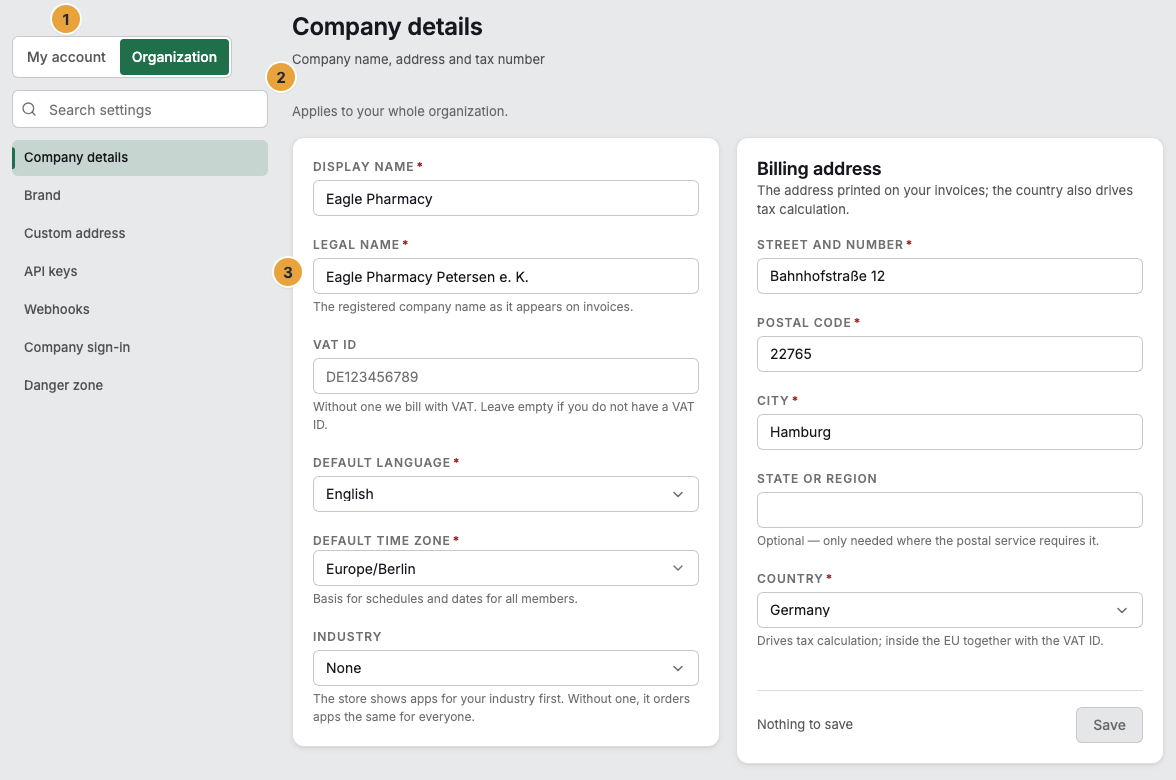
The settings have two tabs. My account is open to everyone, and Organization shows only what you have read permission for. Above the list of areas, Search settings finds individual entries across both tabs.
| Tab | Area | What is there | Visible with |
|---|---|---|---|
| My account | Profile | Name, email address, and time zone. | always |
| My account | Security | Password, second factor, and signed-in devices. | always |
| My account | Notifications | How we reach you about events in your organization. | always |
| My account | Appearance | Design and language. | always |
| Organization | Company details | Company name, address, and tax number. | read organization |
| Organization | Brand | Logo and colors of your portal. | read organization |
| Organization | Custom address | Your portal on your own domain. | read organization |
| Organization | API keys | Access for your own applications. | read or create keys |
| Organization | Webhooks | Report events to your systems. | read webhooks |
| Organization | Company sign-in | Sign-in through your own provider. | set up sign-in |
| Organization | Danger zone | Steps that cannot be undone. | delete organization |
At the right end of a row there is only one thing: a lock if your package does not include the area (From Pro, From Premium), or Switched off, Not in your agreement, Not included. Whether an area is set up is stated on the page itself.
An area you can see but not change is marked by the note Read-only. on the area page itself. There is no Save button there.
API keys and Webhooks used to share one page called “Integrations,” and Custom address was under “Branding.” They now stand individually because each of these areas carries its own permission and its own package commitment. Older bookmarks to the former combined page still reach their destination: They redirect to wherever you have the permission.
On medium widths, the vertical list becomes a swipeable bar of area buttons. The lock stays on them.
Under Appearance, you choose the design System, Light, Dark, or Crisp and the Display language, German or English. The language also applies to the emails Szenera sends you.
On the phone, the settings have two levels: first the list of areas, then the area itself. The back link at the top left returns to the list, as does the back button of the browser.
Where to find the help for each area
| Area in the portal | Help for it |
|---|---|
| Dashboard | Read the dashboard |
| Media, Scenes | The media library, What a scene is |
| Playlists, Programs | What a program is |
| Displays, Video walls | The fleet |
| Devices | The device record |
| Apps | What an app is |
| Analytics | Read analytics |
| Team, Settings | Roles and permissions |
| Billing | The billing page |
| Change log | Change log |
| Notifications | Notifications |
Related
- Read the dashboard — what is on the home page and what the numbers mean.
- Messages and banners — what the colored bands are trying to say.
- My account — change your profile, language, and appearance.
Found what you needed? Then carry on in the portal — or set up an organization first.
Go to the portalTry it free