How does content get from the portal to a display?
Media item, scene, playlist, program, display: the chain from upload to picture, which parts are mandatory, and where you find each link in the portal.
4 minute readGetting startedUpdated: 10/25/2026
On this page
Before you start
- For
- everyone who opens the portal for the first time and wants to understand how it is built
- Prerequisite
- an account with a role in your organization
- Where in the portal
- sidebar, groups Content and Operations
Between an uploaded file and the picture in the shop window lie a few links that are always the same. Five of them form a fixed chain: media item, scene, playlist, program, display. Only three are mandatory.
Five links, one chain
At the start is a media item: an image, a video, or a PDF file under Media. From it, you build a scene under Scenes, the designed surface of widgets that the display later shows. Widgets come with the installed apps: a weather map, a price board, a clock. The last step matters: A scene runs only once you publish it. As long as it has the status Draft, nobody but you sees it.
Several pieces of content in a row make a playlist: an ordered sequence of scenes and media, each element with its display duration. The playlist is practical but not mandatory. A program can also play a single scene.
The program answers the question of what runs when: a base program for the normal case and program entries at their times. What it does not answer is the question of where. That decision is made in a single place: the assignment on a display’s detail page, in the Playback tab. There, the display gets either a program or, if no weekly plan is needed, a scene, a playlist, or a media item directly. A display always carries exactly one assignment.

Scene and playlist lead to the program, or take the short way directly to a display.
What happens on its own after the assignment
From here on, nobody intervenes. The platform condenses scene, times, and media into a display state and sends it to the device. The device stores it, also in case of a later network outage, and shows the content in full screen. Afterwards, it reports its status back, and the fleet under Displays shows you the result. Between Publish and the new picture, there are usually only seconds.
If the display stays on your brand’s placeholder, exactly one of three things is missing: a published version of the scene, the assignment on the display, or the pairing of the display itself.
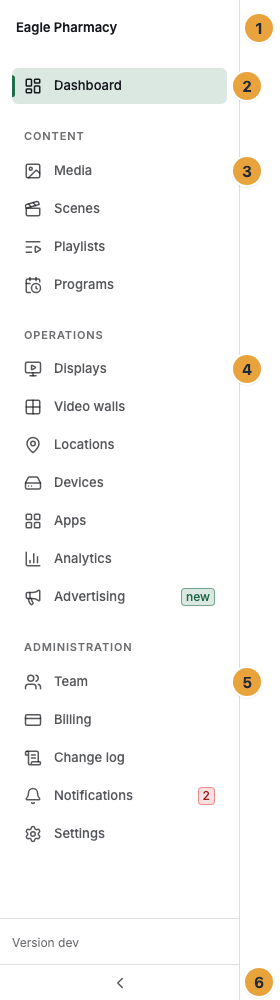
Where you find each link
The sidebar mirrors exactly this flow. Above the groups is the Dashboard, followed by three named groups.
| Group | Entries | What for |
|---|---|---|
| Content | Media, Scenes, Playlists, Programs | What runs and when it runs. |
| Operations | Displays, Video walls, Devices, Apps, Analytics | Where it runs and whether it ran. |
| Administration | Team, Billing, Change log, Notifications, Settings | Who works with you and what it costs. |
What follows
- Only three links are mandatory: published content, an assignment, and a paired display. Playlist and program save work but are not required.
- A program runs nowhere as long as it is not assigned to a display. If two displays should show the same thing, both get the same program.
- Changes to a scene take effect only with publishing. If you see an old version on the display, you have usually only saved.
- The path does not end at the display: What actually ran is shown later in Analytics.
Related
Found what you needed? Then carry on in the portal — or set up an organization first.
Go to the portalTry it free