Your first display in 15 minutes
Upload a media item, build a scene, publish, create a program, pair a display, assign the program: the shortest path to the first picture on the wall.
5 minute readGetting startedUpdated: 10/25/2026
On this page
Before you start
- For
- anyone putting something on a display for the first time, whether in a shop, workshop, medical practice, or club
- Prerequisite
- an account with editing permissions, a connected panel with a player or a browser, an image file
- Where in the portal
- Media, Scenes, Programs, Displays
At the end, a display on your premises shows your own content. The path: upload a media item, create a scene, publish it, create a program, pair the display, and assign the program. Each step is shown here in brief, with a pointer to the detailed guide.
Steps
1. Upload a media item
Under Media, drag your image or video onto the Drag files here area, or click Upload and then Choose files. The portal uploads large files in parts on its own, and the header shows the progress. More in Upload media.
2. Create a scene
Under Scenes, click Create scene, enter a name under Scene name, and confirm with Create scene. The scene opens in the editor: Choose a layout template, drag widgets into the fields, and insert your media item. Everything you do here stays a Draft at first. More in Create a scene.
3. Publish the scene
A draft plays on no display. Only Publish in the editor freezes the current state as a playable version. Under Release notes (optional), you can leave a note, and you confirm with Publish. More in Save and publish.
4. Create a program
Under Programs, Create program creates a program right away and opens the editor. There, set the Base program, which is what normally runs. For a single piece of content, your scene is enough. You only need a playlist once several pieces of content should alternate. More in Create a program.
5. Pair the display
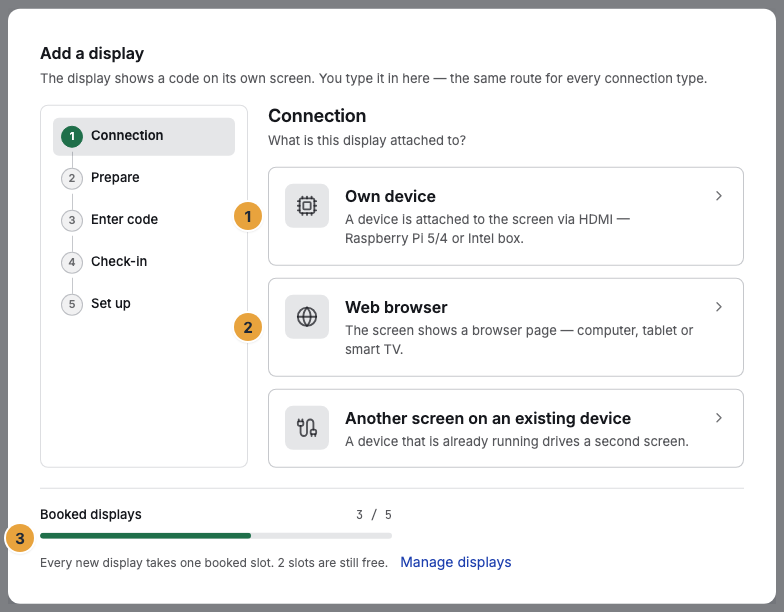
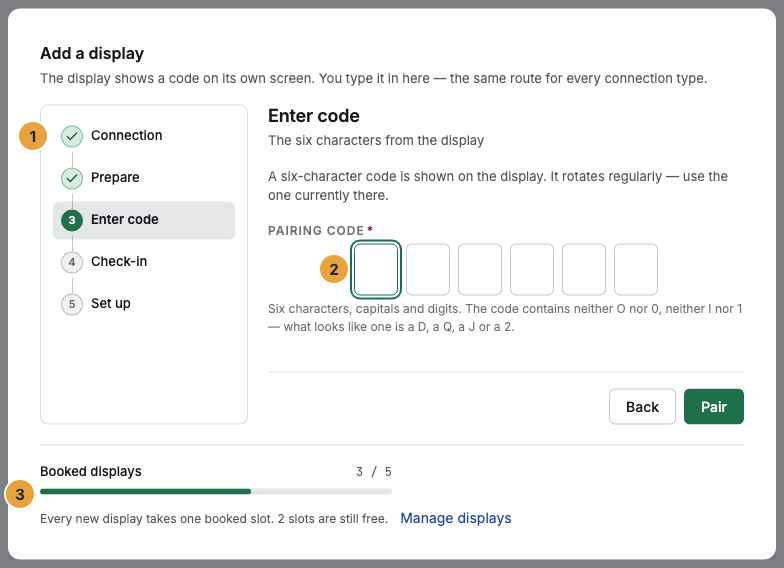
A freshly switched-on device shows a six-character code on the display. In the portal, click the Pair display button under Displays and follow the wizard through Connection and Prepare to Enter code. After that, Check-in and Set up follow. Under Pairing code, enter what the display shows, and click Pair. More in Pair a display.
6. Assign the program
In the last step, Set up, enter a Display name, choose your program under Program, and set the Orientation. Done finishes the setup. If you chose Skip, catch up later with Assign program on the display page. Without an assignment, the display stays idle. More in Assign a program.
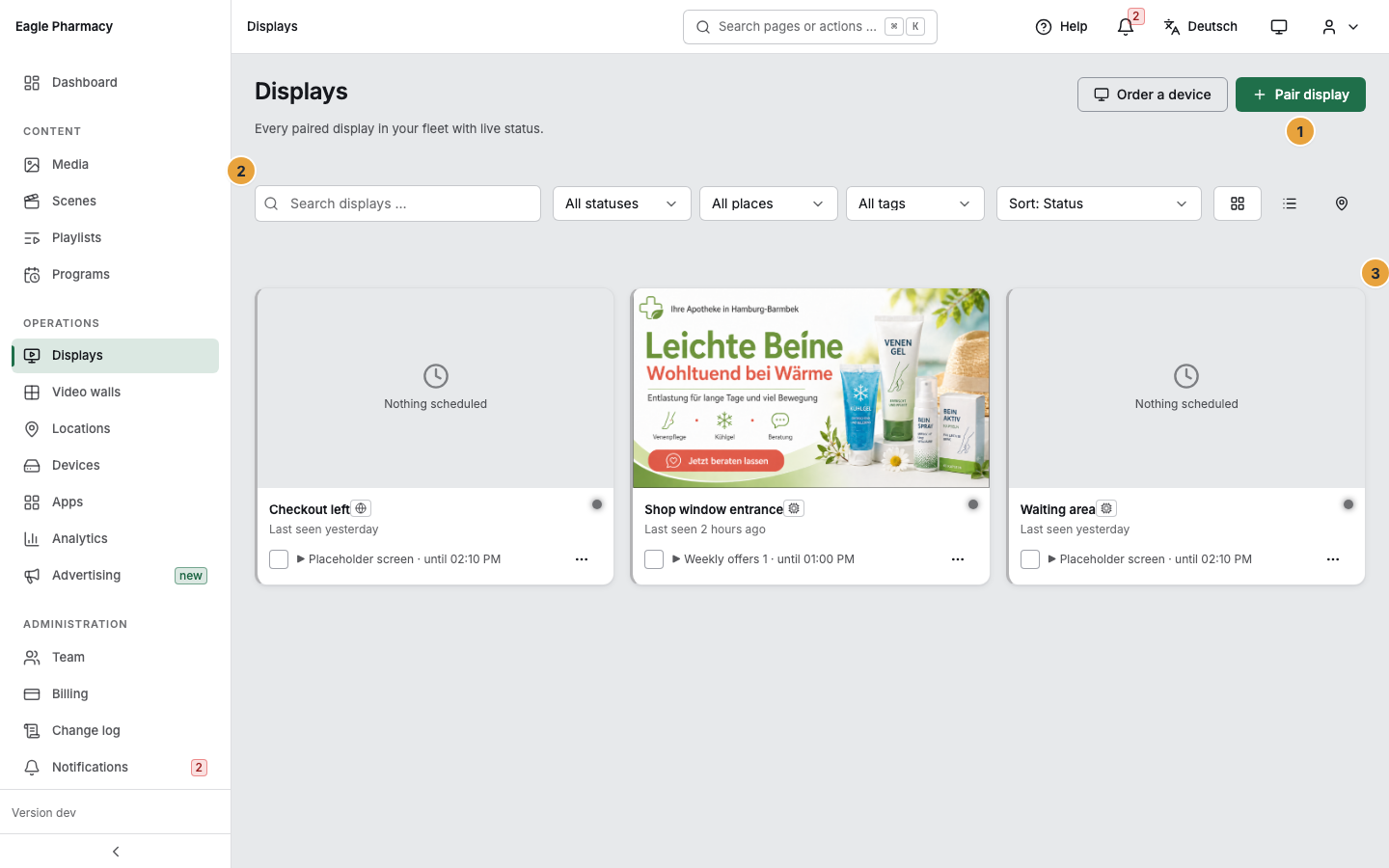
After pairing, the display appears under Displays, with its status and a picture of its content.
Check the result
On the Dashboard, the Your displays, live area shows your display as online, and below it Now: “Your scene name”. If it says No program — assign one now, the assignment from step 6 is missing. The display on site shows your scene in full screen as soon as it has loaded the new state.
If something goes wrong
| Symptom | Meaning | Solution |
|---|---|---|
| The display only shows a placeholder | Nothing is assigned to the display. | Assign a program (step 6). |
| The display shows an old version | Your latest state is still a draft. | Publish the scene again (step 3). |
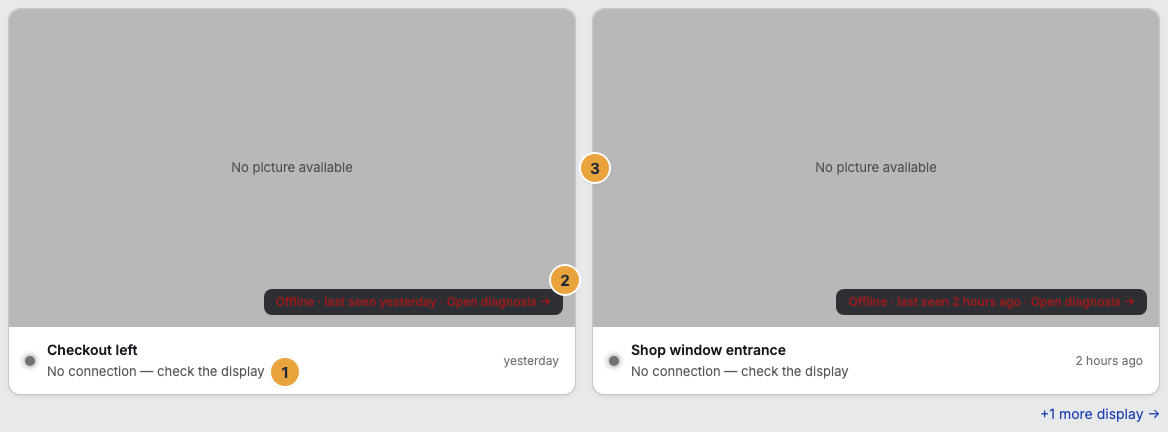
| The display shows offline | The device has no network or is not paired yet. | Check the network at the device and finish pairing (step 5). |
| A button is grayed out | You lack the permission for it. | Read the tooltip. A person with the Owner role can grant it. |
| “We do not know this code. Check the six characters on the display.” | Mistyped, or the code has changed in the meantime. | Use the code currently shown. |
| “The code has expired — please enter the one currently displayed.” | Codes rotate regularly. | Read it from the display again. |
Related
- Pair a display — every connection type in full.
- Save and publish — draft and version in detail.
- Assign a program — what runs where, and how to change it later.
Found what you needed? Then carry on in the portal — or set up an organization first.
Go to the portalTry it free