Pair a display
A panel shows a six-character code and needs to be added to the portal.
5 minute readDisplaysUpdated: 10/25/2026
On this page
Before you start
- For
- anyone who brings an installed panel into the portal
- Prerequisite
- Owner or Manager role, a free booked seat, and a panel that is plugged in and showing a code
- Where in the portal
- Displays › Pair display button
At the end, the installed panel appears as a display in your fleet, carries a name, and waits for a program. The way there is a guided dialog.
Where the dialog opens
Four paths lead to the same Add a display dialog: the Pair display button at the top right of the fleet, the empty state of the list (No displays have been paired yet.), the Finish setup card on the Dashboard, and the Command palette. A bar on the left shows where you are.
Steps
- Open Displays and click Pair display at the top right.
- The Connection step asks: What is this display attached to? Choose Own device (connected to the panel by HDMI), Web browser (computer, tablet, smart TV), or Another screen on an existing device. Anything your contract does not cover appears locked and gives the reason, for example Web displays are not enabled for your contract.
- The Prepare step explains how the code gets onto the panel. With a device of your own, it is called Switch the device on: connect, switch on, wait briefly.
- Under Enter code, type the six characters into the Pairing code field, for example
K7P2Q5, and click Pair. It says: “It rotates regularly — use the one currently there.” - The Check-in step waits until the display reports in. If the device reports several panels, each of them becomes its own display with its own program.
- In the Set up step, you assign a Name, a Program, and the Placement made up of Orientation and Content fit. Without a program, the placeholder screen stays up: “Everything here can be changed later — skipping costs nothing.”
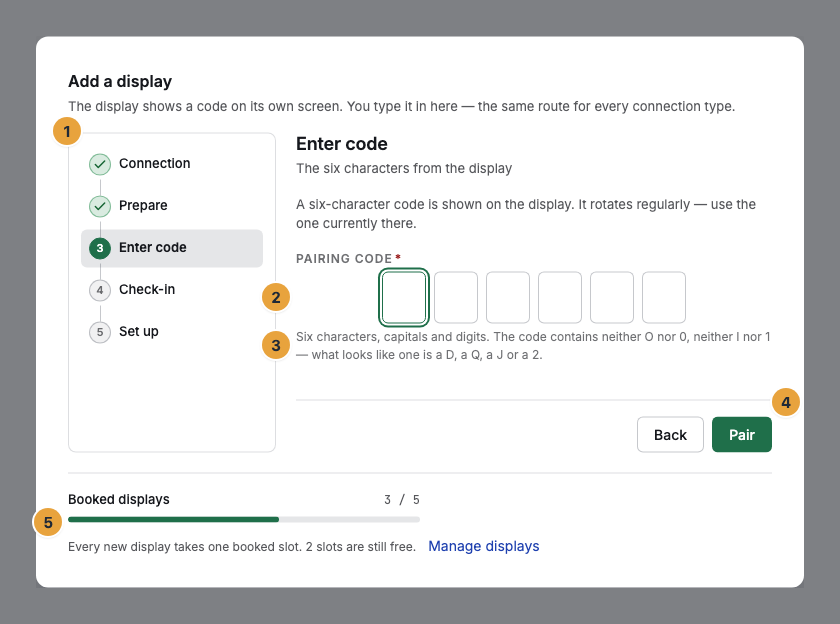
1 Step bar · 2 Pairing code field · 3 Note on the character set · 4 Pair · 5 Booked displays
The code on the panel
The code is six characters long, made up of capital letters and digits. The ones that are easy to confuse are left out: “The code contains neither O nor 0, neither I nor 1 — what looks like one is a D, a Q, a J or a 2.” The pairs 2/Z, 5/S, and 8/B do occur. Anyone reading a code out over the phone should spell them.
The code changes every 60 seconds. A replaced code stays valid for another five minutes. When in doubt, use the one currently shown.
Booked seats
The Booked displays line stays visible below the dialog: “Every new display takes one booked slot.” Next to it, you see how many are free.
When all seats are taken, the portal rejects the pairing with Every booked display is paired. and states the count (“3 of 3 booked displays are paired.”). Book another display lets the pairing continue, and Open billing leads to the contract. If your package caps the number, billing says so: “Your package carries at most 5 displays.” To add more, change the package there.
Check the result
- It reports Device paired, then Display created. The display appears in the fleet with the status Online and shows the running content at the bottom of the tile, or Nothing scheduled.
- If the same device reports another occupied connector, Another screen is attached to this device follows with Add another display: “Every additional display takes another booked slot.”
- The panel shows your content instead of the code.
If something goes wrong
| Symptom | Meaning | Solution |
|---|---|---|
| We do not know this code. Check the six characters on the display. | Mistyped. 0/O and 1/I do not occur. | Read the code again. |
| The code has expired — please enter the one currently displayed. | The code was past the five-minute grace period. | Use the code currently shown on the panel. |
| No device was found for this code. | No pending check-in matches these characters. | Check that the device is still running and showing a code. |
| This device has already been paired. | It already belongs to an organization. | If it is yours, it is in the fleet. |
| Your contract does not cover more displays. | No free booked seat. | Book another seat in the dialog or remove an unused display. |
| The panel stays dark and shows no code | Without power or network, the device does not check in. | “Check the cable and the power supply — without a network there is no code.” |
Related
- The pairing screen: what the device shows as long as it belongs to nobody.
- Assign a program to a display: the next step after skipping.
- What do you pay for: packages, seats, and add-ons?: how many displays your contract carries.
Found what you needed? Then carry on in the portal — or set up an organization first.
Go to the portalTry it free