The pairing screen
What a device that is not yet assigned shows: the code in two blocks of three, its change, the three steps, and the footer for support.
6 minute readDevicesUpdated: 10/25/2026
On this page
Before you start
- For
- anyone standing in front of the display who reads out or relays the code
- Prerequisite
- a connected player with power and network, not yet paired
- Where in the portal
- at the TV or monitor on site · in the portal Displays › Pair display › step Enter code
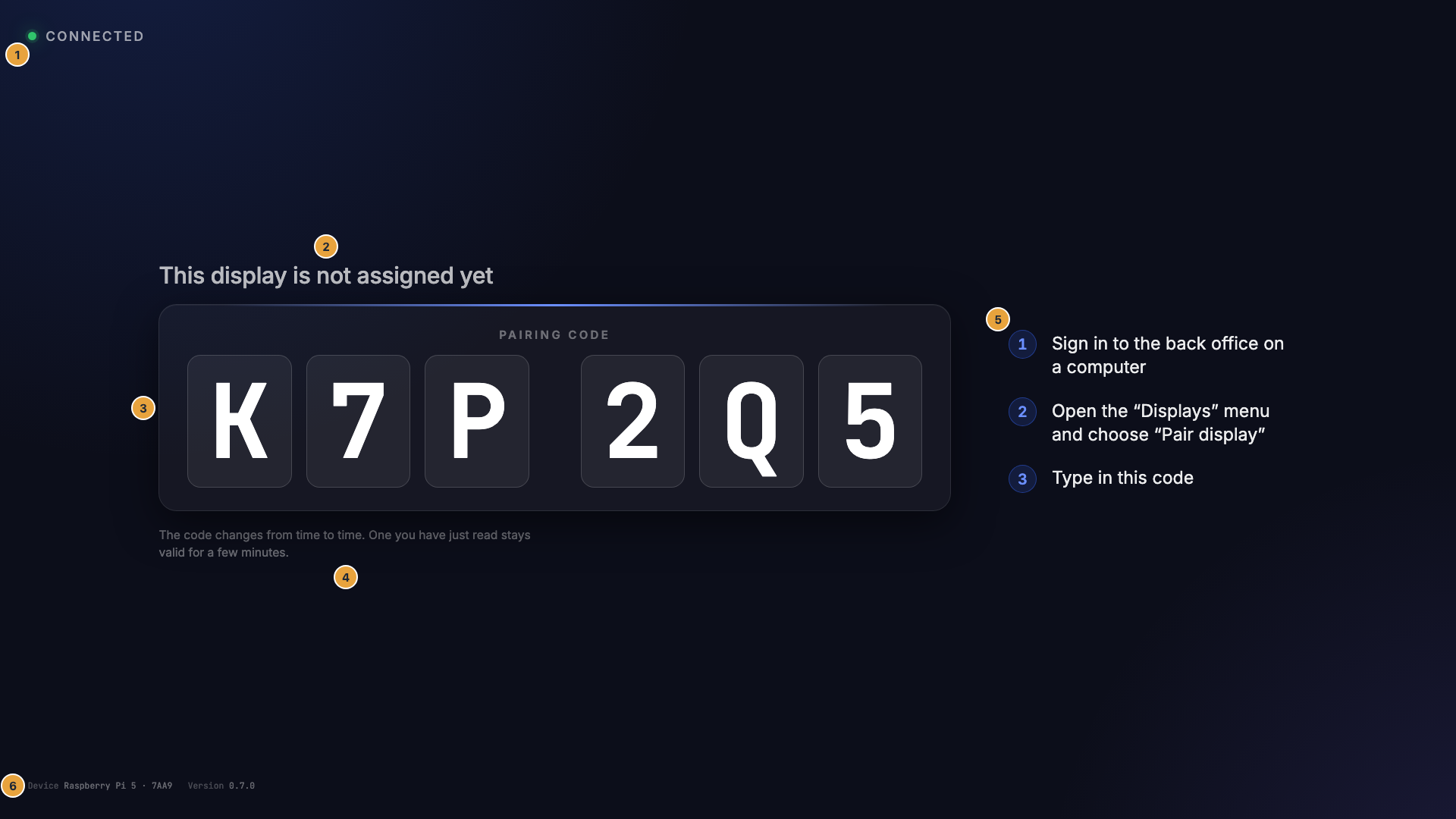
A device that does not yet belong to an organization fills the whole display with a single piece of information: the pairing code and the way to the portal. Every line on it has a meaning, including the two observations that are regularly reported as a defect and are not one.
What you need in front of you
- the TV or monitor with the running player, easy to read
- a computer with portal access, or someone on the phone who has one
- nothing else: Nothing is entered at the device for the pairing
What the display shows
From top to bottom:
| Position | What it says |
|---|---|
| Check-in indicator at the top | a green, gently pulsing dot and the word Connected |
| Heading | This display is not assigned yet |
| Card in the middle | the label Pairing code, with the code inside |
| The code | six characters, each in its own tile, in two blocks of three with a gap between them, exactly the form in which it is typed in on the computer |
| Note below the card | The code changes from time to time. One you have just read stays valid for a few minutes. |
| Three steps beside it | 1. Sign in to the back office on a computer at the address below it · 2. Open the “Displays” menu and choose “Pair display” · 3. Type in this code |
| Footer, small | Device with the model and the last four characters of the serial number, as on the sticker, and Version with the version of the display software |
The display calls the portal back office. This means the address that appears below the first step.
This display shows its text in the language of the browser, because at this moment the device does not yet belong to an organization. All other on-screen texts follow the language of your organization.
On a player with SzeneraOS, the service menu shows more about the device. It also appears on top of this display. You open it with Ctrl + Alt + S on a keyboard or by pressing OK five times on the TV remote control. Under Info, it shows the QR code with the report that support asks for first.
The code and how it changes
The code is six characters long and consists of capital letters and digits. The easily confused ones are deliberately missing: Neither the letter O nor zero appears, neither the letter I nor one. What looks like them is a D, a Q, or a J. An example is K7P2Q5.
The code changes every 60 seconds. One that was just replaced stays valid for another five minutes, so that a pairing does not fail only because the display moves on at the wrong moment. When in doubt, take the one that is shown right now. The display does not show a remaining time, because it would be an invented number.
If you read the code out over the phone, spell out the three pairs that look alike in any typeface: 2 and Z, 5 and S, 8 and B.
Two observations are not a fault:
- Six dots instead of characters. The tiles appear dashed and visibly empty: The display software has reached the device but has not received a code yet. The next cycle fills them.
- The code jumps. It changes regularly, and the change is visibly faded in so that nobody doubts their eyes while copying it down.
Two views that look alike
A device that already belongs to your organization never shows a code on a second TV or monitor. Instead, it shows No display is set up for this screen yet, plus the card with Number, Resolution, and Belongs to, and the sentence No pairing code needed: this device has already been claimed. The screen turns on by itself once a display has been added for it in the portal.
| Pairing | TV or monitor without a display | |
|---|---|---|
| Situation | The device does not belong to anyone yet. | The device belongs to you. Only the display is missing for this TV or monitor. |
| Heading | This display is not assigned yet | No display is set up for this screen yet |
| Pairing code | yes | no |
| What to do | Type the code into the portal | Add a display for this TV or monitor in the portal |
A web display in the browser shows the same pairing screen as a player.
Caution: Do not turn off the TV or monitor before the pairing is confirmed in the portal. The code is needed there.
Check the result
Once the code is entered, the display switches to the assigned content within seconds. If no program is assigned to the display yet, the placeholder with your brand appears. If the pairing falls into a time window that is scheduled to be blank, Off air appears with the time at which playback resumes. That is also a successful result.
If something goes wrong
| Symptom | Meaning | Solution |
|---|---|---|
| Six dots instead of characters | The code has not been generated yet, usually because the device has no network. | Wait a moment. If it stays that way, check the network, see Connect to the network. |
| No pairing screen, no picture | The device is not coming up, or it is still starting. | Check the cable, input, and power, see Unpack and connect. |
| The second TV or monitor shows no code | That is correct, because the device already belongs to you. | Add a display for it in the portal, see Add a second display to the same device. |
| The portal rejects the code | Mistyped, expired, or the device is already paired. | Use the code that is displayed right now. Pair a display explains the messages. |
Related
Found what you needed? Then carry on in the portal — or set up an organization first.
Go to the portalTry it free