Web display: a display in the browser
An existing computer, tablet, or smart TV opens the display address, without a purchase and with limits, plus the browser extension for screenshots.
6 minute readDevicesUpdated: 10/25/2026
On this page
Before you start
- For
- anyone who wants to use existing hardware as a display
- Prerequisite
- Web displays are enabled for your contract, and a booked seat is free
- Where in the portal
- Displays › display › tab Device › Display address
A web display is a display without a device of its own: a computer, a tablet, or a smart TV that opens the display address. No purchase, no installation. It is connected in two ways, its access lives in the browser’s storage, and there are five things it cannot do.
TVs and professional panels often come with an older browser and handle autostart and night shutdown themselves. What applies there and which other ways exist is explained under Platforms: which devices run Szenera.
What you need in front of you
- A device with a current Chromium-based browser (Chrome, Edge) and internet access.
- The Display address from the portal, which also appears there as a QR code, or a connect link.
- The browser in full screen, with the tab in the foreground.
The two ways to connect
Through the code. Open the display address on the target device. The display then shows a six-digit code that you type into the portal under Displays › Pair display, the same way as with a player. For a TV without a keyboard, scan the QR code of the address.
Through the connect link. On request, the portal creates a one-time link that is valid for 24 hours. Whoever opens it on the target device creates the display themselves. No code is needed. A link that nobody opens consumes nothing.
There is exactly one display per browser. A second display needs a second browser profile and becomes a display of its own with its own booked seat.
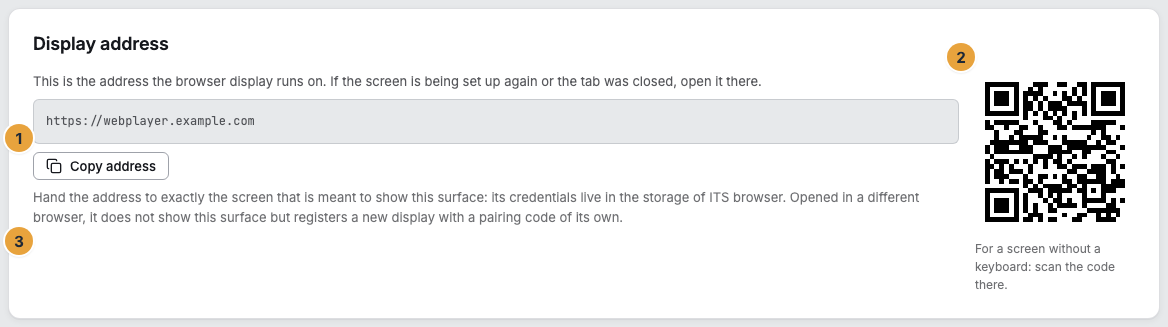
The access lives in the browser’s storage
A web display identifies itself with a secret that is kept in its browser’s storage. If this storage is lost, for example through cleared storage, a fresh profile, or another computer, the display cannot find its way back: It registers as a new device and shows a fresh pairing code.
For moving to another browser, the Device tab has the Connection and lifecycle card with the Create a new address button. The address binds the same booked seat to a new tab. Name, program, and history stay, and no second seat is taken. It is valid for two hours and exactly once, and a new one invalidates the previous one. As soon as someone opens it, the browser connected so far loses its access.
A web display cannot be wiped, because there is no disk that someone could empty. If the computer leaves the building, choose Delete web display on the Device tab. The display disappears, its seat becomes free, and the device in the browser leaves your organization. As a result, the browser at the installation site loses its access. See Remove a display.
What a web display cannot do
- No system updates. Whoever looks after the computer maintains its browser and operating system.
- No control over the panel. Switching on and off and the real brightness run over the lines of the HDMI cable. The display software dims through a layer instead: The picture gets darker, the panel does not.
- No reboot of the machine. The tab is reloaded, and the computer behind it is left untouched.
- No video in hardware. Films play in the browser, and the playback rendition is chosen instead of the original.
- One display per browser. The content is in the browser’s cache. There is no second offline stock on a disk.
Caution: On the target device, turn off the screensaver, power saving, and automatic browser updates, and keep the tab in the foreground. A tab in the background shows nothing, and in the portal the browser then says in the background.
Which commands arrive
| Command | Without extension | With Display extension |
|---|---|---|
| Refresh content, Identify | yes | yes |
| Screenshot | no | yes |
| Reboot, Fetch system log, configuration, system update, Locate | no | no |
The portal hides what is missing. A button that reliably leads to an error message should not appear in the first place.
The display extension
A browser cannot capture its own picture, because no web standard allows a page to photograph itself. An extension for Chrome version 116 or later closes this one gap: It captures the visible area of the tab and passes it to the display software, which uploads it. It never talks to our platform itself, and it carries no secret. Whether the tab is in the foreground is reported by the display software itself, and that does not need the extension.
You install it unpacked through Chrome’s developer mode. Then enter the display address on its options page and grant the permission. For the screenshot, additionally choose Allow screenshots there: Chrome gives the image of a tab only to an extension that may read all websites. The extension uses this permission only for the image, and only at the entered display address. Then reload the display page once. That takes effect within a minute, and nothing needs to be done in the portal. In the device record, it then appears as Display extension with installed or not installed. After every update of the extension, you also reload the display page once.
Caution: The extension is not available through any extension catalog today. Ask support how to obtain it.
If something goes wrong
| Symptom | Meaning | Solution |
|---|---|---|
| Web displays are not enabled for your contract. | The connection type is not booked | Book it in billing, or pair through a device of your own. |
| The page does not load at all: no code, no display software, the browser says “Page not reachable” | The device does not reach the display address | Open another page in the same browser. If that does not load either, the network is missing. If it loads, a firewall blocks the address. On a company network, the device then needs an allow rule, and support names the addresses for it. |
| A pairing code appears instead of the content | The browser lost its storage | Create a new address and open it on the target device. |
| Screenshot is missing | The extension is not set up in this browser, is outdated, or screenshots are not allowed in its settings | Set up the current version of the extension, turn on Allow screenshots in its settings, and reload the display page once. Without the extension, it stays with Refresh content and Identify. |
| The portal says in the background | The tab is behind another window | Bring the tab to the foreground and leave it in full screen. |
Related
Found what you needed? Then carry on in the portal — or set up an organization first.
Go to the portalTry it free