Remove a display
A panel is replaced or taken down, and the booked seat should become free again.
6 minute readDisplaysUpdated: 10/25/2026
On this page
Before you start
- For
- anyone who takes down or replaces panels or needs a seat for a new display
- Prerequisite
- Owner role. For other roles, the portal shows the button grayed out.
- Where in the portal
- Displays › display › Settings tab › Remove display card
After this page, you have taken a display out of your fleet and freed its booked seat. The device behind it stays as it is. Only when you remove its last display do you decide in the same dialog what happens to the device.
What happens when you remove
| What | What applies afterwards |
|---|---|
| The display | It disappears from the fleet and from every list. Only the change log still names it, with the entry Display removed. |
| Its booked seat | It is free immediately. A new display can take it. |
| Program, override, place on a video wall, tailored permissions, and the last screenshot | They are released. The programs themselves stay unchanged and keep running on the other displays. |
| The device behind it | It stays in place, on the network, and in your organization. A second display on it keeps running. |
Removing cannot be undone. If the same panel should show something again later, you create a new display. On a device that still belongs to your organization, you do that in the device record with Add display, otherwise through a new pairing code.
Steps
Remove a display
- Under Displays, open the display and switch to the Settings tab.
- Go to the Remove display card: “Takes the display away from you and frees its slot: program, override, place on a video wall, tailored permissions and the last screenshot are released. This cannot be undone.”
- Click Remove display …. The dialog carries the name of the display, for example Remove Shop window, and lists what is released.
- If it is the only display of its device, the dialog additionally asks What should happen to the device? Re-pair device is preselected. The three answers are explained in the section The last display of a device.
- Confirm with Remove display. The confirmation reads Display removed. For the last display of a device, a second sentence about the device follows, for example The device will show a pairing code shortly.
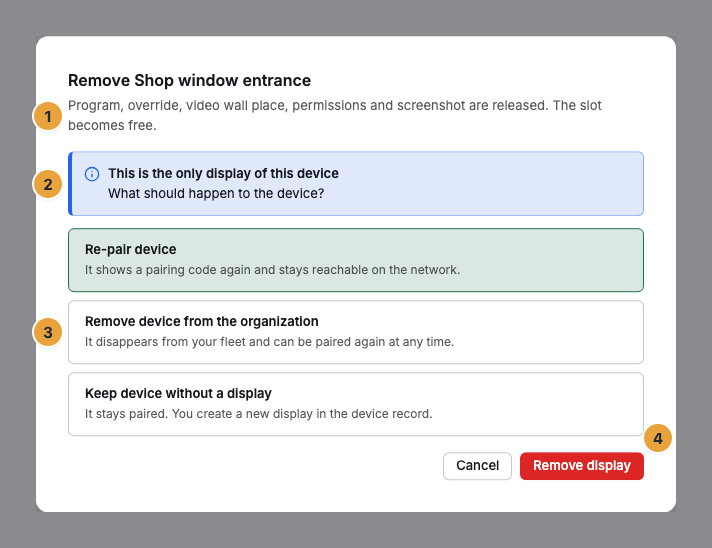
1 Paragraph on the scope · 2 Note on the only display of the device · 3 Choice for the device · 4 Remove display
Remove several displays at once
- Under Displays, select the displays with their checkboxes.
- In the bulk bar, choose Remove …. The dialog names the number of selected displays.
- Confirm. The confirmation names the number, for example 2 displays removed.
If a selected display is the last one of its device, the device is re-paired in the process. You can also remove a single display from the fleet via the menu of its tile with Remove ….
A display in the browser
For a web display, the Device tab offers the shorter path Delete web display. The display disappears, its seat is freed, and the browser at the installation site loses its access. The details are under Create a web display in the browser.
The last display of a device
A paired device without a display shows neither content nor a pairing code. That is why the dialog asks, for the last display, what should happen to the device.
| Answer | What happens to the device | What it is for |
|---|---|---|
| Re-pair device | “It shows a pairing code again and stays reachable on the network.” Affiliation and content are deleted on the device, Wi-Fi and remote access remain. | The normal case: The panel should show something again later, with you or in another organization. |
| Remove device from the organization | “It disappears from your fleet and can be paired again at any time.” It is no longer listed under Devices afterwards either. | The device goes back, is sold, or is disposed of. |
| Keep device without a display | The device stays paired, and its panel shows No display is set up for this screen yet. You create a new display in the device record with Add display. | You want to create a different display on the same device right away. The answer exists only with several displays per device, otherwise it is grayed out with the note Only with multiple displays per device (Pro and up). |
The order to the device reaches it at its next check-in. If it is switched off right now, it picks the order up after switching on. The order does not expire. What happens on the device is described under Device lifecycle.
Check the result
- The display is missing in the fleet, and its seat is free. Under Billing, it no longer counts among the paired displays.
- The change log says Display removed, and if the device left with it, also Device released.
- After Re-pair device, the panel shows a pairing code again, see Pair a display.
- After Remove device from the organization, the device is also missing under Devices.
If you want to book fewer displays, remove the surplus ones first. A reduction only takes effect at the end of the current period. If more displays are then paired than booked, you have seven days to remove one or to book more. After that, the portal freezes the surplus ones, the most recently paired first.
If something goes wrong
| Symptom | Meaning | Solution |
|---|---|---|
| Remove display … is grayed out | The permission Remove displays belongs to the Owner role. | Ask a person with this role, see Permissions by role. |
| Keep device without a display is grayed out | Your contract covers only one display per device. Several displays per device start with Pro. | Choose Re-pair device. What your package includes is explained under What do you pay for. |
| After Re-pair device, the panel still shows the old content | The device has not picked up the order yet. | Check power and network. The order does not expire. |
| The order reports “You have 4 displays paired — the reduction takes effect at the end of the period.” | You want to book fewer displays than are paired. | Remove the surplus displays by the end of the period. |
Related
- Device lifecycle: what the actions on the device do.
- What do you pay for: packages, seats, and add-ons?: booked seats and limits.
- Pair a display: the way back into the fleet.
Found what you needed? Then carry on in the portal — or set up an organization first.
Go to the portalTry it free