The display record: six tabs at a glance
You are looking for a particular card or detail and want to know which tab it is on.
7 minute readDisplaysUpdated: 10/25/2026
On this page
Before you start
- For
- anyone who looks after a single display and wants to know where a detail is
- Prerequisite
- an account in your organization. Assigning and commands need the Manager or Owner role, and removing needs the Owner role.
- Where in the portal
- Displays › display
A click on a tile in the fleet opens a display’s record. To find which card is on which tab, look up the tab instead of searching the page.
The head of the record
Above the tabs is the name of the display. The line below it names the device the display is attached to, with its name, for example Player 7AA9, plus place, format, and connector as far as they are known. Next to the name are four details: the Visibility of the display, the status dot with the status word, a symbol for the connection type whose tooltip reads Own device or Web display, and, if the display belongs to a video wall, the Video wall: … badge, which links to it. What visibility and status mean is explained in Read status.
Two buttons are on the right:
| Button | What it does |
|---|---|
| Assign program | jumps to the Playback tab and opens the selection right there |
| Screenshot | triggers the capture and jumps to the Remote tab, where the picture arrives. It appears only if the device supports screenshots. |
A Restart is deliberately not in the header: It affects the machine and with it every panel on it. What concerns the whole device is in the device record — the Device tab leads there.
If there is a fault, warning bands in plain language appear below, for example Device offline, Weak Wi-Fi signal, or No cable. Each band immediately names the most likely cause. The complete list is under Read status.
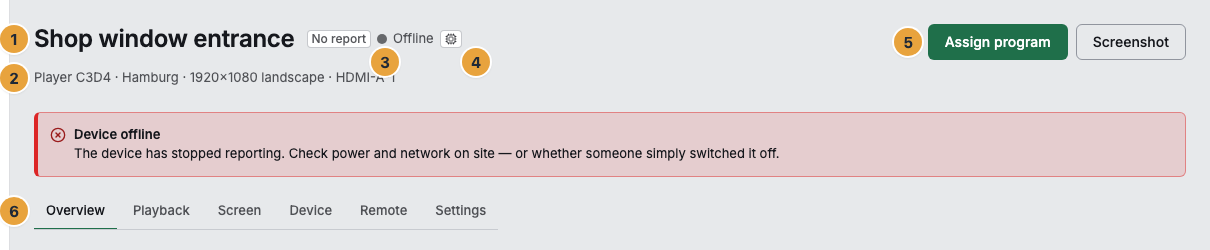
1 Name · 2 Device, place, format, and connector · 3 Visibility and status · 4 Connection type symbol · 5 Header buttons · 6 Tabs
The six tabs
| Tab | What is there |
|---|---|
| Overview | the status at a glance: what is running now, how the device is doing, how it is connected, what happened last |
| Playback | the program control center: assignment, override, and the playback timeline |
| Screen | everything that concerns the panel on the wall: panel, switching on and off, capabilities, picture settings |
| Device | the machine behind it, its displays, and for a web display the display address |
| Remote | commands to this display, orders in progress, the latest screenshot, and the history |
| Settings | master data, assignment, tags, and the Remove display card |
The active tab is in the address bar. A link to a particular tab therefore stays shareable, and the back button undoes the switch.
Overview
| Card | Content |
|---|---|
| Status line | State of the display with visibility, status word, and Running for … |
| Now playing | the running content as Scene or Playlist with a link, the line From program (program name or Assigned directly), Runs until, and Afterwards. At the top are the Override badge, if one is running, and Picture from the device · … above the preview. |
| Status | Visibility, Temperature, Load, Memory, Free storage, Running for, Throttling. What the device does not measure has no row. |
| Connection | Wi-Fi (signal bars and dBm value), Network, Response time, Realtime channel, IP address, Last reported |
| Recently on this surface | an excerpt of the operations log with a link to the whole log on the device |
If nothing is assigned, the card says Nothing assigned — the device shows the placeholder screen., and with a planned pause Broadcast pause — deliberately nothing is playing. How to read both is explained in Check what a display is showing.
Playback
Three areas from top to bottom: the Program card with the assignment, the Show something else now card for the manual intervention, and the Playback timeline as the result of both. Assigning is described in Assign a program to a display.
Panel
The Screen card names Reported resolution, Format, Orientation, Permitted resolution, Device, Connector, and Serial number. Below are Turn the screen on and off with the reported status, What this display can do, and Picture settings. If the display has not reported anything about its surface yet, it says No screen data yet.
Device
At the top is The device behind it with the name of the device in the header, Connector of this display, The machine, How it is doing, Known since, and the Open device record button. Below, Displays on this device lists every display of the machine with connector and cable status. A click jumps to the sibling display. For a web display, Display address follows, Connection and lifecycle with Create a new address for the move to another browser, What a web display cannot do, and Delete web display. If the display software runs in a host app such as the Fire TV app, The device behind it additionally names the Host with the name and version of the app, and the What a web display cannot do card is omitted. It describes a browser tab, and an app can do more depending on the platform. What is missing on the display is named by the What this display can do card with the reason Not available on this platform. The remote maintenance of the device record offers the restart only where the app can do it. On a player with SzeneraOS, The device behind it names the version of SzeneraOS with its channel.
Remote
Four blocks: the commands, Orders in progress, Latest screenshot next to the log excerpt, and Recent commands. The details are under Remote maintenance.
Settings
Four cards one below the other:
- Master data with Name, Description, the Location selection, and Save
- Location with the determined position and Correct location
- Tags for creating and assigning tags
- Remove display with the Remove display … button, see Remove a display
The Location selection in the master data and the Location card below it are two different things: The selection binds the display to a created place, and the card shows the position that the device itself has determined.
Channel and system image are in the device record
Which system image a machine runs and which channel it comes from is kept not by the display record but by the System & runtime card of the device record. Two rows there carry lists of values of their own.
| Row | Possible values |
|---|---|
| SzeneraOS, the channel next to the version | Stable, Beta, Preview, Deprecated, Retired |
| System image | downloading, installing, trial boot, rolled back, failed |
The System image row appears only while a switch is running or has failed. If it is at rest (unchanged) or has gone through cleanly (changed), the row does not appear.
Related
- Check what a display is showing — the Now playing card and the timeline in detail.
- The device record — what is kept about the machine behind the display.
- Remote maintenance — the commands of the Remote tab.
Found what you needed? Then carry on in the portal — or set up an organization first.
Go to the portalTry it free