What is a display, a device, and a panel?
You trip over the three words and want to know what you create, what you pay for, and what hangs on the wall.
4 minute readDisplaysUpdated: 10/25/2026
On this page
Before you start
- For
- anyone who manages displays in the portal or reads an offer
- Prerequisite
- none
- Where in the portal
- Displays · Devices
Three words, three things: The display is the entry in the portal, the device is the machine behind it, and the panel is the hardware on the wall. Once you can tell them apart, you understand why a restart affects two outputs and why a second panel costs a second seat.
The display: the entry in the portal
A display is a unit you can play content on, as the portal manages it. Through this entry, you give it a name, assign it a program, set its orientation, and send it commands. Everything under Displays is an entry of this kind, each with a status and the picture currently running.
Each display takes exactly one booked seat in your contract. When all seats are taken, the portal rejects another pairing with Every booked display is paired. and offers to book an additional display.
The device: the machine behind it
The device is the computer that produces the picture. Its Build is listed in the device record as Raspberry Pi 5, Raspberry Pi 4, Linux machine, or Web display. A device can drive more than one output: A Player Pro has two connectors and carries two displays, each with its own name, program, orientation, and booked seat. The Displays on this device card lists them as Display 1, Display 2, and so on. The Devices area also shows machines without a display. For those, it says No display is attached to this device.
The panel: the hardware on the wall
The panel is the physical hardware: a TV, a monitor, a tablet. It is installed and switched on at the site. In the portal, all you see of it is the pairing code. The device asks the panel over the cable what it can do and reports the answer in the What this display can do card.

One display per output, one device per machine: In a workshop, two displays share a Player Pro, and the third runs as a web display on a tablet.
Three connection types
The Add a display dialog first asks: What is this display attached to?
| Connection type | What it is for |
|---|---|
| Own device | A device is connected to the panel by HDMI: Raspberry Pi 5/4 or Intel box. |
| Web browser | The panel shows a browser page: computer, tablet, or smart TV. |
| Another screen on an existing device | A device that is already running drives a second panel. |
The first two paths end with a code that you type in. The third needs none: You only choose the device and a free connector. A Web display is the special case — a display with no device at all, only a browser that has opened the display address.
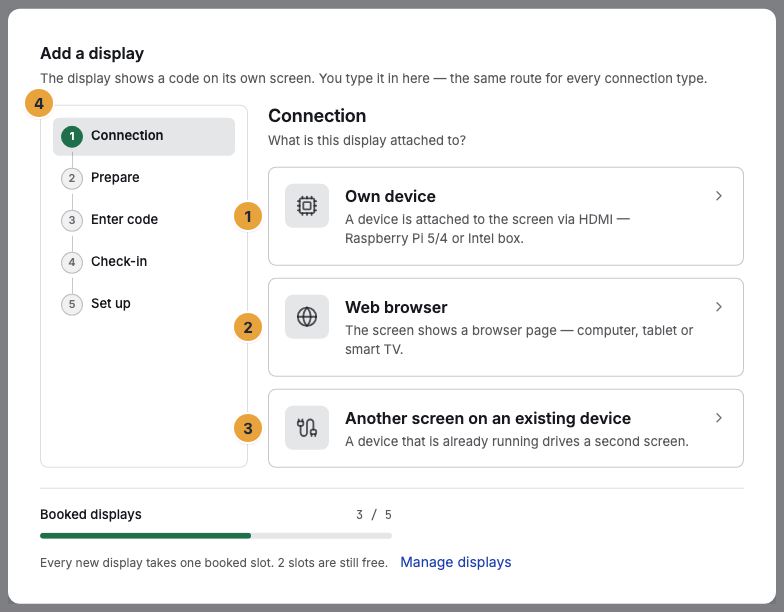
1 Own device · 2 Web browser · 3 Another panel on an existing device · 4 Step bar
What follows
- Commands have a scope. The Remote tab affects only this one display, and above it you read These commands affect this display only. The restart lives in the device record and reaches every panel on the machine. On a device with two outputs, the second one goes dark without warning.
- Cleaning up has two levels. Remove display takes the entry out of the fleet and frees the seat, and the machine stays in place. The actions on the Lifecycle card in the device record affect the machine and take all its displays along.
- A second panel costs a second seat. The Add display dialog says so beforehand: This books one more display.
- A video wall is not a fourth thing. Several displays show one surface together. Each stays its own entry with its own seat.
Related
- Pair a display: from the code on the panel to the display in the fleet.
- The device record: what the portal knows about the device.
- What do you pay for: packages, seats, and add-ons?: what a second display costs.
Found what you needed? Then carry on in the portal — or set up an organization first.
Go to the portalTry it free