When a display does not show what it should
A display stays black, shows the placeholder or an old version, and you are looking for the cause.
9 minute readDisplaysUpdated: 10/25/2026
On this page
Before you start
- For
- anyone who has a panel in front of them or sees a message in the portal and wants to know the cause
- Prerequisite
- access to the portal, and for changes the permissions of the Manager or Owner role
- Where in the portal
- Displays › display › Overview and Playback tabs
From the most common case to the rarest: what you see on the panel or in the portal, what it means, and where you fix it. Most cases are not a defect but a missing assignment, a draft, or a deliberately empty panel.
First: the three lines of the display record
Open the display under Displays. The Overview tab separates three questions that are often confused: The Status says only whether the device reports in. The Visibility says which picture is on the display (Showing content, Starting up, Showing a fault, Showing nothing, No cable, No report). And the warning bands at the top name the incident in plain language. A device can be perfectly Online and still show nothing.
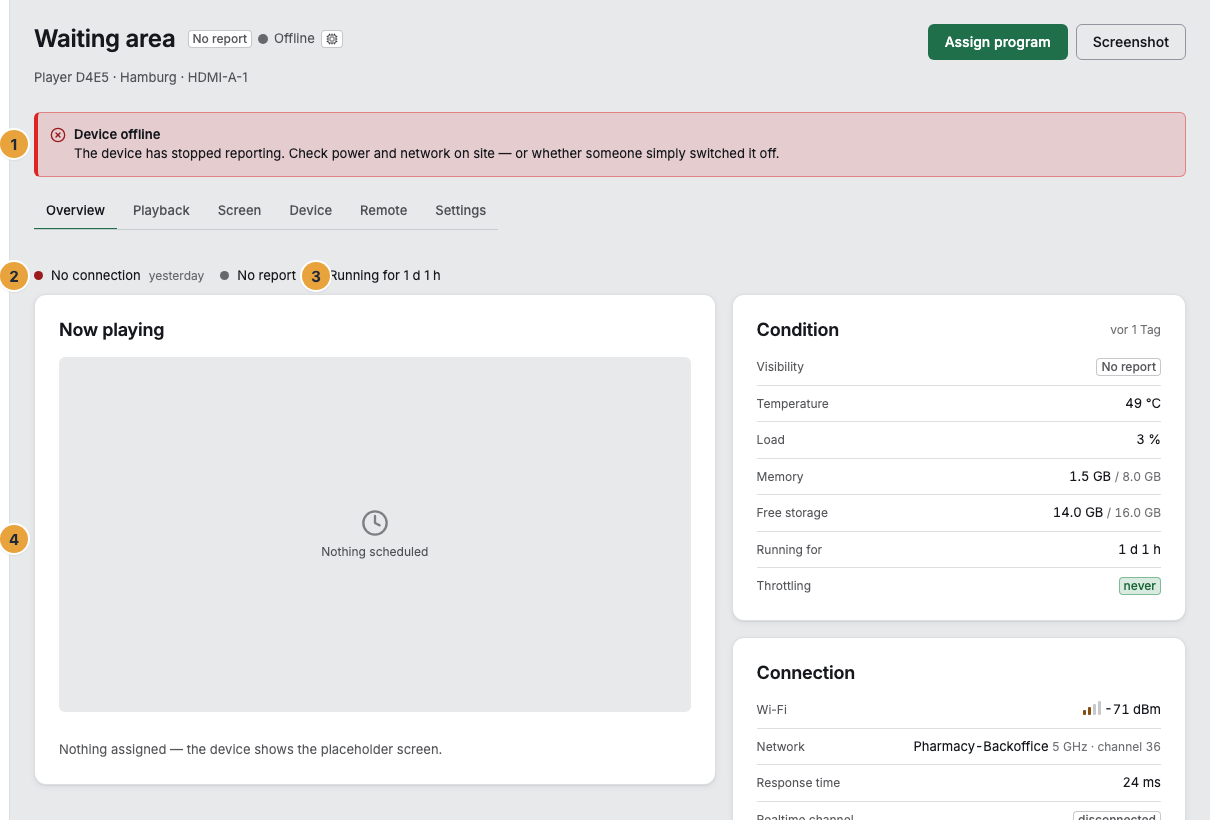
1 Warning band · 2 Status line · 3 Visibility · 4 Now playing card — Status, visibility, and warning band are independent of one another: Here the device is not reporting, so there is no report about the display.
The panel shows the wrong content or none at all
| Symptom | Meaning | Solution |
|---|---|---|
| The panel shows the placeholder with your logo, and the fleet says Nothing scheduled | Nothing is assigned to the display. | Assign a program, a scene, a playlist, or a media item, see Assign a program to a display. |
| The panel shows the placeholder although a program is assigned | No program entry applies at this time, and the base program is empty. | Check the weekly plan, see Read the weekly plan. |
| The panel shows an old version of your scene | The new version is still a draft. | Publish the scene again, see Save, publish, versions, and conflicts. |
| The scene is published, but the panel still shows the old version | The version to be shown has not reached the device yet, or the device was offline. | On the Remote tab, send Refresh content, see Remote maintenance: send commands to a display. |
| Something other than planned is playing | An override is active or another program entry wins. | Open the Playback tab: the cards at the top say what is assigned, the timeline below says what follows from it. See Show something else now (override). |
| A change is missing on the timeline | The resolved timeline is cached briefly. | Click Refresh below the timeline. On the device, Refresh content helps. |
| The picture has black bars or is cropped | Scene format and panel do not match, or orientation and content fit are set differently. | Check the format, see Which format does a scene need for which display?. The orientation is on the Screen tab, see Adjust a display’s picture and power. |
| A scene is missing in the selection for the display | The tab first shows only what fits the panel format (“… scene does not fit the panel”). | Switch on Show all formats — what does not fit then “would play with bars”. |
| Instead of the assignment card, it says Part of a video wall | The display belongs to a video wall, and the surface as a whole is played. | Follow the video wall and assign there, or dissolve it, see Create a video wall, assign content, and dissolve it. |
| The button for the previous day on the playback timeline is disabled, and the tooltip says Playback history starts with Pro or There is no recording further back — your package sets how far the window reaches. | Your package records only so many days: Starter none, Pro seven, Premium thirty. | Choose a more recent day, see Check what a display is showing now and will show today. |
The panel is black or shows a notice
| Symptom | Meaning | Solution |
|---|---|---|
| Off air with a time | A program entry or the base program deliberately plans nothing here. Not a defect. | Change it only if you want to, see Schedule time off air. |
| Completely black, no text, no message | Cable, input selection on the panel, or power supply. | Check cable and input, wait a minute, see Troubleshooting on the device. |
| Small at the bottom right: “No connection — showing the last known content” | The stored version has expired, and the connection has been missing for at least a minute. The content keeps running. | Check network and Wi-Fi at the installation site, see Troubleshooting on the device. |
| Error screen with a reason and countdown, after several attempts “Permanently offline” | The display software cannot reach its content. | Check internet access at the installation site, see What a display can show. |
| “Connection closed” with a reason | A deliberate shutdown: expired session, revoked permission, suspended organization, blocked device, throttling, or an intervention by us. | Only the throttling resolves itself. You clear up everything else in the portal, not on the device, see What a display can show. |
| A setup card with a QR code, again and again | The device has no network. The Wi-Fi password was probably wrong. | Scan the card again and enter the credentials anew, see Connect to the network: cable, Wi-Fi, company network, time. |
| Six empty tiles instead of a pairing code | The device has no internet yet. | Check the network cable or Wi-Fi. |
| A narrow band with a tool symbol at the bottom | Announced work on the service. Playback continues underneath. | Do nothing. |
| A pulsing blue full-screen overlay | Someone has triggered Identify. It disappears after seconds. | Do nothing, see Remote maintenance: send commands to a display. |
The display does not report or reports only irregularly
| Symptom | Meaning | Solution |
|---|---|---|
| Status Delayed | No check-in for 60 seconds to 5 minutes, often a short network dropout. | Wait briefly. If it persists, check the Wi-Fi at the installation site. To read the values, see Read status, visibility, and incidents. |
| Status Offline, warning band Device offline | No check-in for more than 5 minutes. | Check power and network on site — or whether someone switched the device off. |
| Warning band Device reporting irregularly | The last report is older than usual. | The most common cause is unstable Wi-Fi at the installation site. |
| A command that was sent is never carried out | The device is not reporting. The command waits and expires if the wait gets too long. | First bring the device back online, then send the command again, see Remote maintenance: send commands to a display. |
| Status Not connected | The web display is created, but no browser has opened its address yet. | Open the address on the target device, see Create a web display in the browser. |
| Status Frozen | More displays are paired than booked. | Remove a display or book another seat, see Remove a display. |
| Status Suspended | Your organization is suspended, and the display does not play. | Clear up billing, see Payment reminders, overdue notices, freezing, suspension. |
Warning bands on the display record
| Warning band | Meaning | Solution |
|---|---|---|
| Display output hung | The display software no longer delivers pictures. | Restart through the device record, see Maintain a device remotely: restart, log, update. |
| This display shows no picture | Either the display software is not running, or the panel is in standby, or it was signed off. | The warning band names the case. For standby, switch on in the Screen tab, otherwise restart through the device record. |
| No cable | No panel is detected at the connector of this display. | Check the cable and the input selection on the panel. |
| Display is starting up | The display software is starting. | Wait about a minute. If there is still no picture, restart through the device record. |
| This display shows a fault | The device is running, and the display software cannot reach its content. | Check the network connection of the device. |
| Weak Wi-Fi signal | The measured value is close to the limit at which the connection drops. | Move the router or set up a repeater. |
| Power supply throttling | Undervoltage, mostly from a power supply that is too weak or a cable that is too long. The picture stutters without any error being reported. | Use the original power supply and a short cable. |
| Storage low | The next larger content sync may fail. | Remove unused content. |
| Clock out of sync | The device clock runs without synchronization. Schedules switch at the wrong moment. | Allow time synchronization in the network, see Connect to the network: cable, Wi-Fi, company network, time. |
While pairing
| Message | Meaning | Solution |
|---|---|---|
| We do not know this code. Check the six characters on the display. | Mistyped or a character mixed up. Zero and O as well as one and I do not occur in the code at all. | Read the code again, see Pair a display. |
| The code has expired — please enter the one currently displayed. | The code was past the five-minute grace period. | Use the code that is currently on the panel. |
| This device has already been paired. | The device already belongs to an organization. | If it is yours, it is under Devices. If it should start over, choose Re-pair … there, see Device lifecycle. Otherwise it belongs to another organization. |
| Every booked display is paired. or Your contract does not cover more displays. | No booked seat is free. | Book another seat in the dialog, see Change your contract: displays, package, add-ons — or free up a seat, see Remove a display. |
| Web displays are not enabled for your contract. | The Web browser connection type is not booked. | Pair through a device of your own or book the connection type. |
| The device reports no monitor on this connector. | Nothing is connected to the chosen connector yet. | Check the cable. The report follows within a few minutes. |
Video walls and missing permissions
| Symptom | Meaning | Solution |
|---|---|---|
| On a video wall, one display stays dark (“At least one display shows no picture”) | A member of the video wall has a fault of its own. | Open the affected display individually and go through the sections above, see Create a video wall, assign content, and dissolve it. |
| When creating a video wall, a display is missing in the selection | It already belongs to another video wall. | Rebuild or dissolve the other video wall. |
| A button is visible but grayed out | You lack the required permission. A note names the reason. | See Permissions by role and by area. |
Related
- Read status, visibility, and incidents — all values with meaning and next step.
- Troubleshooting on the device — when the cause is on site.
- When something goes wrong — troubleshooting across all areas.
Found what you needed? Then carry on in the portal — or set up an organization first.
Go to the portalTry it free