Create a video wall, assign content, and dissolve it
Several displays are mounted side by side and should show a single surface together.
5 minute readDisplaysUpdated: 10/25/2026
On this page
Before you start
- For
- anyone who connects displays into a shared surface
- Prerequisite
- Owner or Manager role and the video wall enabled. You can catch up on booking the video wall in the dialog.
- Where in the portal
- Video walls › Create video wall button
At the end, there is a surface of several displays that show one picture together: created, filled with content in one go, and dissolved later without losing a display.
Steps
Enable and book the video wall
- Open Video walls in the sidebar. If it says The video wall is not enabled yet, choose Enable video wall. That costs nothing and requires no permissions.
- Each video wall is booked separately and is not part of any package. If the booking is missing, the dialog shows This video wall still needs to be booked and offers Book a video wall with the price. The displays take their seats independently of that.
Create the surface
- Choose Create video wall.
- Fill in the Name field. The placeholder suggests
Shop-window band. - Set Columns and Rows. The grid goes up to 4 × 4, so at most 16 displays. Each tile counts as 1920 × 1080 pixels. Makes a surface of … pixels states the result.
- Click a tile and choose the display that hangs there. Only displays without another video wall can be chosen. Tiles may stay empty (— no display —). Clear tile takes back an assignment.
- Confirm with Create. The portal reports Video wall created.
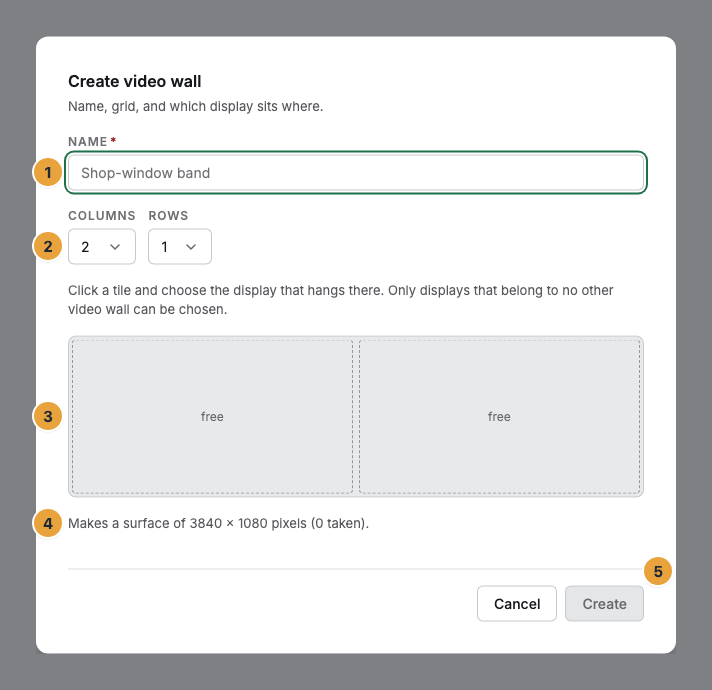
1 Name field · 2 Columns and Rows · 3 Tile grid · 4 Makes a surface of … line · 5 Create
Assign content to the surface
- Open the video wall. The What runs on this surface card replaces the assignment on the individual display.
- Choose Assign program. The What should run on the video wall? dialog offers program, scene, playlist, and media item — for all displays at once.
- If freshly combined displays bring assignments of their own along, it says The displays of this video wall show different things. Apply to the whole surface tidies up.
On the member, its own assignment is locked: Instead of the card, it says Part of a video wall with the Go to the video wall link, and the header carries the Video wall: … badge. This applies through the API, too.
Dissolve the surface
- Open the video wall and choose Dissolve video wall.
- The confirmation says: The grouping is removed, the displays remain. Confirm with Dissolve.
Each member keeps its booked seat and its last assignment. Afterwards, it shows the whole scene again instead of its section.
Options
- From the fleet. Select several entries under Displays and choose Combine into a video wall. Name and arrangement follow in the dialog.
- Rebuild later. Edit opens Edit video wall for name, grid, and assignment, and with uneven tiles only for the name. The portal itself does not create uneven tiles.
- When the booking ends. Existing surfaces keep running: Not booked. This video wall keeps running, new ones can only be created after booking. Dissolving still works.
Check the result
The detail page shows how the displays sit relative to each other, and below it the Displays of this video wall list with position, status, and picture. If it says All displays are showing, everything is fine. Otherwise the line names the reason: At least one display is still starting up, … is showing a fault, … shows no picture, … has no cable, or No reading for at least one display. A surface is as visible as its worst display.
If something goes wrong
| Symptom | Meaning | Solution |
|---|---|---|
| The video wall is not enabled yet | A video wall cannot be created without enabling it. | Choose Enable video wall. If you lack the permission, ask someone with app management. |
| This video wall still needs to be booked | There is no booking for this video wall. | Choose Book a video wall in the dialog. The booking runs through Billing. |
| A display is missing in the selection | It already belongs to another video wall. A display sits on at most one video wall. | Rebuild or dissolve that one. |
| All displays already belong to a video wall. | No free display is left. | Dissolve an existing video wall so that its displays become free again. |
| Part of a video wall instead of the assignment card | The display is a member. Assignments go to the surface. | Follow the Go to the video wall link and assign there, or dissolve the video wall. |
| A button is grayed out | You lack the required permission. | Someone with the permission for video walls must take over the step. |
Related
- How does a video wall show one picture across displays?: section per display, three limits.
- Video wall: what the video wall is and what enabling opens up.
- What do you pay for: packages, seats, and add-ons?: what a video wall costs.
Found what you needed? Then carry on in the portal — or set up an organization first.
Go to the portalTry it free