Create locations and assign displays to them
Your displays are at several addresses, and you want to organize the fleet by place instead of searching by name.
9 minute readDisplaysUpdated: 10/25/2026
On this page
Before you start
- For
- anyone who looks after panels at several addresses and does not want to tell them apart by name
- Prerequisite
- Owner or Manager role. Creating, changing, and deleting are separate permissions, and assigning at the display additionally requires the permission to edit a display.
- Where in the portal
- Locations, the opening hours under Locations › location › Opening hours tab, the assignment under Displays › display › Settings tab
At the end, your organization keeps a list of the places where displays are installed (branch, practice, workshop, trade fair stand). Each display is attached to at most one of them. The fleet can be filtered by place, and every location carries its opening hours, which all displays there read.
A location is a folder above displays, not a second label: It carries a name, a time zone, and optionally an address, a position, a note, the venue type, the state, and the opening hours. The Locations page says it in one line: The places your displays are at — branch, practice, trade fair stand. A location groups displays; it does not replace tags.
Steps
Create a location
- Open Locations in the sidebar and click Create location. If the list is still empty, it says No location yet with the Create the first location button.
- Fill in the form. The dialog states the minimum itself: “Name and time zone are enough; address and position can follow later.”
- Click Create. The confirmation reads The location was created.
| Field | Required | Meaning |
|---|---|---|
| Name | yes | The name under which the place appears in every selection, for example “North branch”. |
| Time zone | yes | The zone of the place, for example Europe/Berlin. It “decides when a schedule takes effect here”. The default time zone of your organization is suggested. |
| Street and number, Postal code, City, Country (ISO-2) | no | The address — “optional, but only as a whole: either all four fields or none”. |
| Latitude, Longitude | no | The position on the map, if you need it. Both fields or neither. |
| Note | no | “What someone on site needs to know, such as access or a contact. Opening hours have their own tab.” |
| Venue type | no | Pharmacy, Workshop, Bakery, Beverage store, Grocery, Kiosk, Fitness studio, Medical practice, Retail, or Other type. “Ad bookings target venue types, and analytics groups by them.” |
The form rejects two places with the same name: That name is taken. Two places with the same name could not be told apart in any picker.
Enter opening hours
Opening hours belong to the location, not to an app. One scene for all branches shows the hours of its own location on each display, without you maintaining them per branch in an app.
- Under Locations, open a location, through its name or the Opening hours button in its tile, and switch to the Opening hours tab. If none are entered yet, it says No opening hours yet with the Enter hours button. It starts with Monday to Friday from 9:00 to 18:00.
- Under Public holidays, choose the State. If the location has a German address, Suggested from the postal code: … with Apply appears below it. Check the suggestion if the place is near a state border.
- In the Weekly hours, decide for each day whether it is Closed, Open, or 24 hours. An open day has one to six time ranges, two for a lunch break. Add time range adds one. Copy to all weekdays applies Monday’s hours to Tuesday through Friday.
- Under Special dates, use Add special date to enter whatever deviates from the weekly hours: company holiday, stocktaking, a Sunday opening, or a public holiday of your town. A special date is One day or Several days, on those days Closed or with Own hours, and carries a Label that appears on the display.
- Under Upcoming holidays and special dates, check what deviates from the weekly hours in the next eight weeks.
- Click Save. The confirmation reads The opening hours are saved. Every display that shows the hours of this location shows the new ones after a few seconds, even at other locations.
A time range may extend past midnight, for example from 18:00 to 02:00. Next to it, it then says ends the next day. 24 hours means open around the clock. Remove hours deletes the weekly hours and special dates after a confirmation prompt.
Analytics needs the state and the opening hours as well: Outside opening hours and on the public holidays of your state, there is no planned time. Without opening hours, it calculates planned time from the program alone, even at night. With opening hours, a display that is silent outside them does not show up as a gap: Why is a gap not a zero? Ad bookings that target states read the same state.
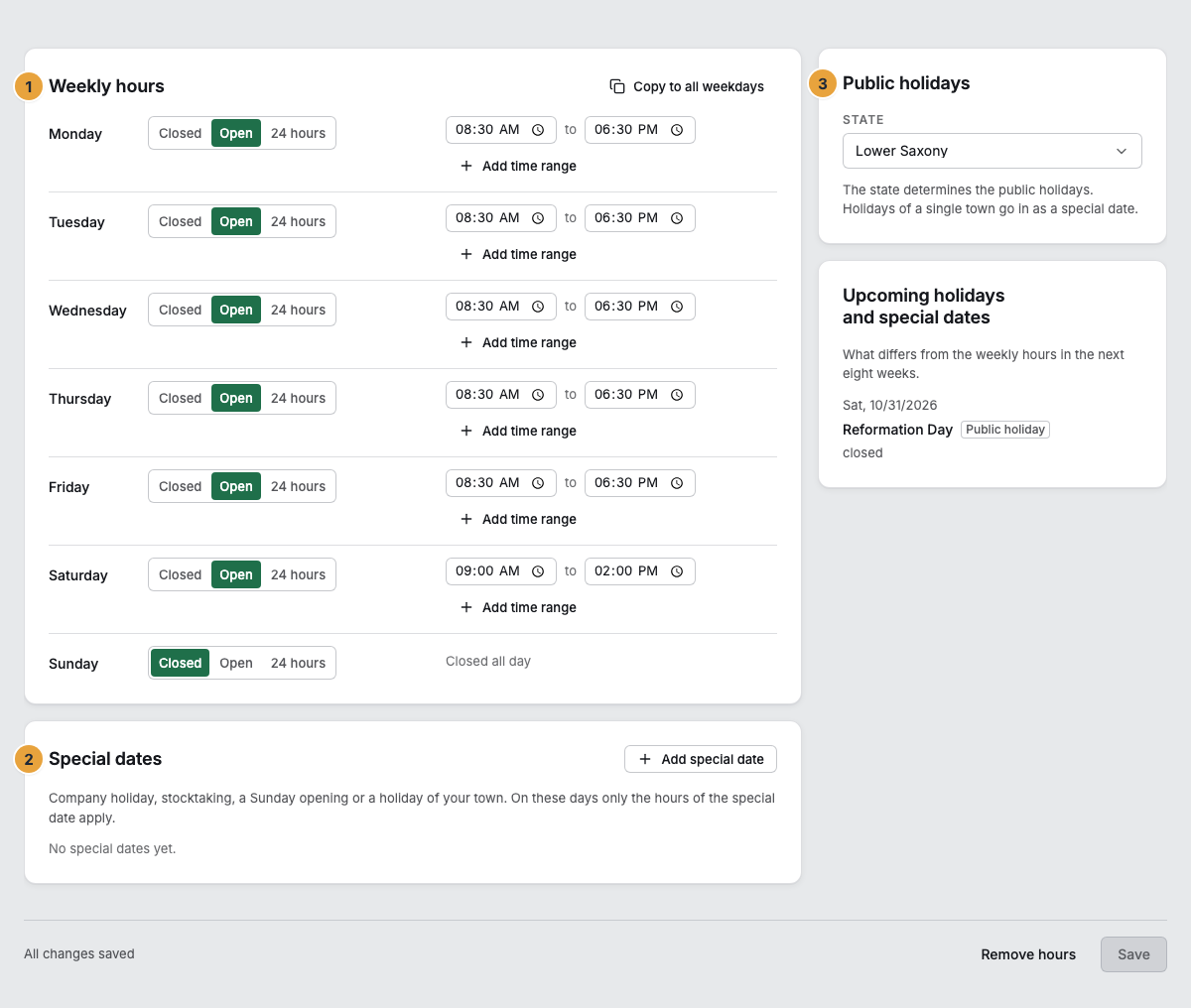
1 Weekly hours · 2 Special dates · 3 State
Assign a display to a location
The assignment happens at the display, not at the location. The empty list says so: “The assignment itself happens at the display.”
- Under Displays, open the display and switch to the Settings tab.
- In the Master data card, choose the place under Location. The note below it reads The place this display is at. Locations are created under “Locations”.
- Click Save. The confirmation reads Saved. After a few seconds, the display shows the opening hours, pharmacies on duty, and weather of the new place.
To detach a display again, go to the same spot and choose Without location. A display is attached to exactly one place or to none. Its program, its settings, and its booked seat remain untouched.
Filter by location
As soon as a place is created, the header bar of the fleet carries another filter (Filter by location). All places is the default. No place shows exactly the displays to which nobody has given a place yet — the selection you use to catch up on the assignments.
Change or delete a location
- Edit in the row opens the same form. The dialog makes clear: “The assigned displays stay where they are.” Save completes it (Saved.).
- Delete works only for an empty place. The dialog confirms this with No display is attached to this place any more — it can be dissolved., followed by The location was deleted.
- If something is still attached, the confirmation prompt names the number, and the deletion does not take place: “3 displays are still attached to this location. A deleted place must not cost a display — reassign or detach them first.” Above it, it says Reassign or detach them first, then delete.
The number in the list (4 displays) tells you beforehand whether the effort is worthwhile.
Options
Three details on a display sound similar and answer different questions:
| Location | Tag | Measured position | |
|---|---|---|---|
| Number per display | exactly one or none | any number | one |
| Answers the question | where the display is installed | what kind of display it is | where exactly the device stands |
| Source | created and assigned by you | created and assigned by you | determined by the device, can be corrected by you |
| Also carries | time zone, address, note | color | coordinates and address |
Public holidays are calculated by Szenera itself from the state, for every year. On a public holiday, the location counts as closed. A special date on the same day takes precedence: Whoever opens on Easter Monday enters the day as a special date with its own hours. The holidays that are calculated are those that apply across the whole state. Enter holidays of individual towns as special dates, for example Assumption Day in parts of Bavaria, the Augsburg Peace Festival, or Corpus Christi in parts of Saxony and Thuringia. Without a state, Szenera calculates no holidays.
The measured position feeds the Map view and the Location column of the list view. Neither shows the location, but what the device reports about itself. Both are covered in Name displays, add tags, and correct the map position.
The Pharmacies on duty app keeps its own Locations in its data area. These are search areas for duty rosters and have nothing to do with the places of your panels. They are covered in Manage data areas: an app’s own data.
Check the result
- Under Locations, the place appears with its address. If it is missing, it says No address on file. If you chose a venue type, it appears below.
- The row names the number of assigned displays.
- In the Opening hours tab, it says All changes saved, and under Upcoming holidays and special dates, the holidays of your state and your special dates appear.
- In the fleet, the location filter offers the new place, and the selection shows exactly the displays you assigned to it.
If something goes wrong
| Symptom | Meaning | Solution |
|---|---|---|
| That name is taken. | A place with this name has already been created. | Choose a distinguishable name, for example with the street or district. |
| Half an address is worse than none — please fill in all four fields or clear them all. | Only some of street, postal code, city, and country are filled in. | Complete the missing fields or clear all four. |
| A position needs both values — latitude and longitude. | Only one of the two coordinate fields is filled in. | Fill in the second or clear both. |
| Latitude and longitude must be numbers. | One of the fields does not hold a valid number. | Enter the values as decimal numbers. |
| … displays are still attached to this location. | The place is not empty. The deletion does not go ahead. | Reassign the named displays or set them to Without location, then delete again. |
| Overlaps with … at the time range | Two time ranges of a day or two special dates overlap. | Set the times so that one ends before the next begins. Time ranges without a gap are allowed. |
| Someone else has changed this location in the meantime | Someone else has saved the location since you opened it. | Load current version and enter the change again. |
| A public holiday of your town is missing | Szenera only calculates holidays that apply across the whole state. | Enter the day as a special date, closed. |
| Location assignment failed | The assignment at the display did not go through. | Reload the page and Save again. |
| The Locations entry is missing in the sidebar | You lack the permission to read locations. | Ask a person with the Owner role for the permission. |
Related
- Name displays, add tags, and correct the map position — name, tags, and the measured position of the same display.
- The fleet: views, filters, and bulk actions — where the location filter, the Location column, and the map view sit.
- Permissions by role and by area — who may create, change, and delete locations.
Found what you needed? Then carry on in the portal — or set up an organization first.
Go to the portalTry it free