Create a web display in the browser
An existing computer, tablet, or smart TV should become a display without a machine of its own.
6 minute readDisplaysUpdated: 10/25/2026
On this page
Before you start
- For
- anyone who wants to play content on an existing panel without ordering a device
- Prerequisite
- Owner or Manager role, the enabled connection type Web browser, and a free booked seat. A web display takes one like any other.
- Where in the portal
- Displays › Pair display › Web browser
By the end of this page, an existing computer, tablet, or smart TV shows your content — without a device of its own, through a browser alone.
Two paths, the same result
The first path starts at the target device: You open the display address there, the display software starts and shows a six-character code, which you redeem in the portal. The second starts in the portal: You create the display there and get a one-time connect address, which you open on the target device.
With the second path, the display appears immediately in your fleet — with a name, a location, and an occupied seat, and the status Not connected. It shows something only after someone has opened the address. The address is valid once and for 24 hours.
Take the first path when the target device has a keyboard, and the second for anything you cannot type on, such as the TV in the clubhouse.
Steps
Via the display address
- Open Displays › Pair display and choose the connection type Web browser.
- The Prepare step is called Open the display address. Carry the address over to the target device with Copy address, or scan the QR code of the display address there. Open address applies to the computer you are sitting at: “Opens in a tab of its own — this browser then becomes the display itself.”
- Open the address on the target device. The display software shows a six-character code. Current Chromium-based browsers are supported, that is Chrome and Edge.
- Type the code in the Enter code step and click Pair.
- In the Set up step, assign a name, a program, and the placement, or choose Set up later.
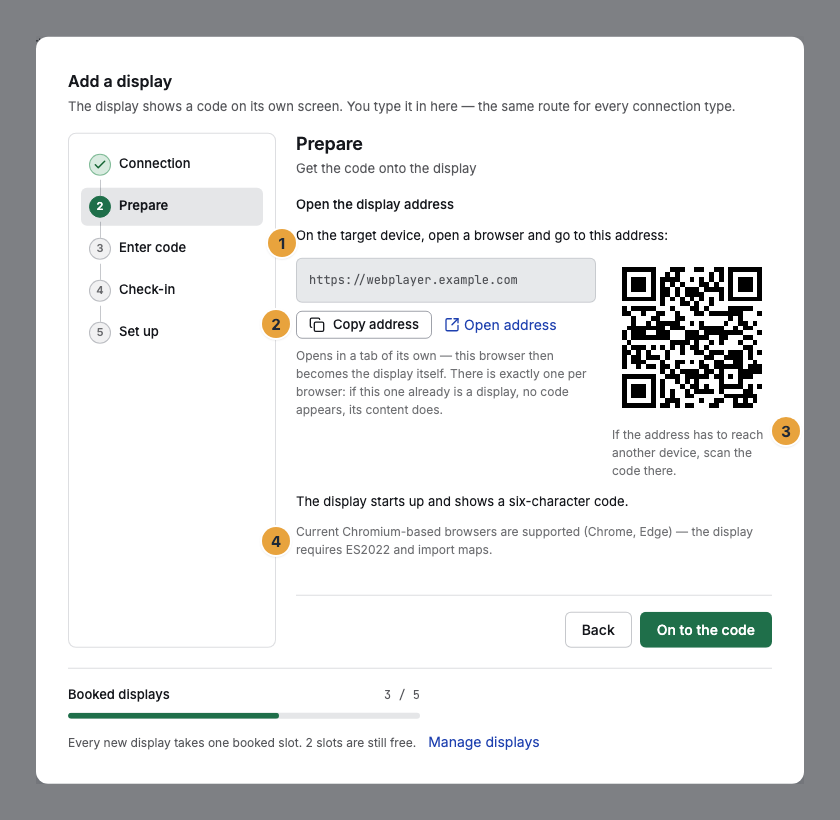
1 Display address · 2 Copy address · 3 QR code of the address · 4 Note on the supported browsers
Via the connect address
- In the Enter code step, choose the alternative Create a display in a browser instead.
- Under Name (optional), enter what the display should be called, and under Location (optional), choose the place where it is installed. Click Create web display.
- The display is in your fleet from this click on. Bring the address to the target device: Copy address, or scan the QR code of the connect address there — “Scan the code with the target device.”
- Open the address on the target device. The panel then shows exactly this display. In the portal, it changes from Not connected to Online.
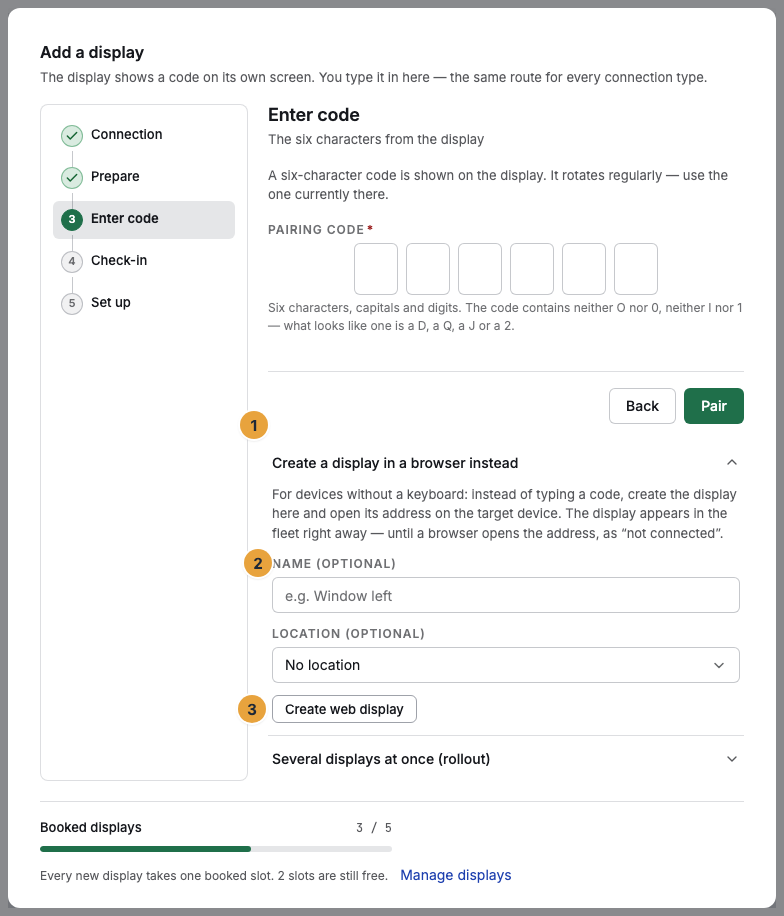
1 Side path Create a display in a browser instead · 2 Name (optional) field · 3 Create web display
What a web display cannot do
Behind the display is a browser tab and no machine. The What a web display cannot do card collects the consequences: no system updates, no control over the panel, no restart, no video in hardware, and one display per browser. In remote maintenance, Refresh content and Identify remain. A Screenshot only comes with the display extension, because a browser cannot capture its own picture. In the background, the tab shows nothing — leave it in full screen.
A display’s credentials are stored in its browser. Opened in a different browser, it does not show the same display but a new one with its own pairing code.
Check the result
- The display is in the fleet, and the panel on site shows your content instead of the code.
- The display record contains the Display address card: “If the panel is being set up again or the tab was closed, open it there.”
- If the display should move to a different browser, choose the Create a new address button in the Connection and lifecycle card. It is valid for two hours and exactly once, and a new one invalidates the previous one. Name, location, program, and history stay, and no second seat is taken.
- If you no longer need the display, Delete web display in the same card clears it away together with its browser access and frees the booked seat again. The device in the browser leaves your organization in the process. To take a display with a device of its own out of the fleet, use Remove a display.
If something goes wrong
| Symptom | Meaning | Solution |
|---|---|---|
| Web displays are not enabled for your contract. | The connection type Web browser is locked. | Book it as an add-on — or pair through a device of your own, see Pair a display. |
| Other content appears instead of a code | This browser is already a display. | Use a second browser or a second browser profile. |
| The address could not be issued. | The connect address could not be created at this moment. | Try again. The path via the display address stays open regardless. |
| Every booked display is paired. | A web display takes a seat from the moment it is created, not only when it is connected. | Book another seat or delete a display that is no longer needed. |
| The display stays at Not connected | The address has not been opened on the target device yet. | Take the address there and open it. If it has expired, get a fresh one with Create a new address. |
| The panel shows a pairing code again | The browser has lost its storage. | Bring the same display back with Create a new address instead of pairing anew. |
| The Screenshot button is missing | Without the display extension, the browser does not report the capability. The same applies to an outdated extension and to one whose settings do not allow screenshots. | Set up the current version of the extension in this browser, turn on Allow screenshots in its settings, and reload the display page once. The button then appears. |
Related
- Web display: a display in the browser: what the target device must bring along.
- Pair a display: the path via a device of your own.
- Remote maintenance: send commands to a display: which commands a browser display accepts.
Found what you needed? Then carry on in the portal — or set up an organization first.
Go to the portalTry it free