The fleet: views, filters, and bulk actions
You want to survey many displays at once, filter them, or change several at the same time.
6 minute readDisplaysUpdated: 10/25/2026
On this page
Before you start
- For
- anyone who keeps an eye on the status of the displays. A member reads the fleet, and Owners and Managers act from it.
- Prerequisite
- an account in your organization. Commands and tags need the Manager or Owner role, and removing needs the Owner role.
- Where in the portal
- Displays
The fleet is the list of all displays in your organization under Displays. What the header bar, the three views, each tile, the row menu, and the bulk bar offer — from top to bottom, as you meet them on the page.
The header bar
Under the Displays title is the sentence Every paired display in your fleet with live status. The bar below it holds the tools you use to narrow down the list.
| Element | What it does |
|---|---|
| Search displays … | filters by name as you type |
| Status | shows only displays with one status, default All statuses |
| Tag | shows only displays with one tag, default All tags. Available only once a tag has been created |
| Filter by location | shows only displays of one place, default All places, plus No place. Available only once a location has been created |
| Sort | orders by Name A–Z, Name Z–A, Status, Last seen new–old, Last seen old–new, or Location A–Z |
| View | switches between Cards, List, and Map |
| Columns | shows and hides columns in the list view |
| Pair display | top right, opens the Add a display dialog |
If the combination of search and filters matches nothing, it says No display matches the active filters. with the hint Adjust the search, status or tag to find displays.
The list updates itself: When a device reports in or its status changes, the portal catches up without you reloading the page.

1 Search field with status and location filters · 2 Sort · 3 View switcher · 4 Pair display
The three views
| View | What it is good for | What you see |
|---|---|---|
| Cards | the daily look at a few to a few dozen displays | one tile per display with picture, name, status, Last seen …, and the line ▶ … |
| List | sorting and comparing large fleets | a table with the columns Name, Status, Tags, Location, and Last seen. You control which of them are visible via Columns. |
| Map | where the panels stand | the map with the locations of the displays (assistive technology reads it as Map of display locations). Each marker carries the latest screenshot or No screenshot and the line reported … or never reported |
The map shows only displays whose device has determined its position or whose position you have corrected. The legend counts the … locations and states how many more without a determined location remain. If no display in the selection knows its position, it says No device in this selection knows its location. You correct a wrong position as described in Name displays, add tags, and correct the map position.
What a tile shows
| Row | Meaning |
|---|---|
| Picture at the top | a still preview of the scene that the device is currently showing according to the assignment and the playlist rotation — with real widget data, but without motion. If a playlist rotates, the picture moves along. |
| Name and status dot | the name of the display and its status. Read status explains the values. |
| Last seen … | when the display last reported in. If it never did, it says Never seen. |
| ▶ … | the running content, that is, a playlist, a scene, or a media item. If a change is coming up, until HH:MM follows. |
Instead of the running content, these substitute texts appear in the ▶ … line and in the picture:
| Substitute text | Meaning |
|---|---|
| Broadcast pause | an intentionally empty panel is planned for this time |
| Nothing scheduled | nothing is assigned to the display, and it shows the placeholder |
| Device not playing | the display is blocked or frozen |
| Not connected yet | the web display is created, but no browser has opened its address yet |
| Preview unavailable | the scene can no longer be retrieved |
| Image playing / Video playing | a single media item plays in a loop |
A display with the status Offline keeps its picture: It keeps playing the version it loaded last. Only the status dot and Last seen … show you that the feedback is missing.
A click on the tile opens the display record.
The row menu
Every tile and every row carries a menu with actions for exactly this display.
| Entry | What happens |
|---|---|
| Open | opens the display record on the Overview tab |
| Show playback | opens the display record on the Playback tab |
| Rename … | opens Rename display with the New name field. Save reports Name saved. |
| Tags … | opens Tags. A click assigns the tag or takes it back. |
| Open device | jumps to the device record of the machine behind the display |
| Screenshot | requests a picture of the current panel |
| Identify | makes this one display light up briefly |
| Remove … | takes the display out of the fleet and frees its booked seat, see Remove a display |
What Screenshot and Identify trigger on the panel is described under Remote maintenance.
Bulk actions
With the checkboxes, you select several displays. Select all takes the whole visible list. The bulk bar then appears at the top with N selected and Clear selection.
| Button | What happens |
|---|---|
| Assign tag … | opens Tags with the sentence A click assigns the tag to all N selected displays. |
| Screenshot | requests a picture from every selected display. The confirmation reads Screenshot requested from the selection. |
| Combine into a video wall | makes one shared surface from the selection, see Create a video wall |
| Remove … | removes all selected displays, and each of them frees its booked seat. The dialog names their number, and the confirmation reads, for example, 2 displays removed. If one of them is the last one on its device, the device goes back to pairing. |
If a device does not accept the command, the portal names the number: N devices did not accept the command.
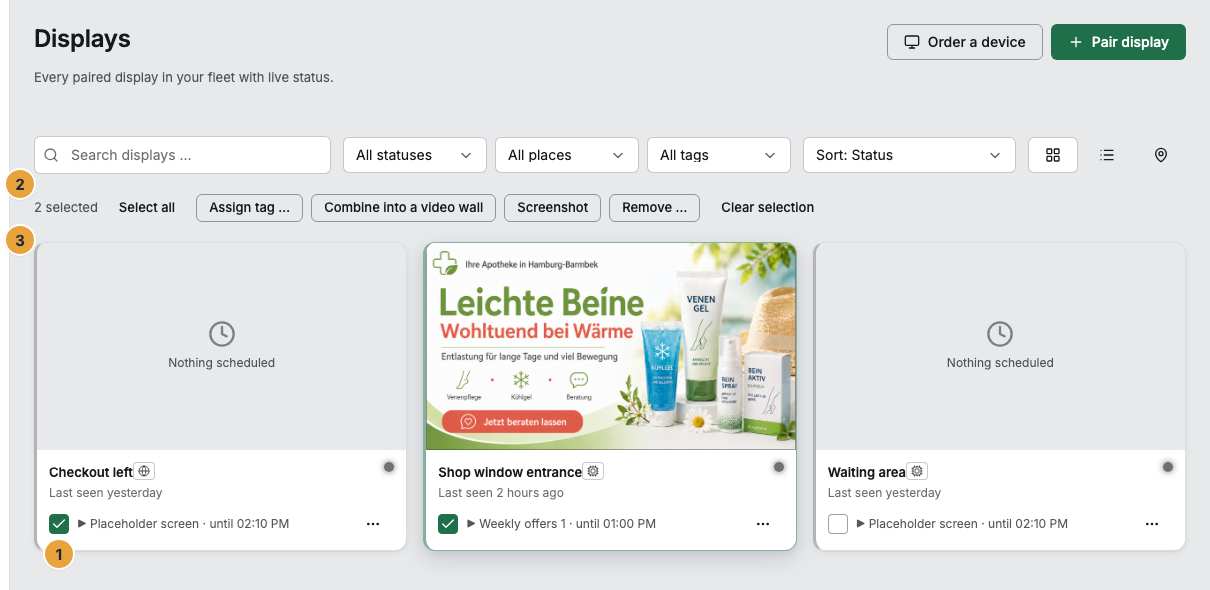
1 Checkbox of a tile · 2 Count 2 selected · 3 Bulk bar with its buttons
Empty fleet
If there are no displays yet, the middle of the page says No displays have been paired yet. with the sentence Pair your first device to start playing content. and the Pair display button. The way is described in Pair a display.
Related
- Read status — what Online, Delayed, and Offline mean and how they are calculated.
- Create a video wall — several displays show one surface.
- Remove a display — what is released on removal and what remains.
Found what you needed? Then carry on in the portal — or set up an organization first.
Go to the portalTry it free