Remote maintenance: send commands to a display
A display is far away, and you want to refresh it, look at it, or find it again in the room.
4 minute readDisplaysUpdated: 10/25/2026
Before you start
- For
- anyone who nudges a display remotely instead of driving there
- Prerequisite
- the permission to send commands (Manager or Owner). For a member, they are grayed out.
- Where in the portal
- Displays › display › Remote tab
Afterwards, you have sent a command to a display and know whether the device has carried it out.
Steps
- Under Displays, open the display and switch to the Remote tab.
- At the top in Remote support, choose the button of the command. Above them it says These commands affect this display only.
- Read the confirmation — it appears immediately.
- Follow the command in Orders in progress. The row disappears as soon as the result is there. After its Deadline, the order counts as failed.
| Button | What happens | Confirmation |
|---|---|---|
| Refresh content | Fetches the scheduled content right away instead of waiting for the sync. | Refresh sent |
| Screenshot | Requests a picture of the current panel. | Screenshot triggered — the image is stored server-side. |
| Identify | Makes the display light up briefly — that is how you find the device on site. | Identify sent |
| Reclaim source | Switches the input of the panel back to this device. | The screen has been asked to switch its input back to this device. |
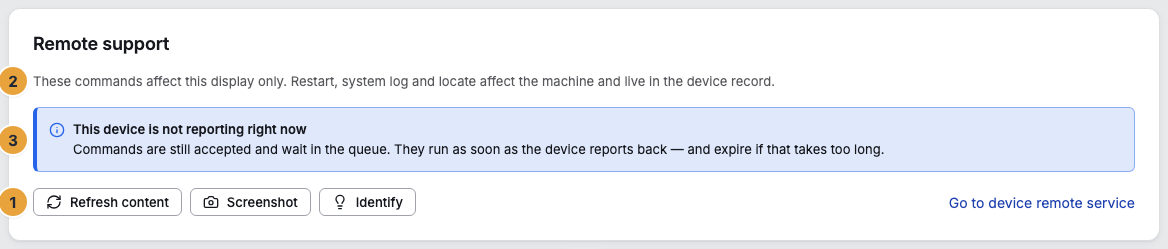
1 Buttons of the commands · 2 Note that the commands affect only this display · 3 Note on the queue
On the display shown in the picture, Reclaim source is missing because its monitor does not understand CEC. The input can be switched only on a panel that supports CEC, see How does the player control the display over HDMI?. In a browser, the command is always missing.
Identify shows a pulsing blue full-screen overlay on exactly this display for a few seconds — labeled with the Short name of your organization and the ID of the display. Playback continues.
What affects the machine is in the device record: restart, fetching the system log, update check, and locating the device. Go to device remote service leads there. On a device with two displays, a restart turns the second one black too. You switch the panel on the Screen tab.
Options
Latest screenshot. The card shows the most recent capture. The device captures on its own anyway, every five minutes and after every content change. What it showed on a given day appears as a filmstrip on the Playback tab below the timeline, for as long as your package keeps captures: Check what a display is showing now and will show today. Request new fetches a fresh picture.
Several displays at once. In the fleet, you select displays and request a picture from all of them via Screenshot: Screenshot requested from the selection.
History. Recent commands lists every order with Action, Status, Duration, Result, and Issued. As the result, it says carried out and confirmed or the note that the command was sent but the panel does not confirm it. The Configuration from the Screen tab appears here, too. Clear list clears finished commands away, and a running one stays.
Check the result
Every order passes through these statuses in Recent commands.
| Status | Meaning |
|---|---|
| Pending | accepted, not yet at the device |
| Dispatched | arrived at the device |
| Acknowledged | acknowledged by the device |
| Completed | carried out |
| Failed | the device could not carry it out |
| Timed out | no answer within the deadline |
If something goes wrong
| Symptom | Meaning | Solution |
|---|---|---|
| This device is not reporting right now | Commands are still accepted and wait in the queue. They run as soon as the device reports back — and expire if that takes too long. | Check power and network on site. |
| This display cannot run that command. | The display does not support it. | See the What this display can do card on the Screen tab. |
| The message that the display has been removed | A removed display no longer accepts commands. | Create a new display for the panel, see Remove a display. |
| … failed | The panel did not answer. | Check cable and input selection. |
| … no answer within the deadline | Not acknowledged in time. A command to an absent device expires. | Check whether it reports in and issue it again. |
| The buttons are grayed out | You lack the permission. | Clarify the role in the Team area. |
Related
- Maintain a device remotely — restart and the other commands to the machine.
- Adjust the picture — orientation, fit, brightness, and switching the panel on and off.
- When a display does not show what it should — the faults in order.
Found what you needed? Then carry on in the portal — or set up an organization first.
Go to the portalTry it free