Name displays, add tags, and correct the map position
Your list is filling up, and you can no longer find a particular display at a glance.
5 minute readDisplaysUpdated: 10/25/2026
On this page
Before you start
- For
- anyone who looks after more than a handful of displays and wants to find them again
- Prerequisite
- Owner or Manager role. Managing tags is a permission of its own, and the buttons are grayed out for members.
- Where in the portal
- Displays › display › Settings tab
At the end, each display has a meaningful name, can be filtered by tag, and sits at the right spot on the map. The device determines the position itself, and you only correct it.
Steps
Set the name and description
- Open the display and switch to the Settings tab. Four cards sit there one below the other: Master data, Location, Tags, and Remove display.
- In the Master data card, enter the Name. It later appears in the fleet and in every log entry.
- Fill in the Description with “what someone on site looks for — not the address, the device knows that itself”: for example “Window right, under the awning”.
- Under Location, choose the place where this display is, or leave it at Without location. You create the places themselves under Locations: Create locations and assign displays to them.
- Click Save. The confirmation reads Saved.
You can change the name faster from the fleet: row menu Rename …, then New name and Save.
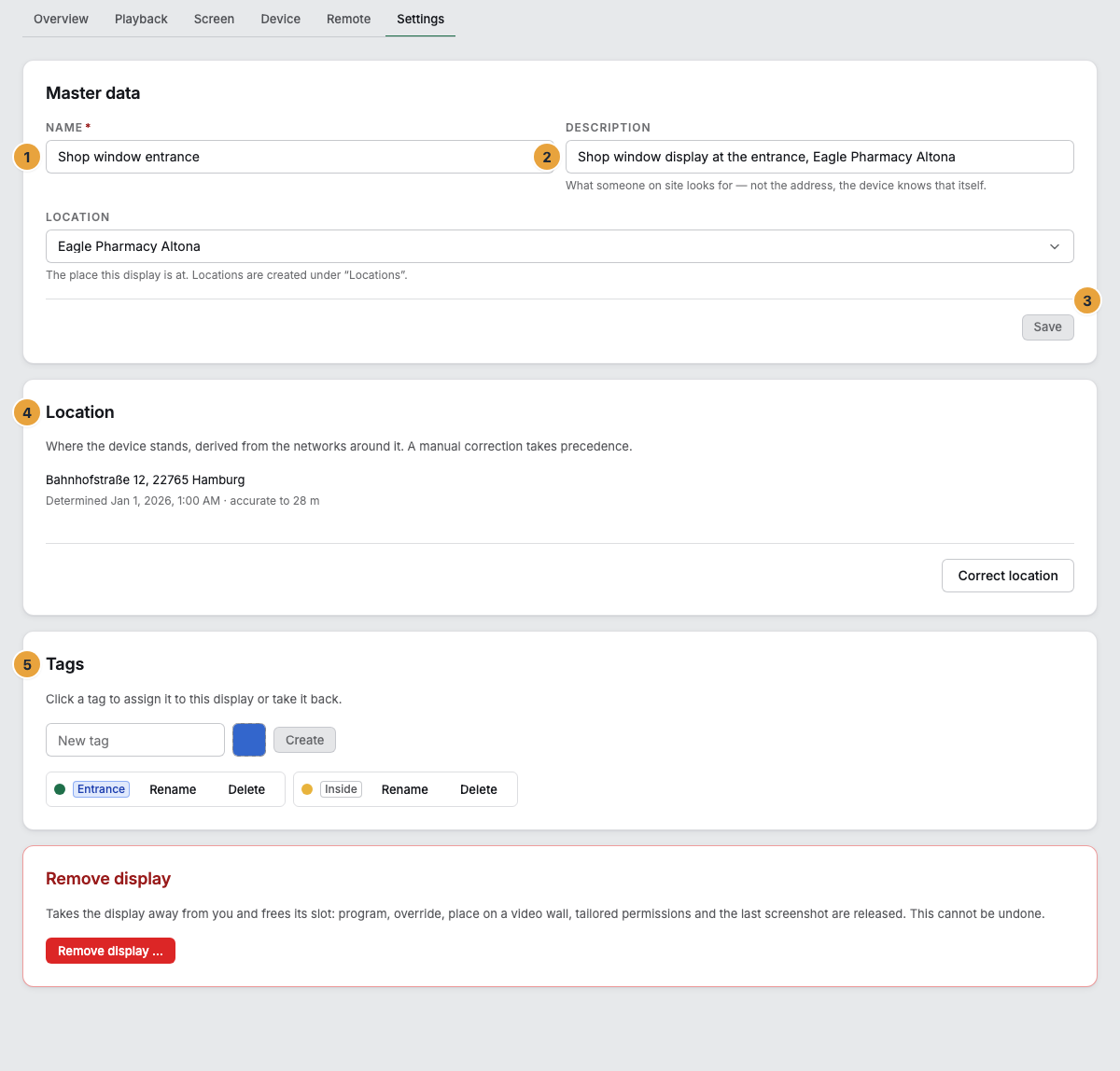
1 Name field · 2 Description field · 3 Save · 4 Location card · 5 Tags card
Create and assign tags
Tags are colored labels with which you group displays across the fleet, for example “Shop window” or “Workshop”.
- Stay in the Settings tab and go to the Tags card. If there are none yet, it says No tags created yet.
- Under New tag, enter a name, choose the Tag color, and click Create. It is then available to all displays.
- To change one, use Rename, enter the New tag name, and click Save. Delete removes it everywhere: “Also removes the tag from all displays.”
- Click a tag to give it to this display: “Click a tag to assign it to this display or take it back.”
From the fleet, you can only assign, not create: The row menu Tags … and the bulk action Assign tag … open the same Tags dialog. With several displays selected, it says: “A click assigns the tag to all … selected displays.”

1 New tag field · 2 Tag color · 3 Create · 4 Rename · 5 Delete
Correct the position
The device determines where a panel stands from its radio environment. The Location card shows this position and accepts your correction. The map view is built from it. The position belongs to exactly this display and is not the same as the place in the Location selection in the master data: The device measures this position, while that place is an entry you create and to which several displays can be assigned. You record the spot on site in the Description.
- Go to the Location card. It names the address, the time, and the accuracy. If the device does not know its position yet, it says This device’s location could not be determined yet.
- If the position is wrong, click Correct location and enter Latitude and Longitude. Street and number, Postal code, and City only describe the position: “Latitude and longitude are required — an address alone is not a location.”
- Click Save location: Location set. Your correction applies from now on, and the device no longer overwrites it. Determine automatically again hands the position back to the device.
Options
In the device record, the same position appears as Measured position, read-only. Determine again has it measured again. It is changed only here.
Check the result
- The fleet shows the new name, and the list has columns for Tags and Location.
- The Tag filter above the list offers your new tag.
- Under View › Map, the displays appear at their locations. If none of them knows its position, it says: No device in this selection knows its location.
If something goes wrong
| Symptom | Meaning | Solution |
|---|---|---|
| The display was changed in the meantime — please reload. | Someone else edited the same display a moment ago. | Reload the page and enter the change again. |
| Saving failed — please try again. | The master data did not go through. | Click Save again. If it stays that way, try again later. |
| A deleted tag is missing everywhere | Delete also removes the tag from all displays. | Create the tag again and assign it to the affected displays again. |
| The location could not be saved. | The correction did not go through. | Check latitude and longitude and click Save location again. |
| The buttons are grayed out | Two permissions are in play: Editing covers name, description, and position, and managing tags is a separate one. You lack one of them. | Ask a person with the Owner role for the missing permission. |
Related
- The fleet: views, filters, and bulk actions: how to work with tags, filters, and views.
- The device record: where the measured position is.
- Permissions by role and by area: who may name, tag, and maintain locations.
Found what you needed? Then carry on in the portal — or set up an organization first.
Go to the portalTry it free