The device record: tabs and cards of the machine
The Devices area with the list and the seven tabs of the record: what the machine reports about itself, which displays are attached to it, and what it can do.
11 minute readDevicesUpdated: 10/25/2026
On this page
Before you start
- For
- anyone looking after a device who wants to know where a piece of information is
- Prerequisite
- an account in your organization. Commands need the Manager or Owner role, the Lifecycle tab the Owner role.
- Where in the portal
- Devices › device
The Devices area lists the machines behind the displays, including those with no display attached right now. Every piece of information has its tab. Look up the tab instead of searching the whole record.
The list under Devices
The search field Name, model, serial number or display … searches all four fields. Next to it are two filters: Displays with All devices, With a display, and Without a display, and Display software version with All versions and Display software outdated. The second shows every device whose display software does not run the version that its channel has released. There is no filter for the status, because every device in the list is paired.
| Column | What it says |
|---|---|
| Device | the name of the device. By default it is Player followed by the last four characters of the serial number, for example Player 7AA9. |
| Build | Raspberry Pi 5, Raspberry Pi 4, Linux machine, or Web display, for a host app its name, for example Fire TV app. As long as nothing is reported, it says not reported yet. |
| State | paired. If a device has left your organization, for example after Re-pair or Report as lost, it no longer appears in the list. |
| System | what the display software runs on. For a player, it says SzeneraOS with version and channel, for example SzeneraOS 0.3.35 and Stable, and Browser for every device without SzeneraOS. Below it is the version of the display software, for example Display software 0.4.11, and outdated if it does not match the version of its channel. As long as nothing is reported, it says not reported yet. |
| Displays | the displays on this machine. If none is attached, it says no display. |
| Last reported | time of the last report, otherwise never reported |
If nothing is paired yet, it says No device paired yet. If no device matches the selection, it says No device matches this selection.
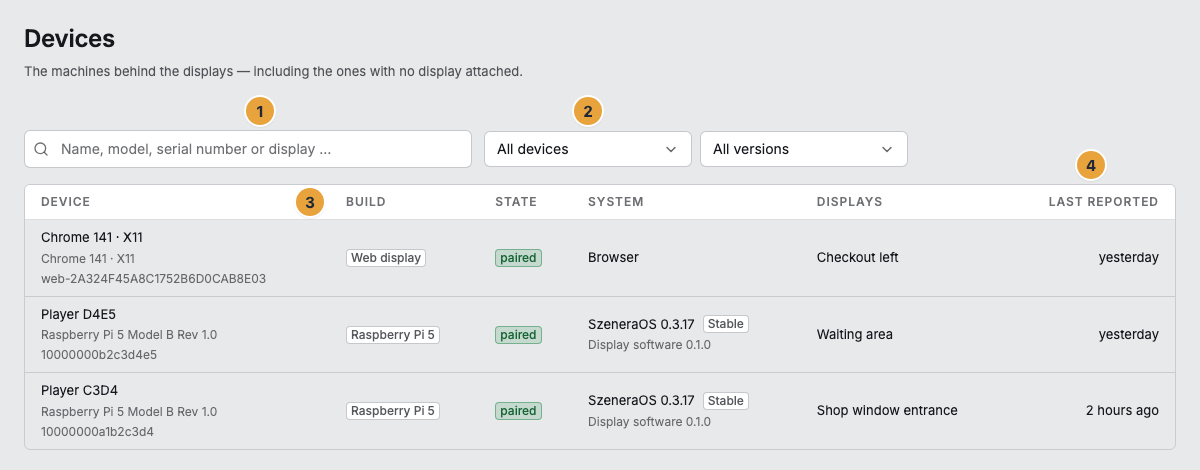
1 Search field · 2 Displays filter · 3 Build column · 4 Last reported column
The header of the record
Above the tabs are the device name, then the model, serial number, and known since …, and next to them two badges: the state and the build. For a host app, the name of the app appears in place of the build, for example Fire TV app. Owners and Managers can change the name in the device record. When the device leaves your organization, it falls back to the factory name.

1 Name · 2 Model, serial number, and known since · 3 State · 4 Build · 5 Tabs
The seven tabs
| Tab | What it says |
|---|---|
| Overview | how the machine is doing: state, key figures, its displays, connection, system, abilities, latest events |
| Remote service | the commands to the machine, running orders, the full operations log, and the history of the commands |
| Hardware | what the machine measures about itself: processor, memory, disk, network, connected TV or monitor, system state, history |
| System | software versions and the content that is on the device |
| Offline stock | how much of the program’s media actually sits on the disk |
| Location | the position that the device determined from its radio environment |
| Lifecycle | the four actions with which the device leaves your organization |
Overview
| Card | Content |
|---|---|
| State of the device | Reporting in, Delayed, No connection, or Never reported, plus One screen is showing content or N of M screens are showing content or No screen attached, Running for … and, where applicable, Throttling and the temperature |
| Key figures | the same statements as a number, colored by their limit |
| Displays on this device | each connected TV or monitor with Display 1, Display 2 …, connector and cable state (connected, No cable, connector gone), plus Add display. If none is attached: No display is attached to this device. |
| Connection | Wi-Fi, Network, Response time, IP address, Last reported, and Realtime channel (connected / disconnected) |
| System & runtime | the parts of the software that the device has, with the same rows as the Software card on the System tab, plus System image while a switch is running, Running for, and Throttling. What the parts mean is explained under Key terms. |
| What this device can do | System updates and Multiple outputs as available or not available. If something is missing, the reason appears next to it, for example This device drives one screen. |
| Latest events | an excerpt of the operations log. Full log opens the complete log. |
Remote service
Four blocks one below the other: Device remote service with the commands, Orders in progress, the Operations log in full length, and Commands on this machine. The last table lists all orders to this device, including those to its displays. The Applies to column names whom an order affected. The commands themselves are described in Maintain a device remotely.
Hardware
| Card | Content |
|---|---|
| Processor & heat | Processor, Cores, Load average 1 / 5 / 15 min, Temperature with Peak, Frequency, Core voltage, Throttling, Image slot |
| Memory | Installed, Used, Free, Display process |
| Storage | System and Content separately, each with Total size, the used share, and free, plus Health |
| Network | Connection (Wi-Fi or Wired, with the name of the interface behind it), Network, Signal, Band, Frequency, Link rate, IP address, MAC, Gateway, Cloud reachable, Response time, Remote access |
| Screen | Connector, Manufacturer, Model, Serial number, Diagonal, Video mode, and whether it is connected or reports no signal |
| System state | the running image slot, trial boot, and Display access valid until |
| History | Temperature, Wi-Fi signal, Response time, Free storage, Processor load, and Memory over 24 hrs, 7 days, or 90 days. Conspicuous series carry the mark notable. |
Periods without a report stay empty in the history and are not drawn as zero.
System
The Software card first lists the parts of the software on the device. A row for a part that the device does not have is omitted.
| Row | What it says |
|---|---|
| Display software | the version, next to it the identifier of its build, and below it where it comes from: bundle from … on a player, from the cloud on a host app and on a web display |
| Host | on a player, the Kiosk session and next to it whether it is currently rendering. On a host app, its name with version appears, for example Fire TV app 1.0.0, and below it what it can do, for example Screenshot, restart only with system permission. If the app reports whether it starts by itself after power-on, Autostart or Autostart blocked appears in addition. On a web display with a display extension, it says Display extension with the version and below it Screenshot. |
| Remote maintenance | only on a player: the version and, where the device reports it, the identifier of its build |
| SzeneraOS | only on a player: the version, for example 0.3.35 |
| Channel | only on a player: Stable, Beta, or Preview. Display software, remote maintenance, and SzeneraOS follow it. We set it for each device. If the device has not yet adopted a new channel, that appears below. |
Next to the versions of display software, remote maintenance, and SzeneraOS is their state:
| State | Meaning |
|---|---|
| up to date | The device runs the version that its channel has released. |
| updating | The device has accepted the new version and is switching right now. Below it appears what is released in the channel. |
| rolled back | The device tried the new version and returned to the previous one because it did not report as healthy. Below it are both versions and the reason, for example The display software stopped with an error while starting. |
| outdated | The device still runs an older version, for example This display software still shows 0.4.11. The new version arrives within the next hour. |
If no state is shown, the channel has not yet released a version for this part, or the device does not report the identifier of its build. You do not have to trigger the switch, because it comes by itself (How does a player update itself?).
On a web display, the rows are followed by This device is a web display. It has no remote maintenance and no SzeneraOS.
After that come System image with Last changed, Kernel, Boot slot, Last frame, Clock (in sync or not synchronized), and Time zone. A web display has no system image, so System image and Last changed are omitted there. Below it is Content on the device with its state (current or stale), the Revision with the note checked and a time, and the table of app bundles: App, Version, Size, State (current, Update with the target version, unused), and Last loaded.
Offline stock
The Offline stock card shows Present, Used with the limit, Required, and Overflow, and below them for each media item Rendition, State (present / missing), Size, and Age. If something is missing, N items missing appears at the top, otherwise complete. The app bundles are deliberately not listed here but on the System tab, because they age by a rule of their own.
Location
The Measured position card shows Resolved location, Address, Coordinates, Accuracy, and Last determined, plus Determined via, either via the radio environment or via the IP address. The Determine again button starts a new measurement. This is a measured value, not a maintained location: You change that one on the display under Settings.
Lifecycle
The Lifecycle card has four rows, each with its consequence in one sentence and a button of its own: Re-pair …, Factory state …, Remove …, and Report lost …. For a web display, only Re-pair … and Remove … appear. What each action does is explained under Device lifecycle.
With a web display
Behind a web display is a browser and not a machine that can be measured. The display software runs there as on any device, and only remote maintenance and SzeneraOS are missing. Instead of processor and network card, there is the short Browser card with Browser, Operating system, Window size, and Display extension (installed or not installed). Below it, Browser tab with rendering or in the background appears as soon as the display software reports its tab. It does that without the extension too.
A host app such as the Fire TV app on a Fire TV or Android device shows the same Browser card. In place of the extension, it shows the Host with the name and version of the app, for example Fire TV app 1.0.0. There is no extension for these devices. What the app can do depends on the platform and version, so when something goes wrong, the version is the first thing support asks about. A Samsung or LG panel opens the display software in its browser today and is therefore a web display like any other.
Why some things appear only here
History, app bundles, offline stock, location, and the full operations log belong to the machine and therefore appear once in the device record, instead of once more on every display.
Related
- The display record: six tabs at a glance: the same system for the individual display.
- Maintain a device remotely: restart, log, update: the commands of the Remote service tab.
- Add a second display to the same device: when Add display appears.
Found what you needed? Then carry on in the portal — or set up an organization first.
Go to the portalTry it free