Key terms: display, device, scene, program, and more
The vocabulary of the handbook in one table, so that display, device, panel, player, video wall, and booked seat mean the same thing everywhere.
7 minute readGetting startedUpdated: 10/25/2026
On this page
Before you start
- For
- everyone who works in the portal or talks about it with colleagues
- Prerequisite
- none
This handbook uses the same words throughout. Once you have read them, every other page is quicker to understand.
Look up the term in the left column. The right column says what it means in this handbook and in the portal. The five tables follow the workflow: first the panel on the wall and the software behind it, then the content, then the timing, and last the administration.
Panel, display, device: the three that are often confused
These three words mean three different things. If you keep them apart, you find the right place in the portal right away.
| Term | Meaning |
|---|---|
| Panel | The physical hardware on site: the TV in the shop window, the panel in the waiting room, the monitor above the counter. |
| Display | The entry in the portal that belongs to this panel. You give it a name, assign it content, and read its status. Found under Displays. |
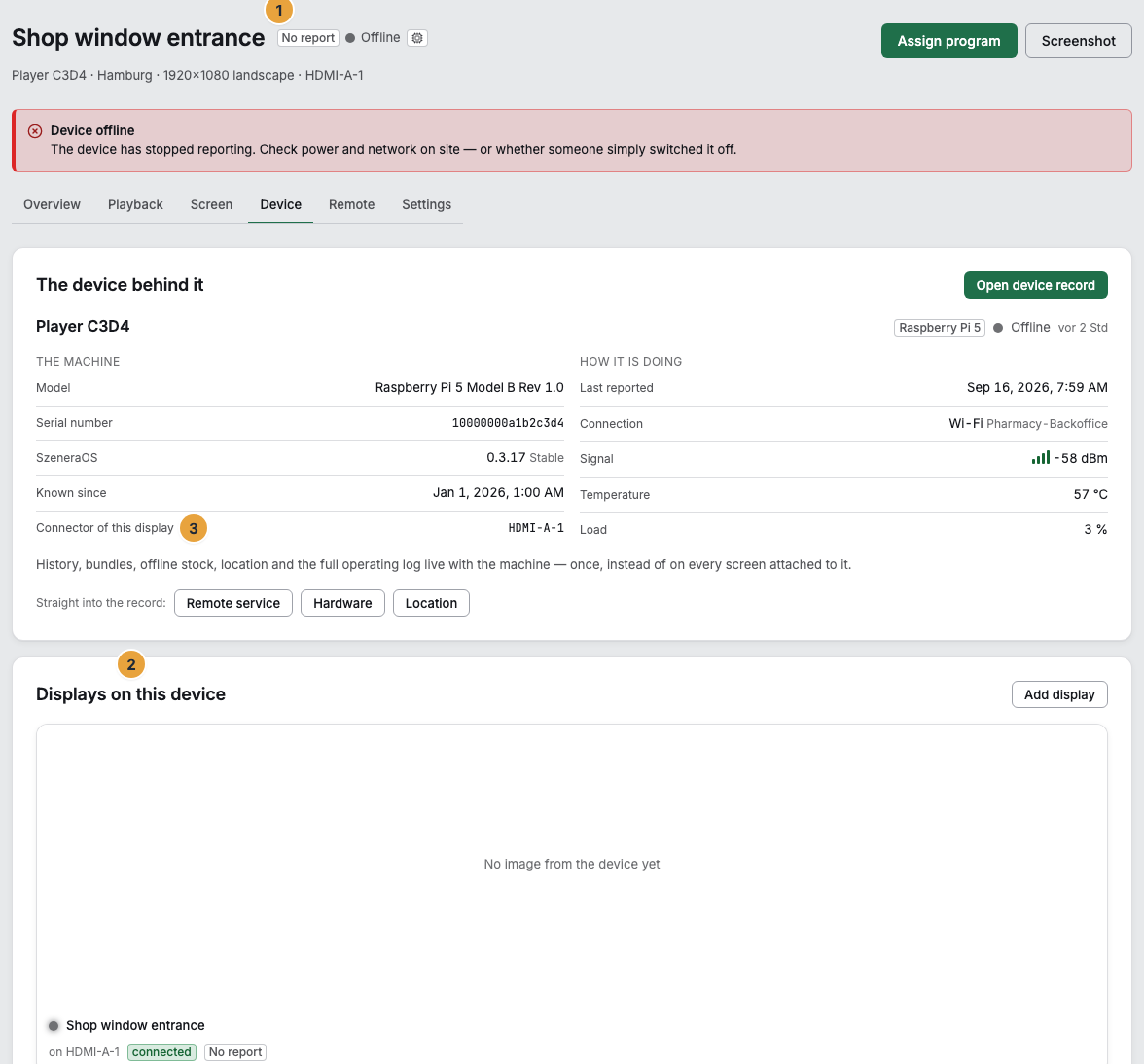
| Device | The machine behind it that produces the picture. A device can drive more than one display. Each of these displays then has its own name, its own program, and its own orientation. Found under Devices. |
| Player | The playback device as a product. Player Lite drives one display, Player Pro two. The Player Lite is available, the Player Pro is announced. Both run SzeneraOS, the operating system that needs no keyboard or mouse. |
| Web display | A panel without its own playback device and without an app from us. A computer, tablet, or TV opens the display address in its browser for this. It has display software, but neither remote maintenance nor SzeneraOS. In the portal, a web display is a display like any other. |
| Host app | Our app on a Fire TV stick or another Android device, such as the Fire TV app. It starts the display software itself, without anyone typing an address, and can do more than a browser, for example take a screenshot. Remote maintenance and SzeneraOS are not available on it either. |
| Video wall | Several displays that together show one surface, such as a wall of four displays. The Video walls entry appears only once video walls are enabled. Each video wall is booked individually. |
What runs on a device
The device record lists four parts of the software separately, because not every device has all four.
| Term | Meaning |
|---|---|
| Display software | The software that draws your scenes, playlists, and media on the display. Every device has it. A player brings it along with SzeneraOS. A host app and a web display load it from the cloud at every start. |
| Host | What starts the display software and passes on to it what the device can do. On a player, this is the Kiosk session of SzeneraOS, and on a Fire TV or Android device, the host app. A web display has no host unless a Display extension is set up there. With it, the extension is its host and adds the screenshot, but that does not make it a host app. |
| Remote maintenance | The software that looks after a player remotely: restart, update, fetch logs, take a screenshot. It exists only on a player with SzeneraOS. In the Remote service tab of the device record, it carries out the actions on a player, while on a host app the app itself does. |
| SzeneraOS | The operating system on Player Lite and Player Pro. It updates itself and returns to the old state after a failed update. The device record states its version and its channel, such as Stable. |
What appears on the display
| Term | Meaning |
|---|---|
| Media item | An uploaded file: an image, a video, or a PDF file. Found under Media. |
| Scene | A designed piece of display content, built from widgets. Found under Scenes. |
| Widget | A building block in a scene: text, image, clock, weather, price board, and much more. Apps bring their own widgets. |
| App | An extension from the store under Apps. It provides widgets, data, or whole areas for specialist tasks. |
| Template | A ready-designed scene to adopt. You create your own scene from it and change it freely. |
| Draft | The working state of a scene. It is visible in the editor but not yet on any display. The portal shows it as the status Draft. |
| Published version | The state that actually runs. Only Publish turns a draft into the version that goes to the displays. Its status is Published. |
| Playlist | An ordered sequence of scenes and media, each element with its display duration. Found under Playlists. |
| Placeholder screen | The picture a display shows as long as nothing is assigned to it: your organization’s brand, not an error. |
When something runs
| Term | Meaning |
|---|---|
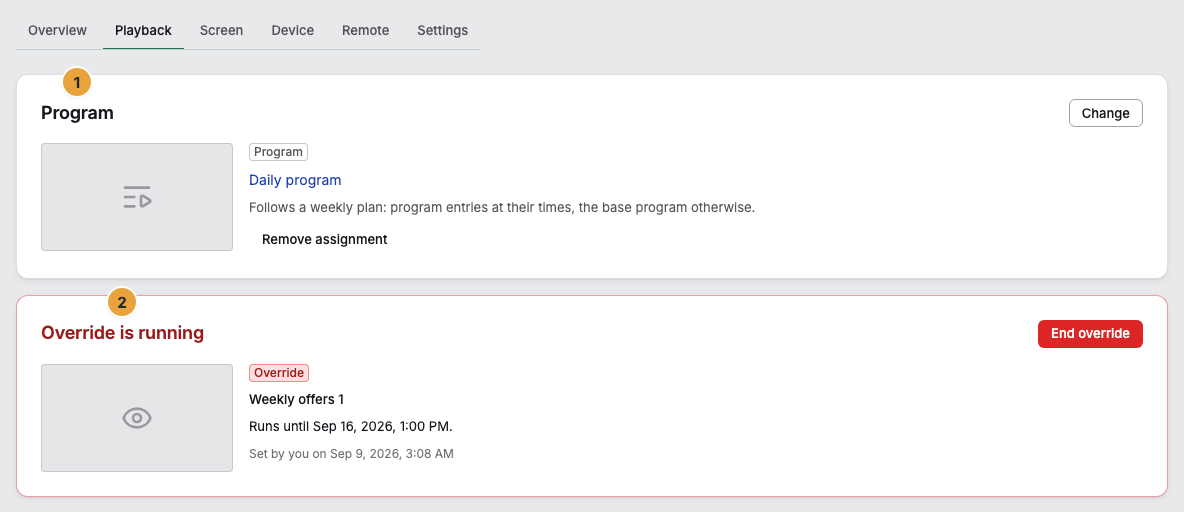
| Program | The plan for what runs when. Found under Programs. A display is assigned exactly one. |
| Base program | The content of a program for the normal case. It runs whenever no program entry applies. Every program has one. |
| Program entry | A piece of content at a specific time within a program, such as the lunch special from 11 a.m. to 2 p.m. |
| Override | Content that is placed over the assigned program for a limited time. You start it on the display with Show something else now. While one is running, the same card is called Override is running, and End override lifts it. |
| Off air | A planned blank display. Not a fault but a decision: The display stays dark on purpose. |
| Assignment | The decision about which content runs on a specific display. It lives on the display, not in the program, and carries either a program, a scene, a playlist, or a media item. |
Organization, permissions, and billing
| Term | Meaning |
|---|---|
| Organization | Your business or group of businesses. Everything you see in the portal belongs to it: locations, devices, content, and staff. An account can belong to several organizations. |
| Role | A named bundle of permissions. An account carries at most one. Without a role, access remains, and only the direct permissions apply. The three built-in roles are Owner, Manager, and Member. |
| Direct permission | A single permission that an account is granted or denied in addition to its role. The portal lists them under Direct permissions (grants). |
| Booked seat | A display that your contract covers. Each display occupies exactly one, including the second display on the same device. |
| Document | The invoice or credit note for a payment. Found under Billing. |
| Proof of play | A generated file from Analytics that shows by motif, display, and hour what ran. Intended for anyone who has to show a third party how often their content ran. |
Related
Found what you needed? Then carry on in the portal — or set up an organization first.
Go to the portalTry it free