After your first display
What comes next: invite a team, more displays, programs with times, apps, brand, payment method, analytics, with the path and the page for each task.
3 minute readGetting startedUpdated: 10/25/2026
Before you start
- For
- everyone who has put their first content on a display and is completing the setup
- Prerequisite
- a paired display with an assigned program, and the matching permission for each task
- Where in the portal
- Dashboard
Your first display is running. What comes next is laid out here as a signpost: for each task, the place in the portal and the page that describes it.
The first table follows the Finish setup card on the dashboard, in its order. The second table collects what comes after. Pick the row that matches your next task. The explanation is on the linked page in each case.
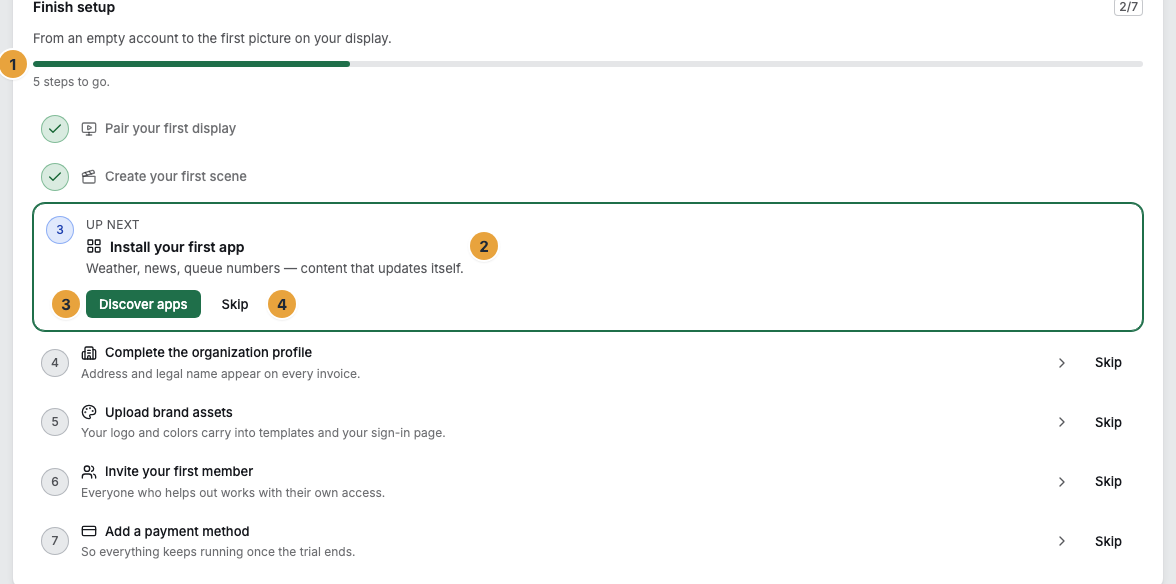
The seven steps of the “Finish setup” card
| Task | Where in the portal | Page |
|---|---|---|
| Complete the organization profile — Address and legal name appear on every invoice. | Settings › Organization › Company details | Master data of the organization |
| Upload brand assets — Your logo and colors carry into templates and your sign-in page. | Settings › Organization › Brand | Brand: logo, favicon, and colors |
| Invite your first member — Everyone who helps out works with their own access. | Team | Invite members and decide on join requests |
| Add a payment method — So everything keeps running once the trial ends. | Billing › Payment | Add a payment method |
| Install your first app — Content that updates itself. | Apps | Install or book an app |
| Create your first scene — The scene is what appears on the display. | Scenes | Create a scene: blank or from a template |
| Pair your first display — Without a paired display your program has no surface. | Displays › Pair display | Pair a display |
The card shows only steps you may do yourself, and you can skip each one with Skip. When all are done or skipped, the card disappears on its own.
What comes after
| Task | Where in the portal | Page |
|---|---|---|
| Create a program and choose a base program | Programs | Create a program and choose the base program |
| Place content in front of it at fixed times (program entries) | Programs | Create, edit, pause, or delete a program entry |
| Leave the display blank at scheduled times | Programs | Schedule time off air |
| Pair another display | Displays › Pair display | Pair a display |
| Run a second display on the same device | Displays › Pair display | Add a second display to the same device |
| Combine several displays into a video wall | Video walls | Create a video wall, assign content, and dissolve it |
| Book a video wall and enable the Video walls area | Apps › Discover apps › Video wall | Video wall |
| See what has run | Analytics | Read analytics: tabs, time ranges, and terms |
| Decide what you are notified about, and how | Settings › My account › Notifications | Notifications: inbox and delivery channels |
| Look up who changed what | Change log | Read and export the change log |
Related
Found what you needed? Then carry on in the portal — or set up an organization first.
Go to the portalTry it free