Read analytics: tabs, time ranges, and terms
All seven tabs, the period, what each package commits to, and every term of the cards and the analysis.
9 minute readAnalyticsUpdated: 10/25/2026
On this page
Before you start
- For
- Everyone who wants to make sense of a number or a label in Analytics.
- Prerequisite
- The permission Run ad hoc queries, held by Owner and Manager by default.
- Where in the portal
- Analytics
All seven tabs, the period, the marks of the number classes, and every term that appears in cards and in the analysis: Look for the term you see in the portal and read next to it what it counts.
The seven tabs
| Tab | Answers |
|---|---|
| Overview | Was everything visible that should have been visible? Availability against the planned time, where the lost time went, anomalies, ad campaigns, and every planned hour. |
| Displays | With no display chosen, every planned hour of all displays as a grid. With a display chosen, its day: plan, panel, capture, what was shown, plays, and screenshots on one axis. |
| Content | When, where, and for how long a scene, a playlist, or a media item ran. |
| Ad campaigns | What an ad campaign delivered. The tab appears as soon as your organization has ad campaigns or takes part in the ad network, and it shows the number of running ones. |
| Proofs | The directory of the signed closings, addenda, and interim statements, plus the links for advertisers. |
| Devices | The machine values of the devices: load, memory, last report. |
| Explore | Your own questions about all numbers, built as a sentence, saved, and delivered regularly on request. |
Above the tabs are Times in … with the time zone of your organization and … package · … days of history. Switching tabs keeps the period and the locations.
The period
On the right in the header are 7 days and 30 days as shortcuts and, next to them, Choose a period for a calendar. What is stored is always a fixed date: A link you pass on shows the same days tomorrow. The period ends today at the latest, and analytics opens with the last seven days.
| Label | Meaning |
|---|---|
| Longer periods from the … package | The period reaches back further than your package commits to. It carries a lock and cannot be chosen. |
| “Your package reaches back … days. The period has been shortened to that.” | You asked for more than your package commits to. Analytics shortens it and says so, never silently. |
| “Your package has no history. The last 7 days are shown as a preview.” | Your package includes no history. The overview, grids, and rankings still show the last seven days. |
| All locations | The selection of locations. Without a selection, the whole organization applies. The button appears once there are two or more locations. |
How far back each package looks
| Package | Analytics history | Screenshots | Direct business and proofs |
|---|---|---|---|
| Starter | no history, the last seven days as a preview | 1 day | no |
| Pro | 7 days | 7 days | no |
| Premium | 30 days | 30 days | yes |
| Enterprise | 90 days | 90 days | yes |
Without history, the day of a display and the profile of a content item carry the lock History from the Pro package with the sentence “With history you see every day of your displays, every play and every screenshot of the past weeks.” and the path Compare packages. The Proofs tab carries the lock Proofs from the Premium package as long as your organization has neither direct business in its package nor takes part in the ad network, and no proof exists yet. An issued proof stays readable, even after a switch to a smaller package. Devices is available in every package.
Measured, derived, estimated
Every figure carries its mark: a filled circle with M for measured, a ring with D for derived, a dashed ring with E for estimated, and estimated numbers appear with ≈. What the three classes mean is explained under What does analytics measure, and what does it not?.
If a dash stands in place of a number, there is no measurement. A zero would claim that something was measured and nothing ran. A gap is always hatched and never zero: Why is a gap not a zero?
The figures
The same terms apply in the cards, in the analysis, and in the proof.
| Figure | Class | What it counts |
|---|---|---|
| Planned time | D | Time in which a display should show content according to opening hours and program, without off-air time. |
| Visible time | M | Time within the planned time in which the panel was on and the display software was in the foreground. |
| Availability | D | Visible time divided by planned time, as a ratio of the sums. As long as gaps are open, it appears as a range. |
| Reporting gap | M | Planned time without any report from the device, in hours. A gap never counts as zero. |
| Reported late | M | Planned hours whose report arrived more than 15 minutes after the hour ended. |
| Playback errors | M | Plays that could not be shown or did not show the approved creative. |
| Plays | M | Number of all plays, valid or not. |
| Valid plays | M | Plays that meet the validity rule in its stated version. |
| Airtime | M | Sum of the duration of valid plays. |
| Planned plays | D | Frozen planned volume of the bookings, as it stood at the start of each hour. |
| Fulfillment | D | Valid delivery in the unit of the commitment divided by the commitment. |
| Pacing | D | Fulfillment divided by the share of the commitment that was due by today. Per booking only. |
| Failure rate | D | Invalid plays divided by all checked plays, optionally per reason. |
| Share of display | D | Airtime divided by the visible time of the same displays. |
| Reached locations | M | Locations with at least one valid play, counted distinctly and never summed. |
| Contacts | E | Modeled opportunities to see a valid play, based on visitors, dwell time, and placement. |
| Contact value | E | Contacts divided by 1,000 times the cost per thousand contacts of the inventory class. |
| Audience data quality | D | Share of contacts from the grades A, B, and C. |
| Utilization | D | Booked divided by available network slots of the ad breaks. |
Two rules keep the numbers honest: Rates are calculated as a ratio of the sums, never as an average of rates, and reached locations are counted distinctly, never added up across days.
Terms around delivery
| Term | Meaning |
|---|---|
| Play | One piece of content, once, on one display, from start to finish. |
| Commitment | The booked quantity of a booking: plays, airtime, or contacts. |
| Target | The planned plays of a booking per display and hour, frozen at the start of the hour. A later change to the program does not change the target of past hours. |
| on track, slightly behind, behind | The pacing of an ad campaign: Is it delivering as much as was due by today? |
| Closing | The unchangeable state of a month of a booking after the late reporting window. |
| Addendum | Reports that arrived after a closing, as a proof of their own. |
| Interim | A proof of a running period up to yesterday, on request. |
| Proof | The signed document about a closing, addendum, or interim, with a sequential number. |
| Screenshot | An image of the output of the display software at one point in time. |
| Filler | What a slot in the ad break shows when no booking occupies it. |
| without panel confirmation | Plays of a display whose TV does not report its state. They count and are marked. |
What the Overview shows
| Card | Content |
|---|---|
| Availability | The share of the planned time that was visible, with “… of … h, … displays at … locations” and the comparison with the previous week or the period before in points. |
| Completeness of measurement | How many planned hours are reported, split into on time, reported late, and not reported. |
| Where the planned time went | Planned time, visible time, and what was not visible, split into Panel on standby, Not reported, and Not in the foreground, each with the display that contributed the most. If a gap is still open, Not reported names the longest one. |
| What ran in the visible time | The airtime by Own content, Filler in the ad break, Network bookings, and Direct business. |
| Anomalies of the week | Detected events sorted by impact, open ones first, with the recommended action, for example Check display, Check timer, or Replace file. Resolved ones are at the bottom. |
| Ad campaigns | Fulfillment and expected level today per ad campaign, with the credit so far for the ad network. |
| Every planned hour of the week | The grid per display and hour with a legend. A click on a row opens the day of the display. |
| Own content | Your content by airtime outside the ad breaks, with the way into the Content tab. |
If a period other than one week is chosen, the cards are called Anomalies in the period and Every planned hour in the period.
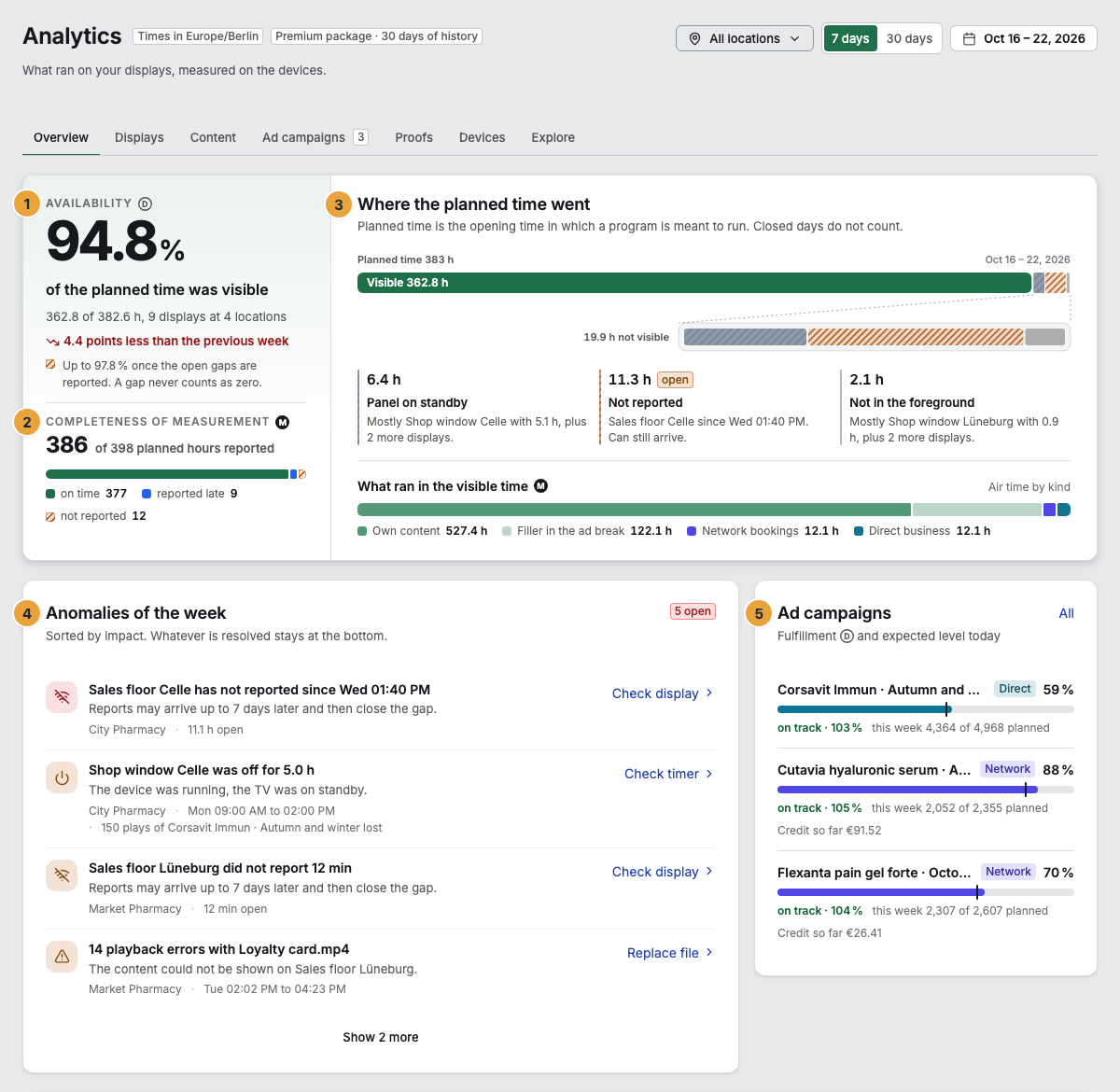
1 Availability with range · 2 Completeness of measurement · 3 Where the planned time went · 4 Anomalies of the week · 5 Ad campaigns
The Displays tab with no display chosen
With no display chosen, the tab shows every planned hour of all displays as a grid. The switch above it chooses what a cell shows: Visible (the share of the planned hour that was visible), Plays, or Valid ads. Open day leads into the day of a display: Check a display’s day.
On the phone
Below a width of about 1,000 pixels, the page changes shape instead of being squeezed. The tab bar scrolls horizontally, and the chosen tab moves into view. Wide views such as grids and tracks scroll inside their frame, never the whole page.
Empty states and locks
| Message | Meaning |
|---|---|
| No display paired yet | Without a display, there is nothing to measure. Pair a display leads to pairing. |
| Nothing to measure on this day | No planned time was scheduled for this day, and the display reported nothing. |
| None of this content ran in this period | In the Content tab, nothing of the chosen type ran in the period. |
| Analytics could not be loaded. | The connection to the server is disrupted right now. Try again asks once more. |
| History from the … package | The view needs a package with history. |
| Proofs are not enabled for your role | Your account lacks the permission View proofs. |
Related
Found what you needed? Then carry on in the portal — or set up an organization first.
Go to the portalTry it free